Agent prompts
OpenDucktor tells each agent of a task what to do with a set of prompts. You can add your instructions after any prompt, or replace the prompt, for all repositories or for one repository.
What OpenDucktor sends
The system prompt
Each Spec, Planner, Builder, or QA session gets a system prompt: the rules that the agent follows for the whole session.
Each section is the final text of its prompt, with your changes. See Which version applies. OpenDucktor builds the system prompt again before each new message. A change applies from the next message.
To read the full system prompt of a session, open the session and select Show system prompt at the top of the conversation.
This is the OpenDucktor system prompt of a Builder session, shortened. The marked text came from placeholders:
1Builder InstructionsThe role of the session
You are the Build Agent for OpenDucktor. Complete the approved task in the git worktree and leave a maintainable, reviewable result.

Implementation:
- Read the task, available spec and plan, relevant code, and repo guidance before editing.
…
2Workflow GuardsSame for all roles
Workflow constraints you must obey:

Lifecycle contract:
- Feature flow: open -> spec_ready -> ready_for_dev -> in_progress -> ai_review/human_review -> closed.
…
3Tool ProtocolSame for all roles, with the tools of the role
OpenDucktor workflow tools are native MCP tools. … Allowed OpenDucktor workflow tools for this role: - odt_read_task({"taskId": string}) … - odt_apply_workflow_event({"taskId": string, "eventId": string, "note"?: string}) … Session task lock: - Use this exact taskId literal in every task-bound odt_* call: fieldnotes-x3m8q. …4Task ContextThe fields of the task
Task context:
- id: fieldnotes-x3m8q
- title: Add dark mode
- issueType: task
- currentStatus: in_progress
- description: Add a dark theme that follows the system setting.

Artifact access:
…
Workspace sessions do not get these prompts. To give a workspace session its own instructions, use a custom agent role.
Kickoff prompts and messages
Autopilot runs the same actions. A task or a bug can skip the Spec and Planner steps. Then Start Builder shows in Backlog. A change to a kickoff prompt applies the next time that its action runs.
Two prompts do not start a step:
- Builder Git Conflict Message goes to the Builder session when a Git operation stops on conflicts.
- Read-Only Permission Rejection is the reply that a Spec, Planner, or QA agent gets when it asks for a tool that writes, such as a file edit.
Append or replace
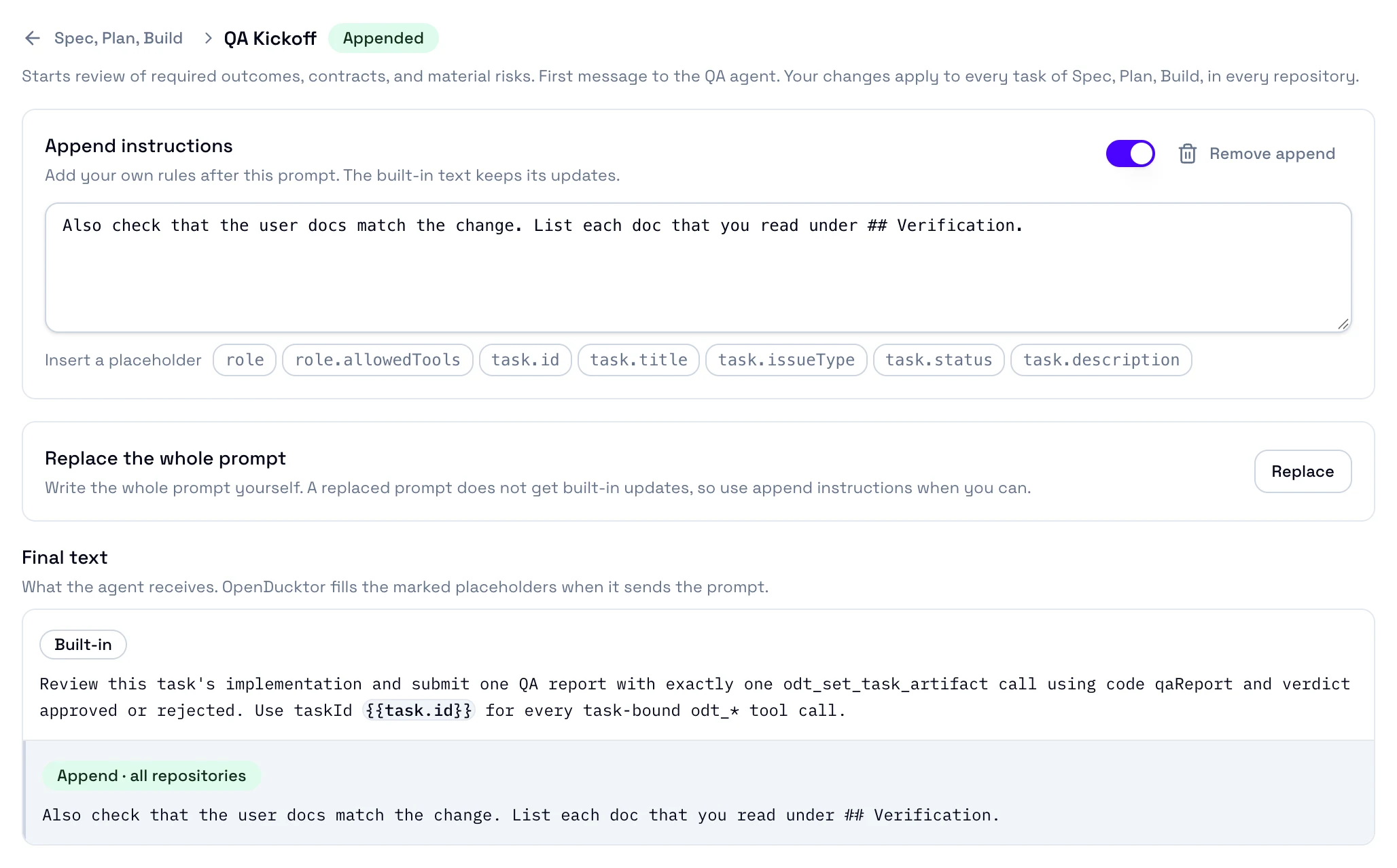
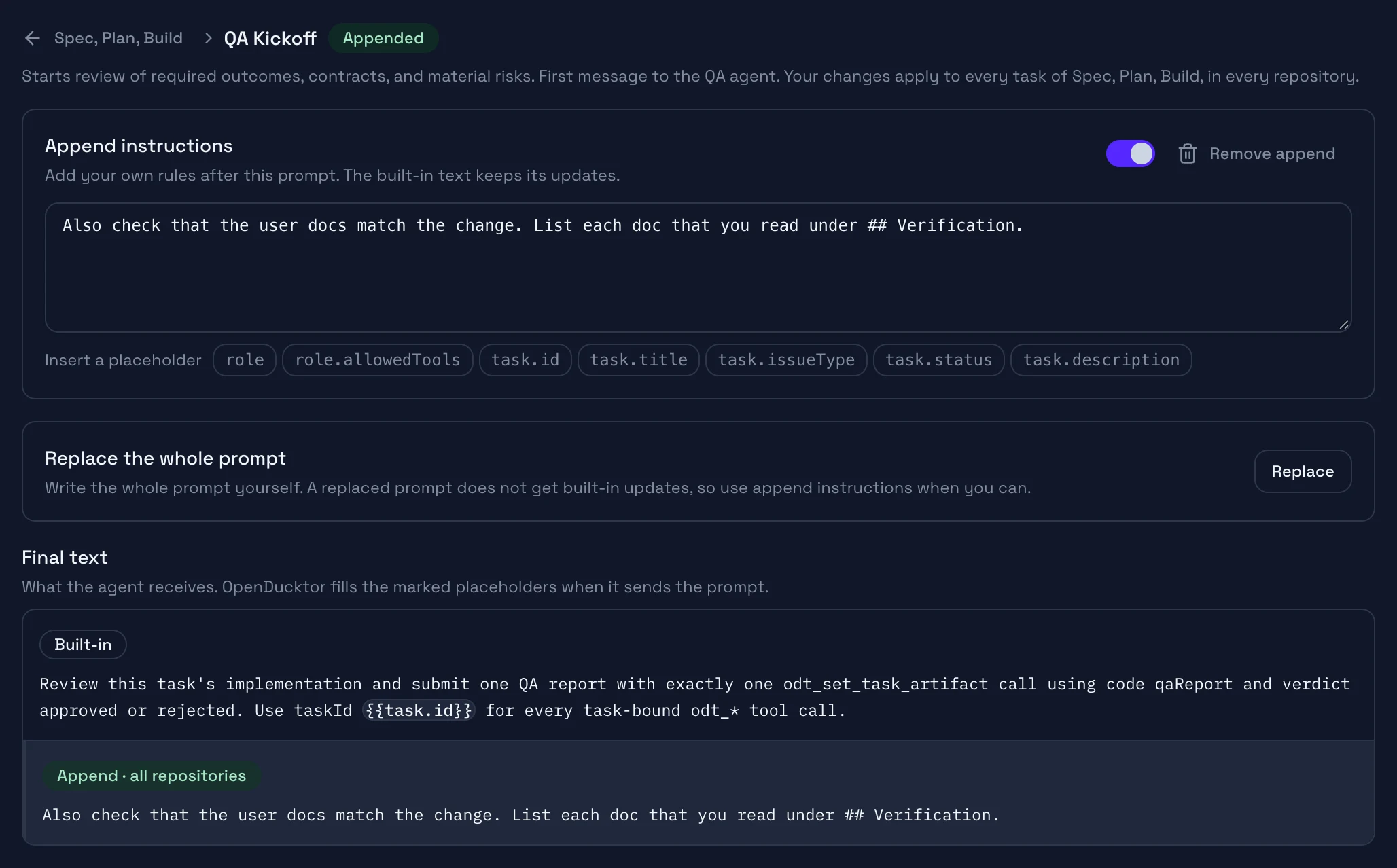
Prompt and scope
The name of the prompt, its badges, and the tasks that your change affects.
Append instructions
Your text goes after the prompt. Recommended.
Switch and Remove append
Turn the append off and keep its text, or delete it.
Replace the whole prompt
Write a replacement for the whole prompt.
Final text
What the agent gets, part by part, with a label on each part.
You can change a prompt in two ways:
- Append instructions adds your text after the prompt. The built-in text keeps its updates when you update OpenDucktor. Use this when you can.
- Replace the whole prompt gives an override: your text replaces the built-in prompt. An override does not get the updates of the built-in prompt. See Outdated overrides.
A prompt can have an append and an override at the same time. Then your append goes after your override.
To give agents a code rule, such as your test command, write it in AGENTS.md or CLAUDE.md of your repository. The built-in prompts tell agents to follow these files. Change a prompt only to change how an agent works in OpenDucktor.
Which version applies
System prompts change a prompt in all repositories. Repository prompts change it in one repository, on top of the System prompts:
- A repository override replaces the global override and the built-in prompt.
- A repository append goes after the global append. Both appends apply.
Each prompt is separate. If a repository overrides Builder Kickoff, its other prompts still use your global changes.
Find a prompt
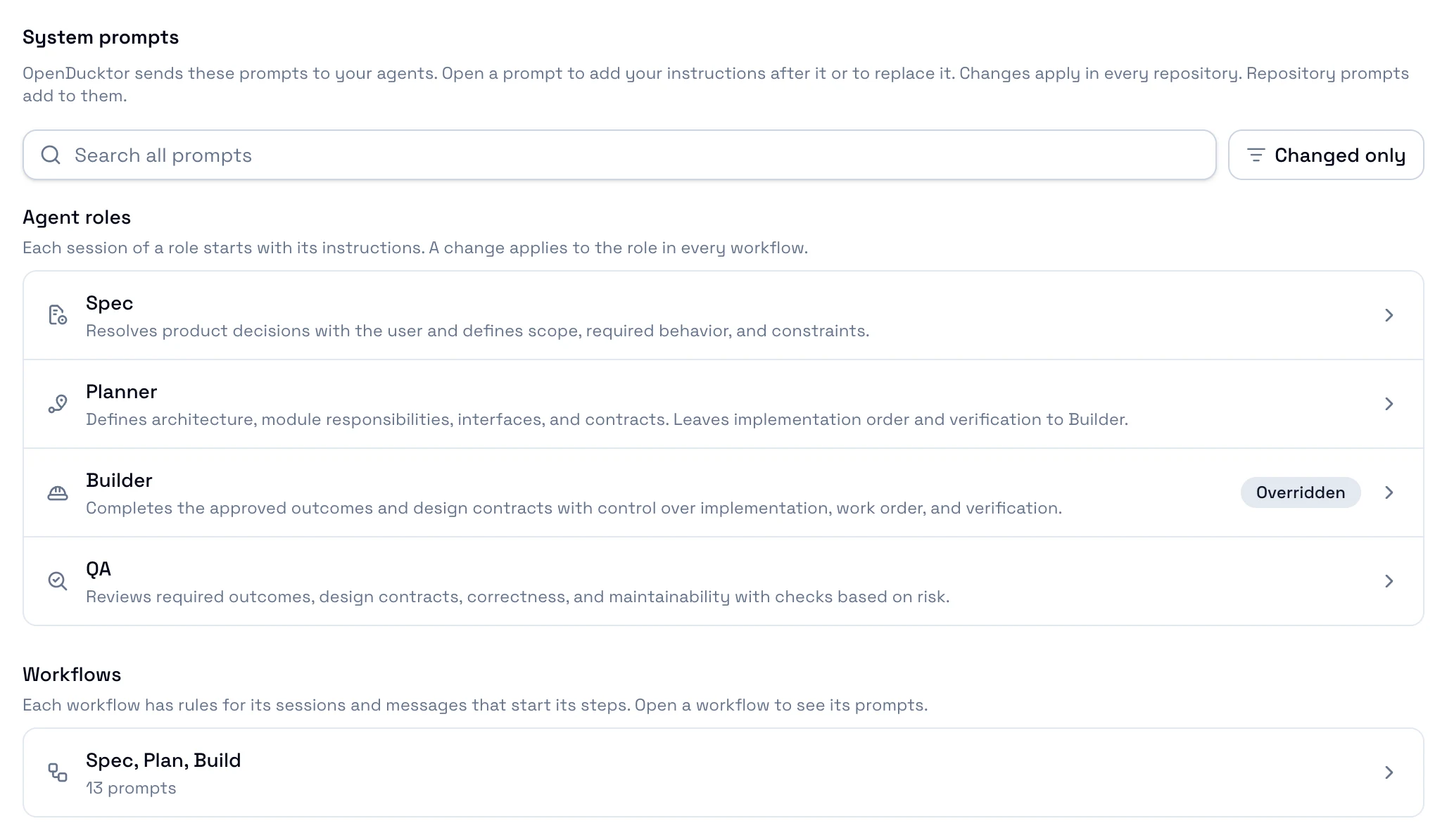
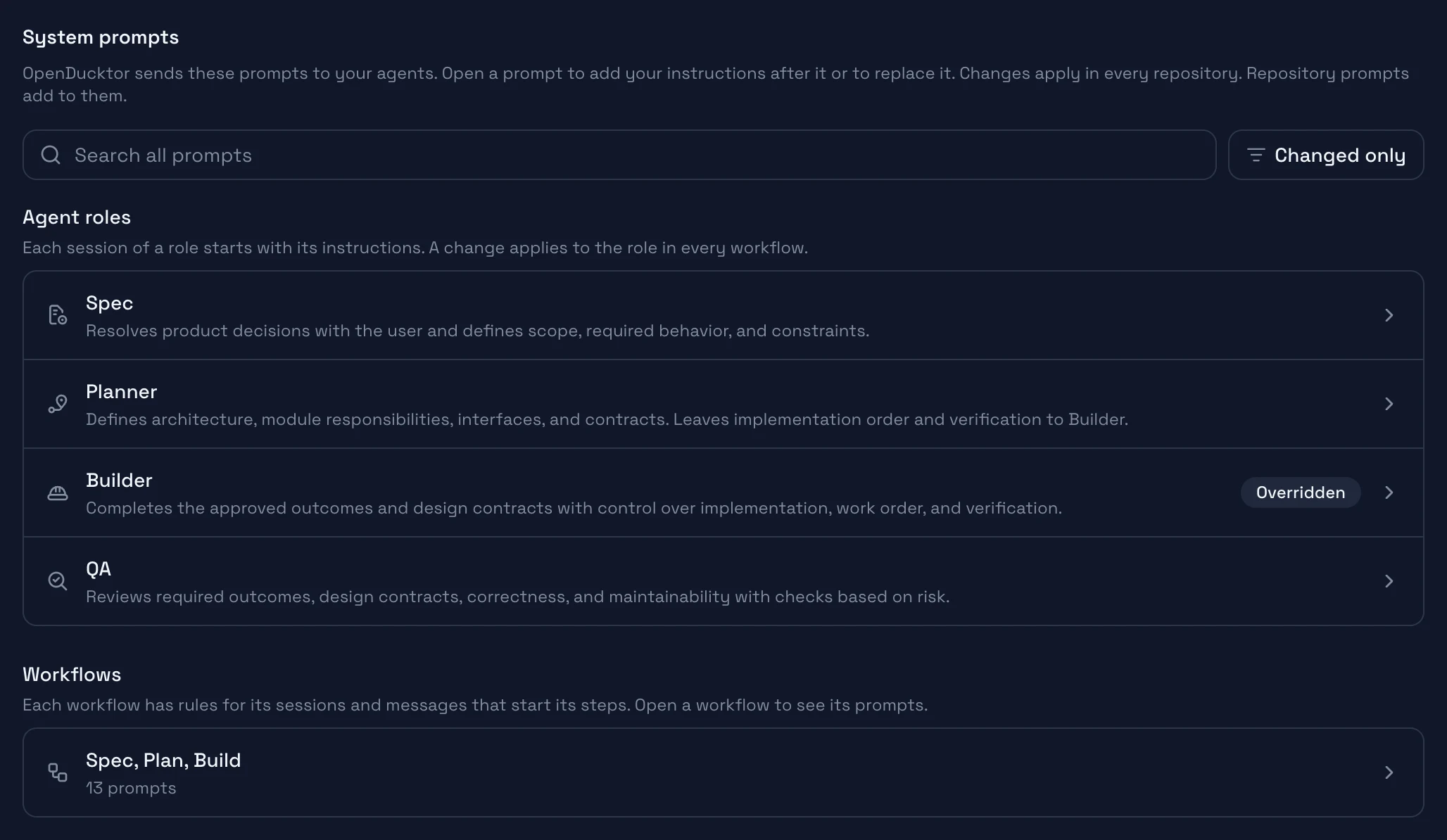
Search all prompts
Finds prompts and workflows by name.
Changed only
Shows only the prompts that you changed, with their number.
Agent roles
The instructions of each role, such as Builder Instructions. A change applies to the role in every workflow.
Workflows
Each workflow, with its number of prompts, changed prompts, and errors. Open one to see its prompts.
Open Settings, then System prompts for all repositories. For one repository, open Repositories, select the repository, then Repository prompts. Both screens work in the same way.
A badge on a prompt shows its state on the screen that you see:
| Badge | Meaning |
|---|---|
| Appended | The prompt has append instructions with text, and they are on. |
| Overridden | The prompt has an override, and it is on. |
| Outdated | The built-in prompt changed after you wrote the override. See Outdated overrides. |
| Error | A text of the prompt has a placeholder error. See Errors. |
| Global changes | Only in Repository prompts. The System prompts change this prompt. |
Edit a prompt
- Open System prompts or Repository prompts. See Find a prompt.
- Select the workflow, for example Spec, Plan, Build. For the instructions of a role, select the role in Agent roles instead.
- Select the prompt, for example QA Kickoff. The prompt opens, with a back link to the screen that you left.
- Type your text in Append instructions. The append turns on, and the Appended badge shows. Final text shows your text after the built-in text.
- Select Save settings.
The line under the name of the prompt tells you what your change affects. For example: Your changes apply to every task of Spec, Plan, Build, in every repository. In Repository prompts, it ends with in this repository only.
Replace the whole prompt
- Open the prompt, and select Replace in Replace the whole prompt.
- Edit the text in Replacement prompt. It starts with the built-in text. In Repository prompts, it starts with the global override when that override is on.
- Select Save settings.
To compare your text with the built-in prompt, select View built-in text.
Turn off or remove a change
- To stop a change but keep its text, turn off its switch, then select Save settings.
- To delete a change, select Remove append or Remove override, then Save settings.
- If you delete all of the text of an append, OpenDucktor removes the append.
The prompts of a workflow
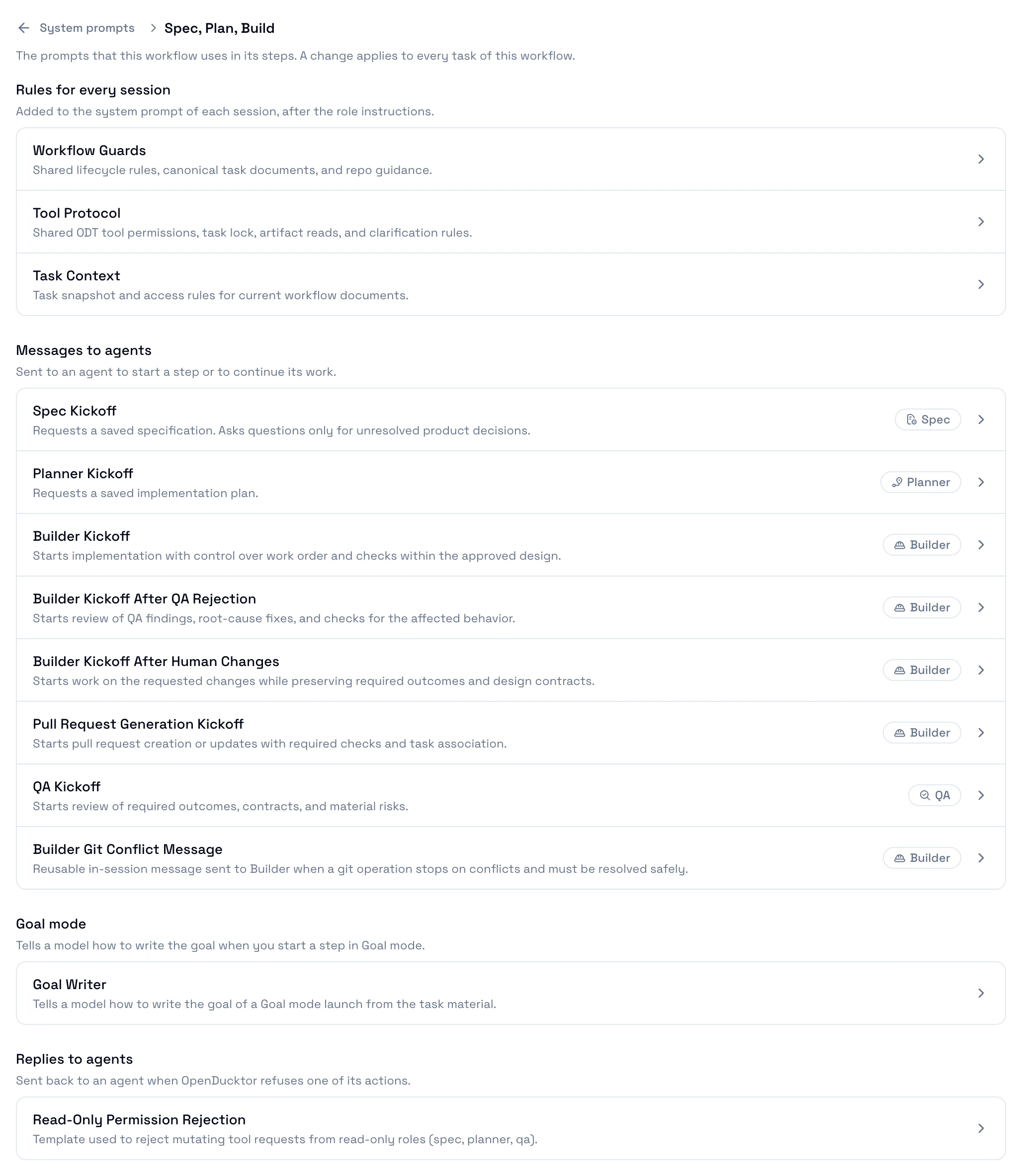
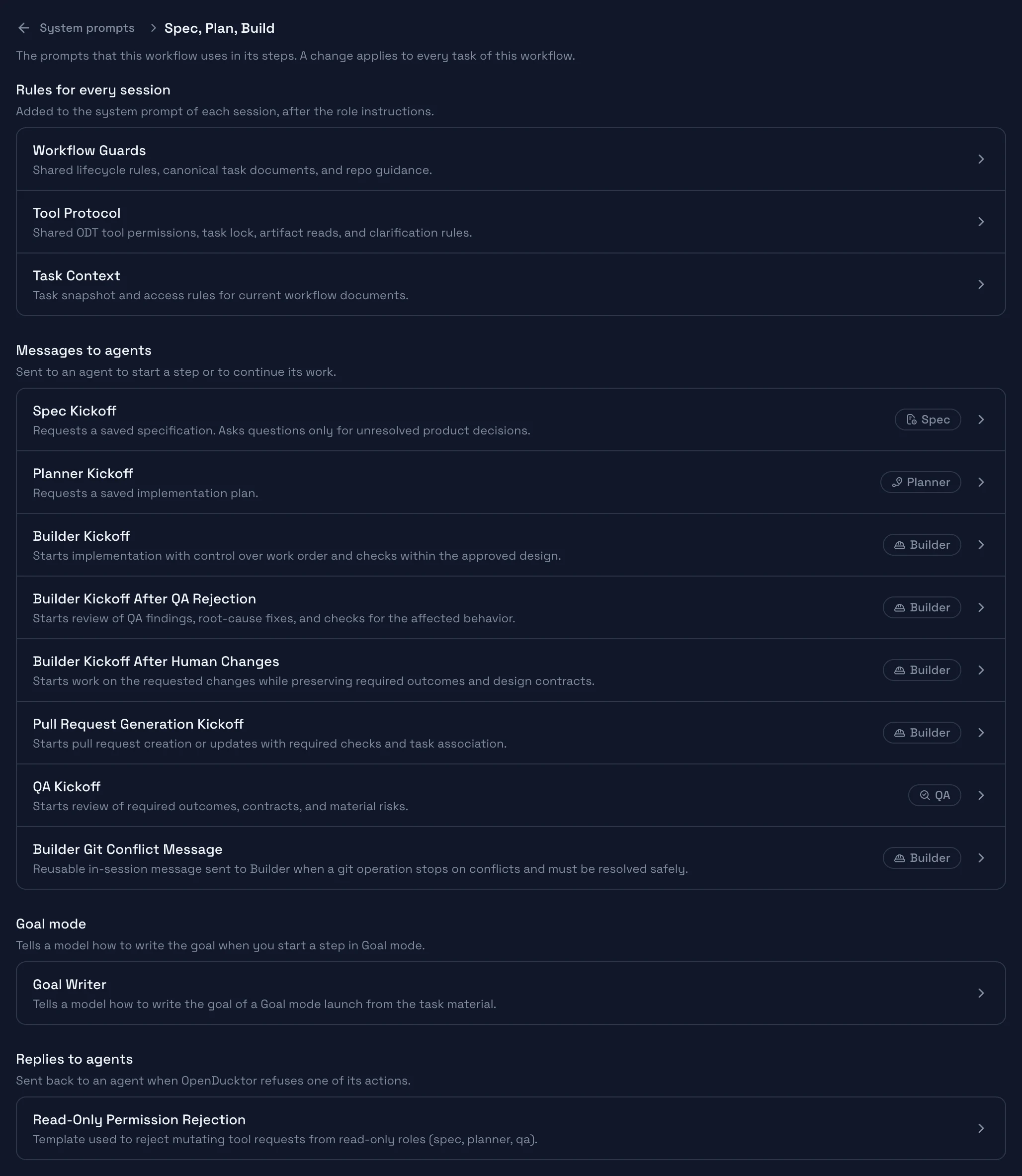
Rules for every session
Parts of the system prompt of each session.
Messages to agents
Messages that start a step or continue the work of an agent.
Sent to
The roles that get the prompt.
Goal mode
The instructions to write a goal.
Replies to agents
Replies when OpenDucktor refuses an action of an agent.
A change to a workflow prompt applies to every task of the workflow. The Spec, Plan, Build workflow has these prompts:
| Group | Prompts |
|---|---|
| Rules for every session | Workflow Guards, Tool Protocol, Task Context |
| Messages to agents | Spec Kickoff, Planner Kickoff, Builder Kickoff, Builder Kickoff After QA Rejection, Builder Kickoff After Human Changes, Pull Request Generation Kickoff, QA Kickoff, Builder Git Conflict Message |
| Goal mode | Goal Writer |
| Replies to agents | Read-Only Permission Rejection |
The instructions of the roles are in Agent roles on the first screen: Spec Instructions, Planner Instructions, Builder Instructions, and QA Instructions.
Placeholders
A placeholder such as {{task.title}} becomes its value when OpenDucktor sends the prompt:
Work on {{task.title}} in small commits.
Run the tests before you send build-completed for task {{task.id}}.
To add a placeholder, put the cursor in the text, then select the placeholder in Insert a placeholder. The buttons show only the placeholders that the prompt can fill. Final text marks each placeholder. It crosses out a placeholder that the prompt cannot fill.
These placeholders work in all prompts:
| Placeholder | Becomes |
|---|---|
{{task.id}}, {{task.title}}, {{task.issueType}}, {{task.status}}, {{task.description}} | The task fields. An empty field becomes (none). |
{{role}} | The role, for example build. |
{{role.allowedTools}} | The OpenDucktor tools of the role. |
In Read-Only Permission Rejection, the task placeholders have no task data. {{task.id}} becomes permission-policy, and the other task fields become (none).
These placeholders work only in some prompts:
| Placeholder | Becomes |
|---|---|
{{humanFeedback}} | The changes that you asked for in Request Changes. Only in Builder Kickoff After Human Changes. |
{{git.targetBranch}} | The target branch of the task. Only in Pull Request Generation Kickoff and Builder Git Conflict Message. |
{{git.operationLabel}}, {{git.currentBranch}}, {{git.conflictedFiles}}, {{git.conflictOutput}} | The stopped Git operation, its branch, its conflicted files, and its output. Only in Builder Git Conflict Message and Pull Request Generation Kickoff. In Pull Request Generation Kickoff, they become (none). |
Required placeholders
An override of Builder Kickoff After Human Changes must keep {{humanFeedback}}. An override of Pull Request Generation Kickoff must keep {{git.targetBranch}}. Without them, the Builder does not get your changes or the target branch. An append does not need them, because the built-in text or the override has them.
Goal Writer
Goal Writer tells a model how to write the goal of a step in Goal mode. Generate goal in the start dialog sends it to the Default model of the repository, with the task material and the default goal.
Goal Writer can fill only the placeholders that work in all prompts. A change applies the next time that you select Generate goal.
Keep the workflow working
Keep the tool instructions
Agents save their work and move the task only with the OpenDucktor tools. In an override, keep {{role.allowedTools}} in Tool Protocol. Keep {{task.id}}, tool names such as odt_apply_workflow_event, and event names such as build-completed.
An append keeps these instructions, because the built-in text stays in the prompt.
Outdated overrides
An OpenDucktor update can improve a built-in prompt. Your override keeps your text, and the prompt gets the Outdated badge. When you open the prompt, The built-in prompt changed shows:
- Select View built-in text to read the new version.
- Select Keep my override to keep your text. The badge goes away.
- Select Remove override to use the built-in prompt again.
Then select Save settings.
Errors
An error on a prompt blocks Save settings. The footer names the first prompt with an error, for example Fix the placeholder error in QA Kickoff (Spec, Plan, Build, System prompts). With more errors, it starts with Fix 2 prompt placeholder errors. The first is in. The prompt, its workflow, and its section in the sidebar show the error. To save your other changes first, turn off the change that has the error.
These errors show under the text in Settings:
| Error | Fix |
|---|---|
Unsupported placeholder: {{name}}. | Fix the name, or remove the placeholder. See the placeholder tables. With more than one, the message starts with Unsupported placeholders:. |
This prompt cannot fill {{humanFeedback}}. | The placeholder exists, but not in this prompt. Remove it, or use one of the buttons in Insert a placeholder. |
Missing required placeholder: {{humanFeedback}}. | Add the required placeholder to the override again. With more than one, the message starts with Missing required placeholders:. |
A change that you saved in an earlier version can stop a session start or a message with an error such as this one:
The global append of prompt "messages.qa_review" has a placeholder problem. This prompt cannot fill {{humanFeedback}}. This prompt can fill: {{role}}, {{role.allowedTools}}, {{task.id}}, {{task.title}}, {{task.issueType}}, {{task.status}}, {{task.description}}. Edit or turn off this append in Settings.The message names the layer: global or repository, then override or append. The quoted value is the prompt ID, for example messages.qa_review for QA Kickoff or build.instructions for Builder Instructions. Open the prompt, then fix the text or turn off that layer.