Tasks and workflows
A task is one piece of work, such as a feature or a bug fix. Its workflow moves it across the lanes of the board. At each step, you or Autopilot start an agent, and at the end you review the work.
OpenDucktor has one built-in workflow, Spec, Plan, Build, and every workspace uses it. This page shows what is the same in every workflow. The workflow page shows each lane, role, and action of Spec, Plan, Build.
Create a task
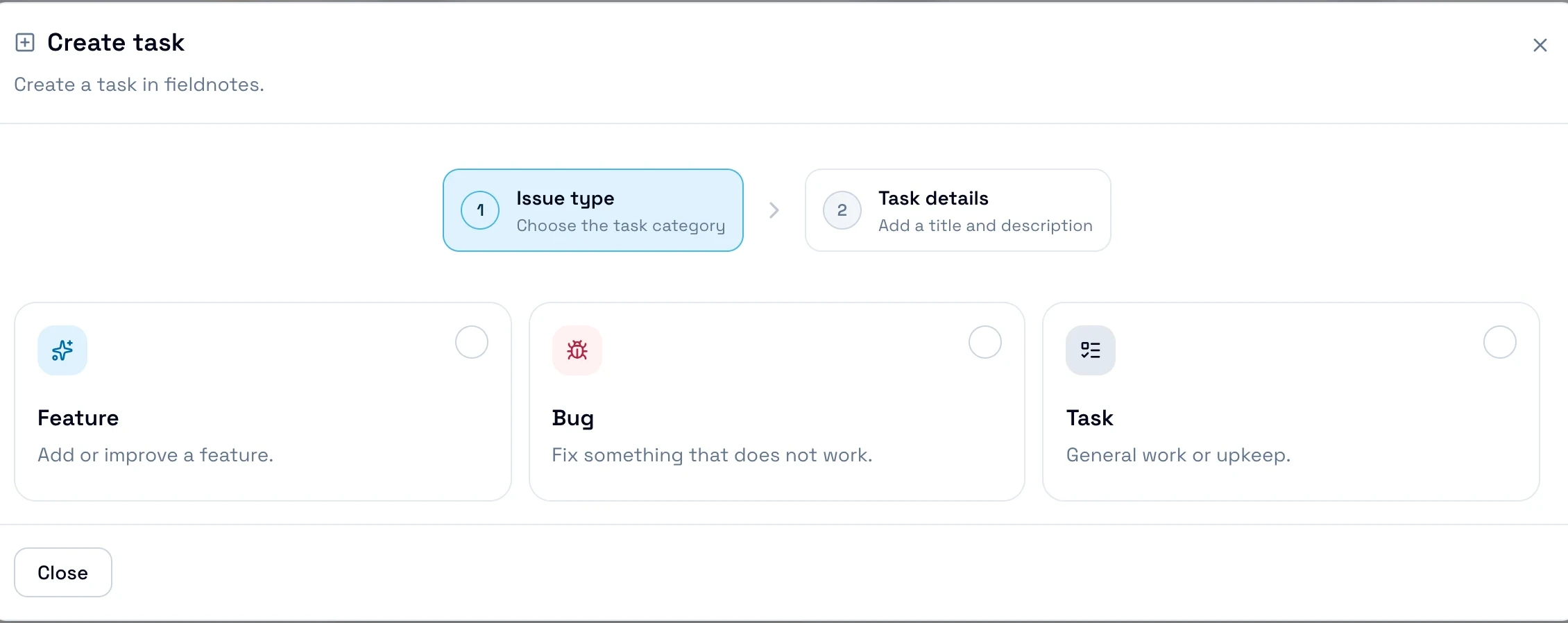
- In the sidebar, select New task.
- Select the issue type: Feature, Bug, or Task.
- Type a Title and a Description. Change the other fields if necessary.
- Select Create task. The task shows in the first lane of the board, for example Backlog.
| Field | What it does |
|---|---|
| Priority | From P0 · Critical to P4 · Very low. New tasks get P2 · Normal. The card shows it, and you can filter the board by it. |
| Description | Tells the agents what to do. It is Markdown, and it can contain images. |
| Labels | Group the tasks. You can search and filter the board by label. |
| Remove worktree on close | Default, Yes, or No. It decides if a merged pull request removes the worktree and the local task branch. See Cleanup. |
To change a field later, open the task details, then select Edit.
Issue types
The issue type tells the workflow which steps the task needs. In Spec, Plan, Build, a feature gets a spec and a plan before the build. The Builder can start a task or a bug immediately. See Issue types of Spec, Plan, Build.
The board
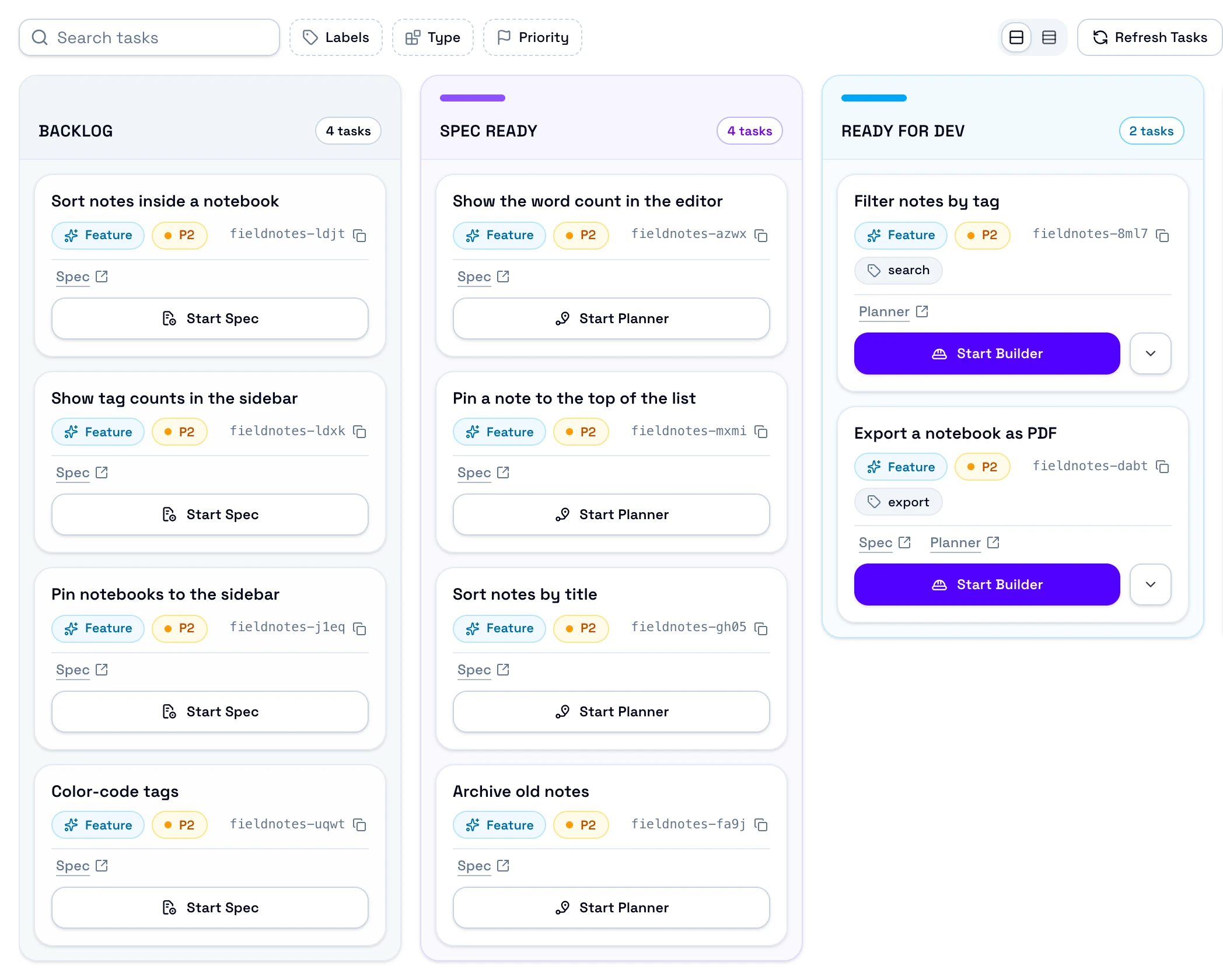
The board has one lane for each state of the workflow. Each card is one task.
Search and filters
Search finds a task by its title, its ID, or a label. Labels, Type, and Priority show only the matching tasks. Cmd+F or Ctrl+F selects the search field.
Card view
Shows Normal cards or Compact cards.
Lane
One state of the workflow, with the number of tasks in it.
Task card
Select the card to open the task details.
Badges
The issue type, the priority, the task ID with a copy button, and the labels.
Session links
Open the session of a role that worked on the task, here the Planner.
Main action
The next step of the task, such as Start Builder.
Other actions
The other actions that the task allows now.
While an agent works on a task, its card has a moving border. The main button then shows the role and Running. When the agent waits for your answer, the button shows Waiting input.
The board shows a task in Done for 1 day. To change this, see Done tasks visible for. To hide or collapse the empty lanes, see Empty columns.
How a task moves
The workflow sets the lanes and the moves between them. An agent moves a task in one of two ways:
- It saves a workflow artifact, such as a spec. See Artifacts.
- It sends a workflow event, such as Build Completed. The transcript shows the event as a card with the note of the agent.
You move a task with an action, such as Approve Task or Close Task. With Autopilot rules on, OpenDucktor starts the next agent when the task moves.
Start an agent
Each agent has a role, such as the Builder. The role sets its tools, its access to the files, and its system prompt.
- On the card, select the main action, for example Start Builder. For another step, open the menu next to it.
- In the dialog, check the model, then select Start session. The session page opens, and the agent starts.
For the Builder, the dialog also offers Goal mode: the agent works until a goal is met.
Some actions can continue or fork the last session of the role, instead of a fresh session. See Session mode in Start a session.
Task details and artifacts
Select a card to open the task details. Artifacts are the files that an agent or you save on a task. You can also open them in the Artifacts tab of a session.
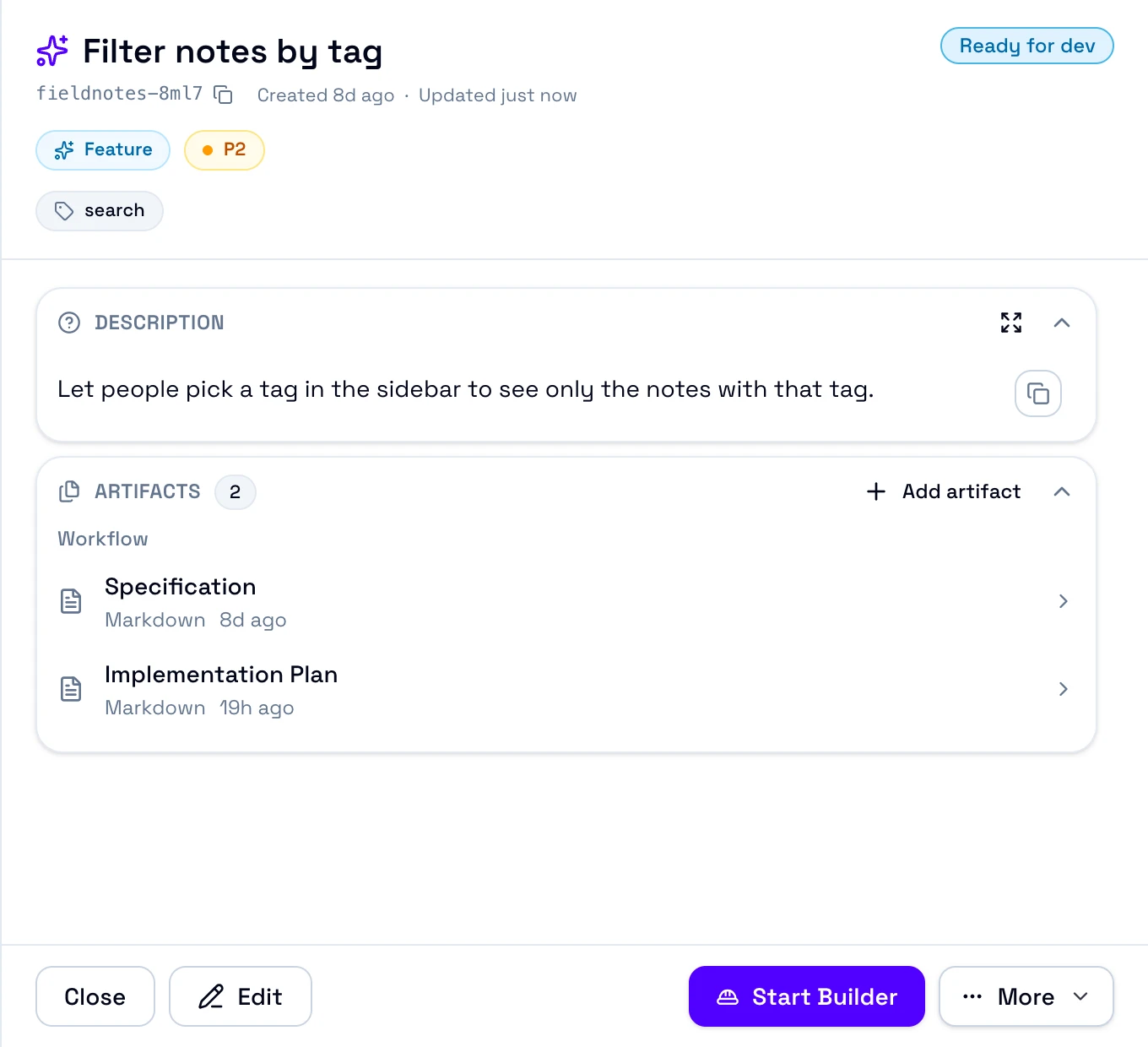
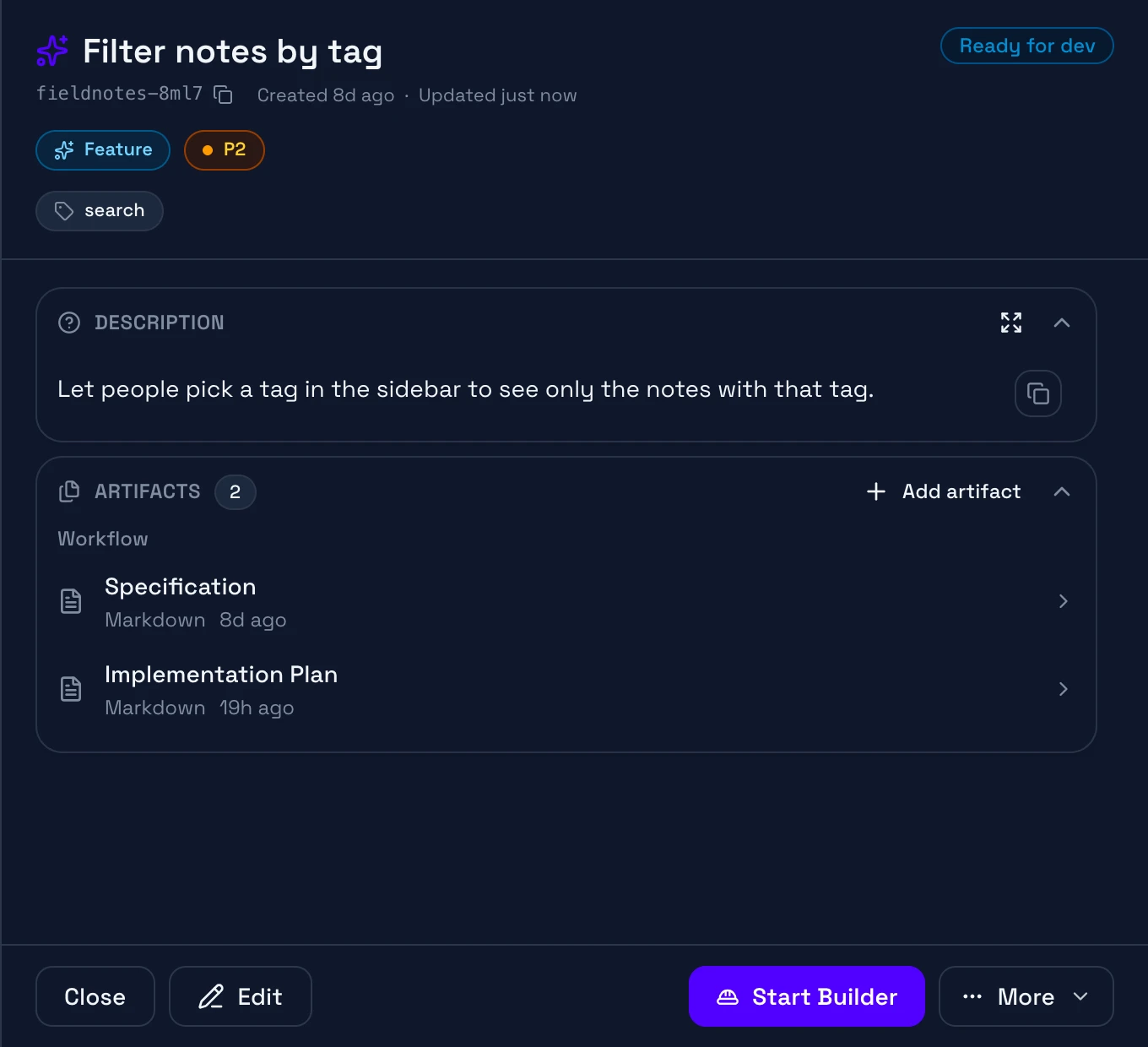
Status
The lane of the task on the board.
Description
What the task must do. Select Edit to change it.
Artifacts
The files of the task. Select one to open it.
Add artifact
Adds a file to the task.
Next step
Starts the next step of the task, here Start Builder.
More
The other actions, such as Reset Task, Close Task, and Delete Task.
| Kind | What it holds | Effect on the task |
|---|---|---|
| Workflow artifact | A Markdown document that the workflow declares, such as a spec. A review artifact also has a verdict. | When an agent saves it, the workflow can move the task. |
| Other artifact | Any file that an agent or you add, such as an HTML page, an image, or a Markdown document, up to 10 MiB. | None. The task keeps its lane and its review verdict. |
Your own edits never move the task. To edit a workflow document, open it in the Artifacts tab and select the pencil button. When a task closes, its other artifacts become read-only. You can still edit its workflow documents.
Approve a task
When the work is done, select Approve Task. You can merge the task branch directly, open a pull request, or close the task. See Approve a task.
The workflow sets the lanes where Approve Task shows, and the role that writes the pull request. In Spec, Plan, Build, this is the Builder.
Reset, close, or delete a task
Every task has these actions. Open the task details, then select More.
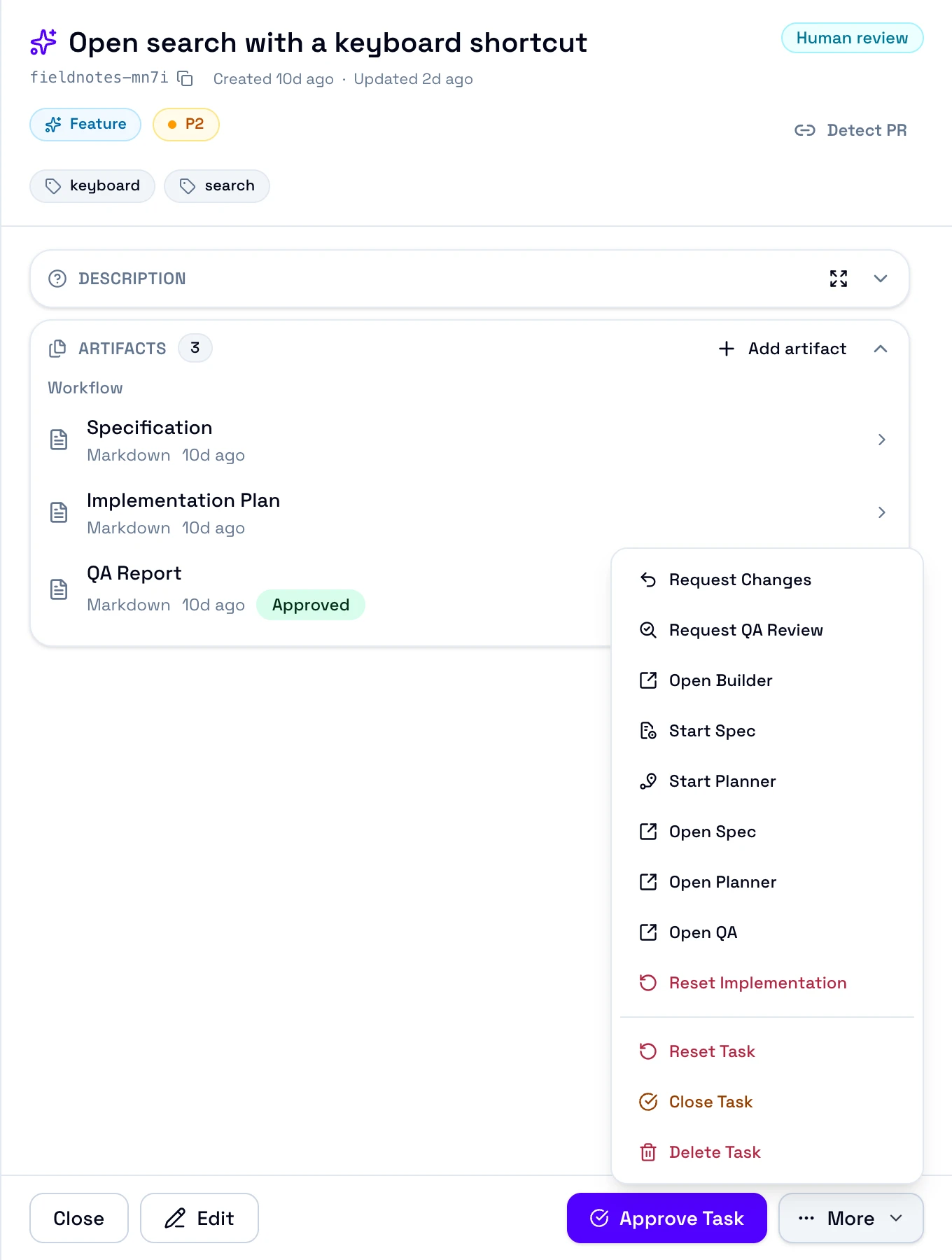
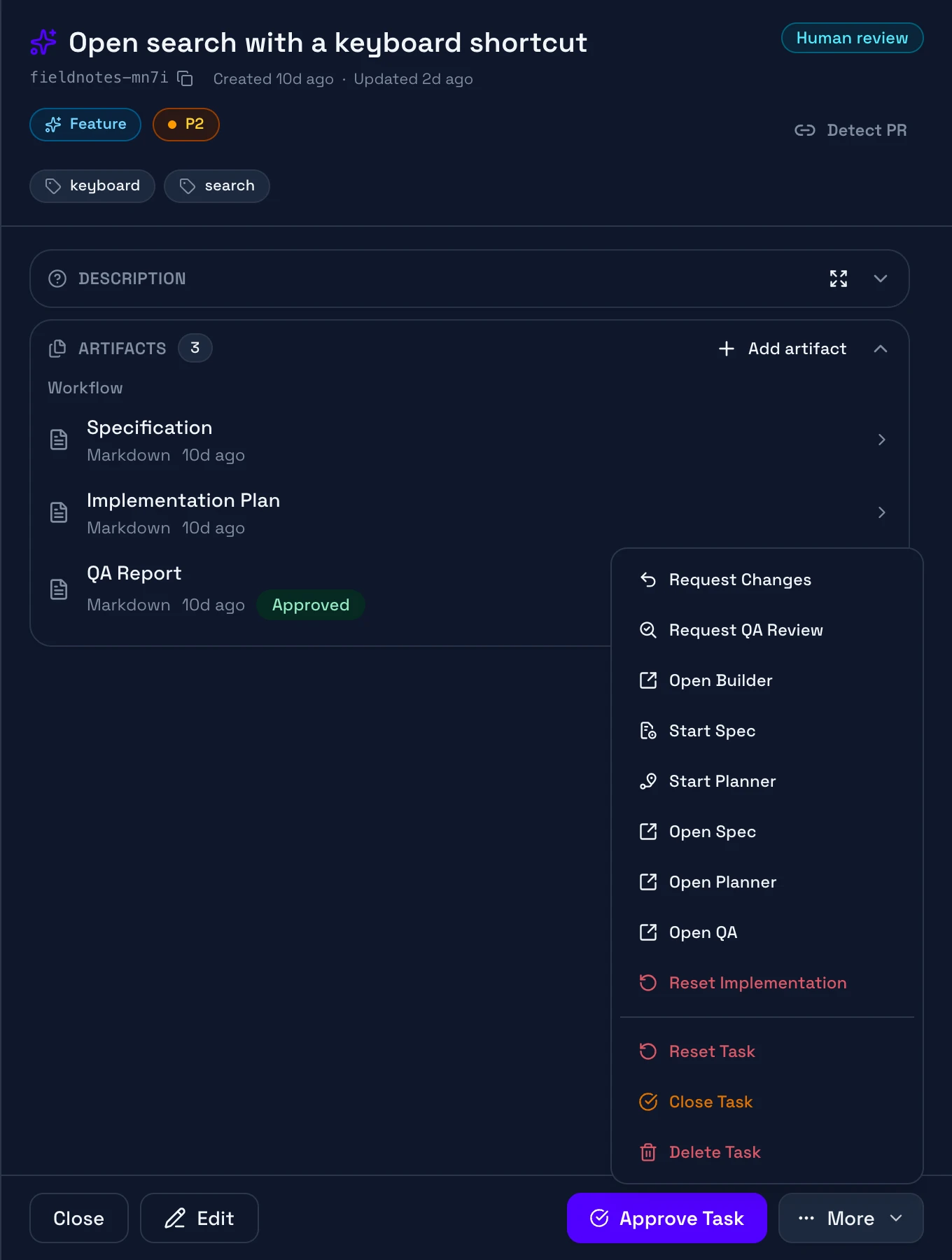
The menu also lists the actions of the workflow, such as Reset Implementation in Spec, Plan, Build.
Some actions are destructive
Push or merge the task branch first if you want to keep its commits.
- Reset Task, Remove Worktree, and Delete Task delete the local task branch.
- Close Task deletes it when Remove worktree and branch is on.