Command palette
The command palette finds any task, workspace session, or action, and runs it without leaving the current page.
fieldnotes · fieldnotes-h5w3
Starting session
Open the palette
Press Cmd+K on macOS or Ctrl+K on Windows and Linux. You can also select the search button at the top of the sidebar. The shortcut does not work while another dialog is open.
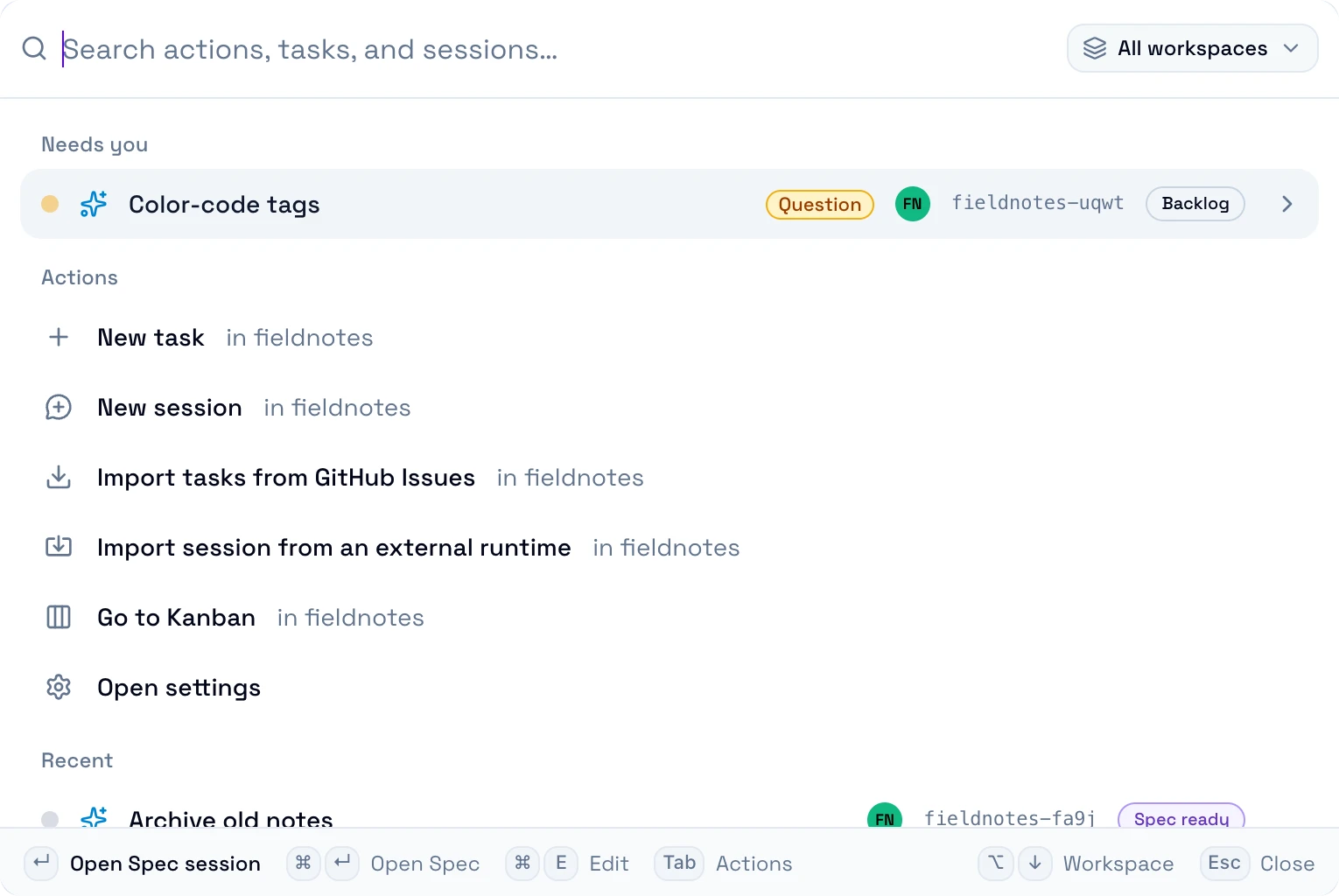
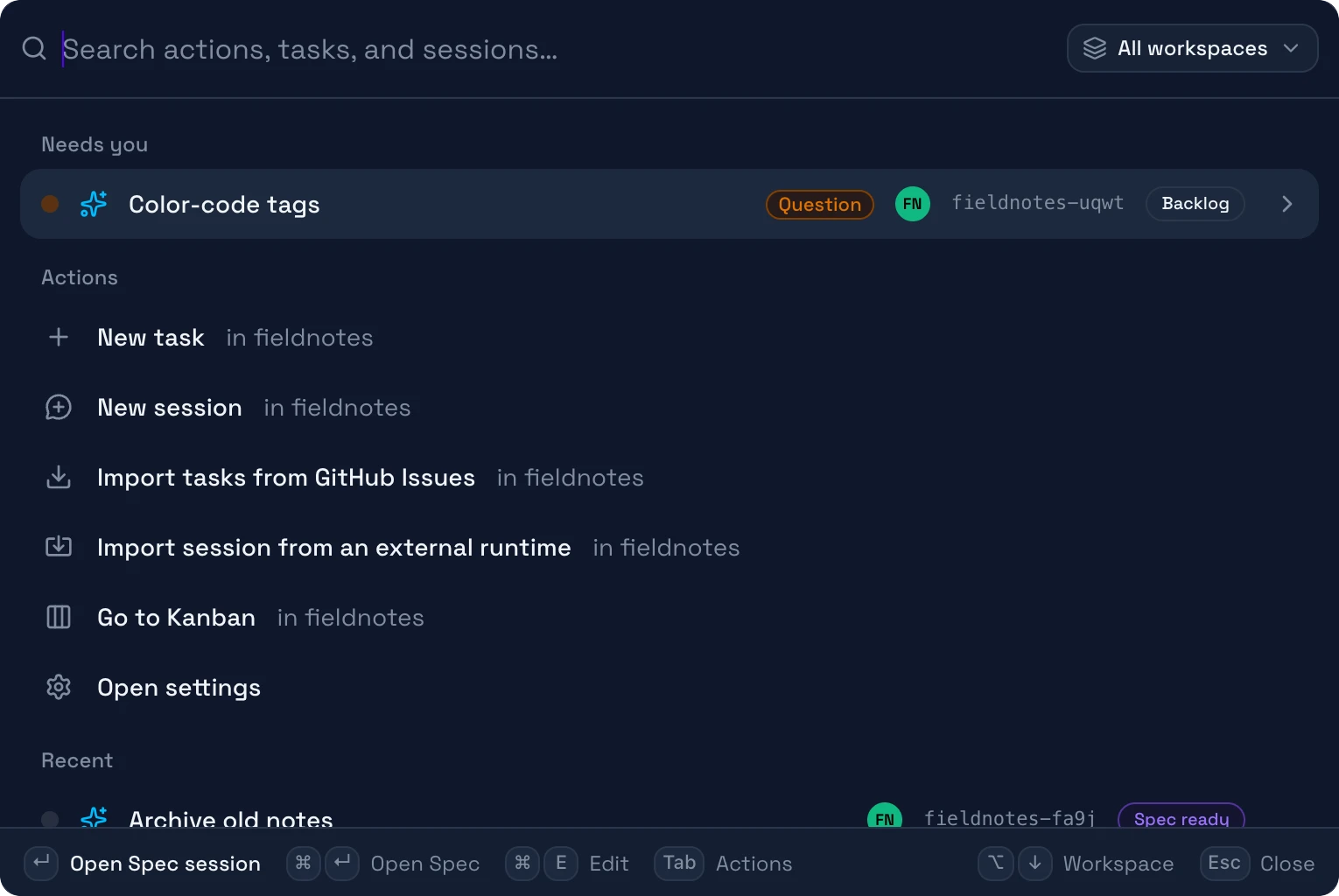
Search
Type to search all actions, tasks, and sessions.
Workspace filter
Search all open workspaces, or only one.
Needs you
The tasks and workspace sessions where an agent waits for you.
Actions
A short list of common actions. See All actions below.
Recent
The tasks and workspace sessions that you opened last.
Key hints
The keys for the selected row, for example Tab to see its actions.
The palette searches only open workspaces. Archived sessions do not show. Use Archived sessions to find them.
Find a task
- Type part of the title, the task ID, or a label.
- Press Enter. The latest session of the task opens. A task without a session opens its details.
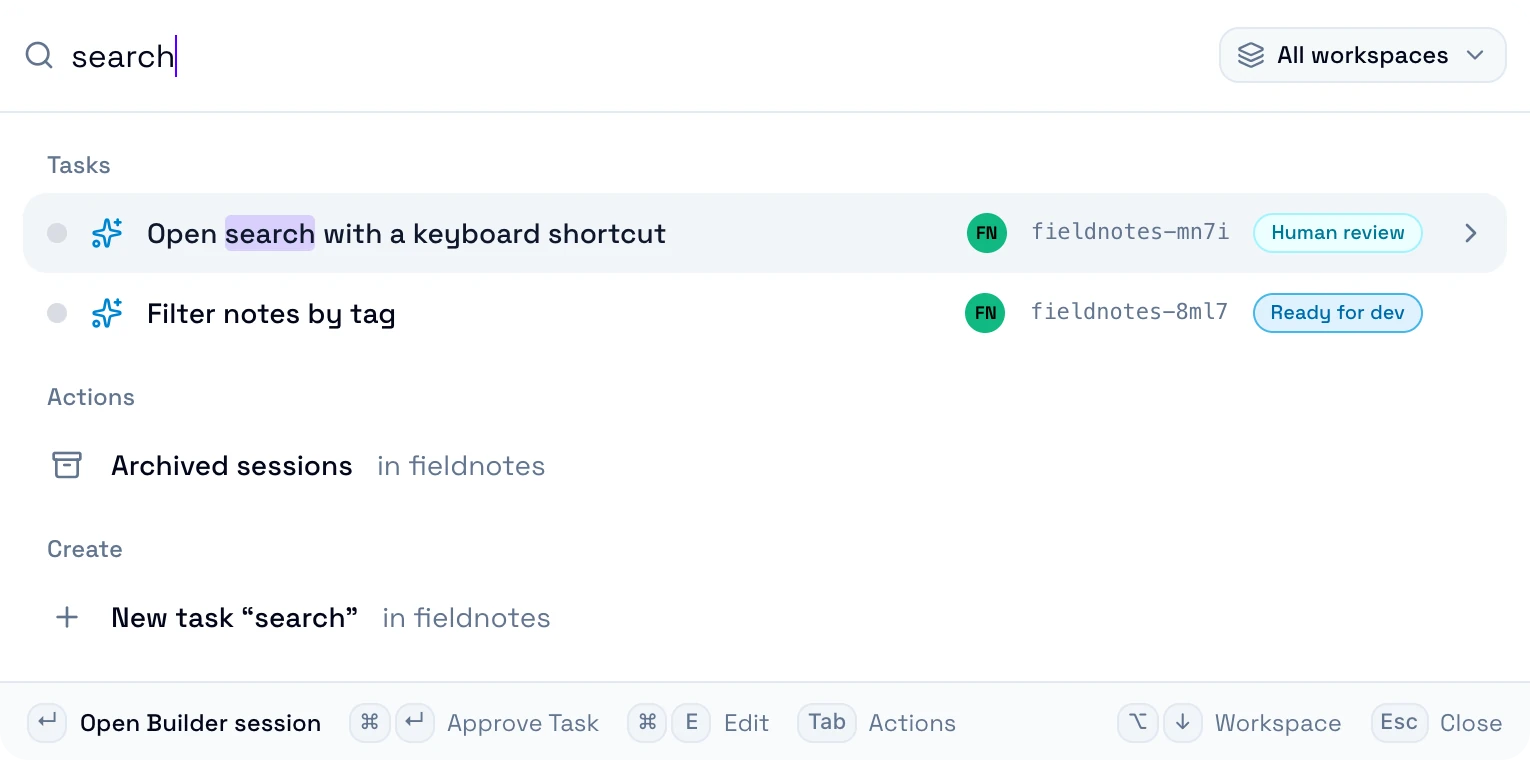
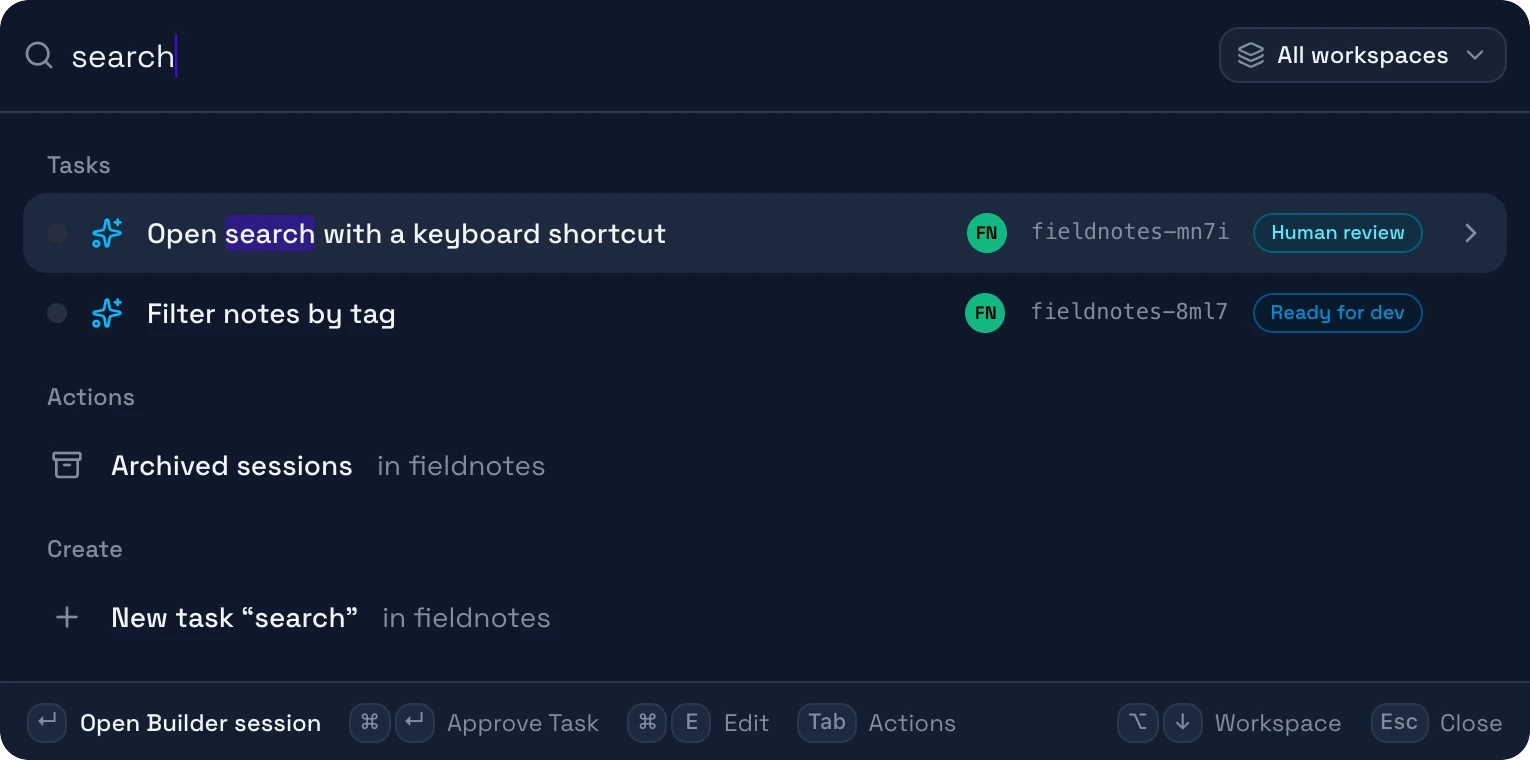
To search one workspace only, select the All workspaces filter, or press Option+Down on macOS or Alt+Down on Windows and Linux.
Run a task action
- On a task row, press Tab.
- Select an action, for example Start Builder. A start dialog opens.
- Select Start session, or Run in background to stay on the current page.
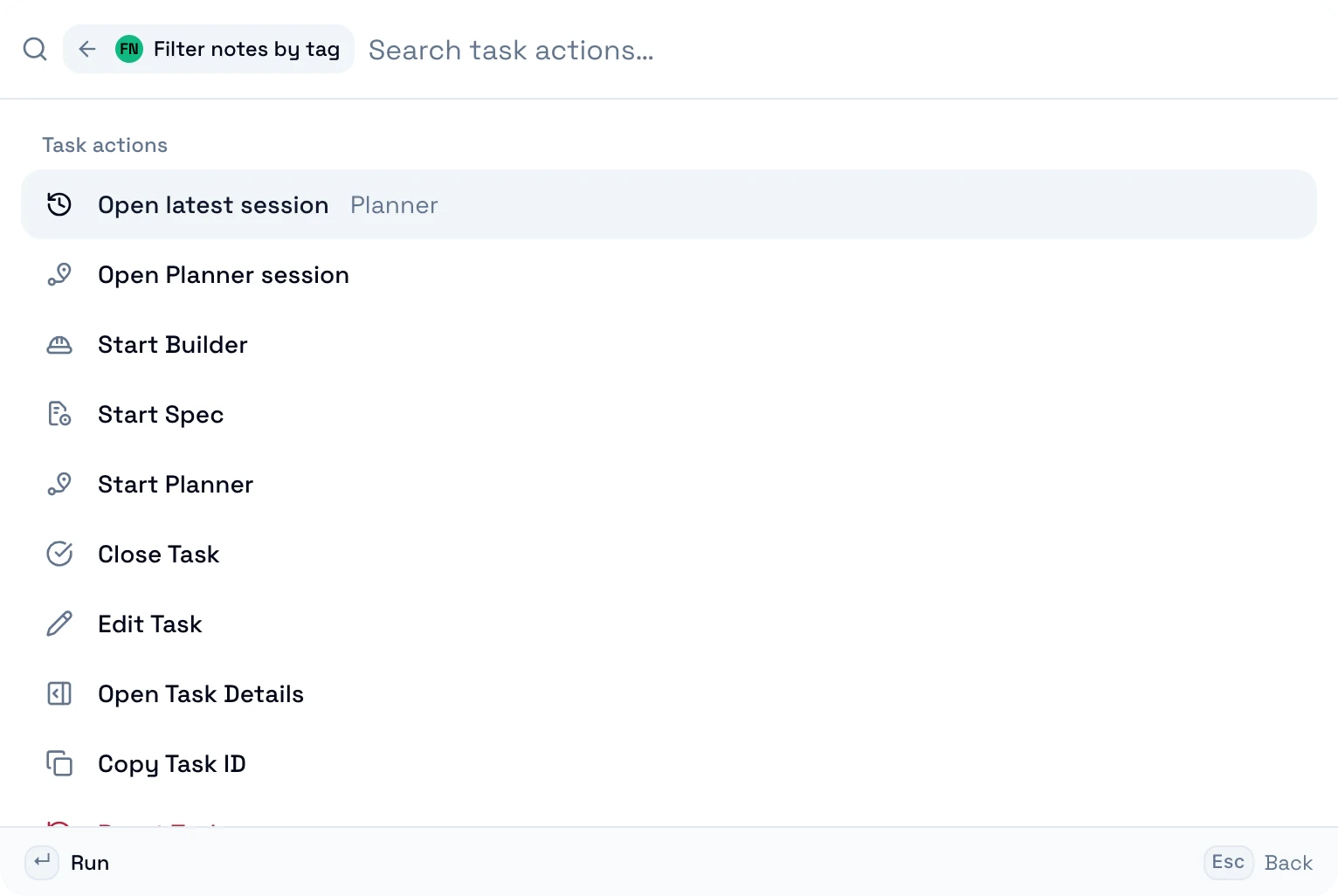
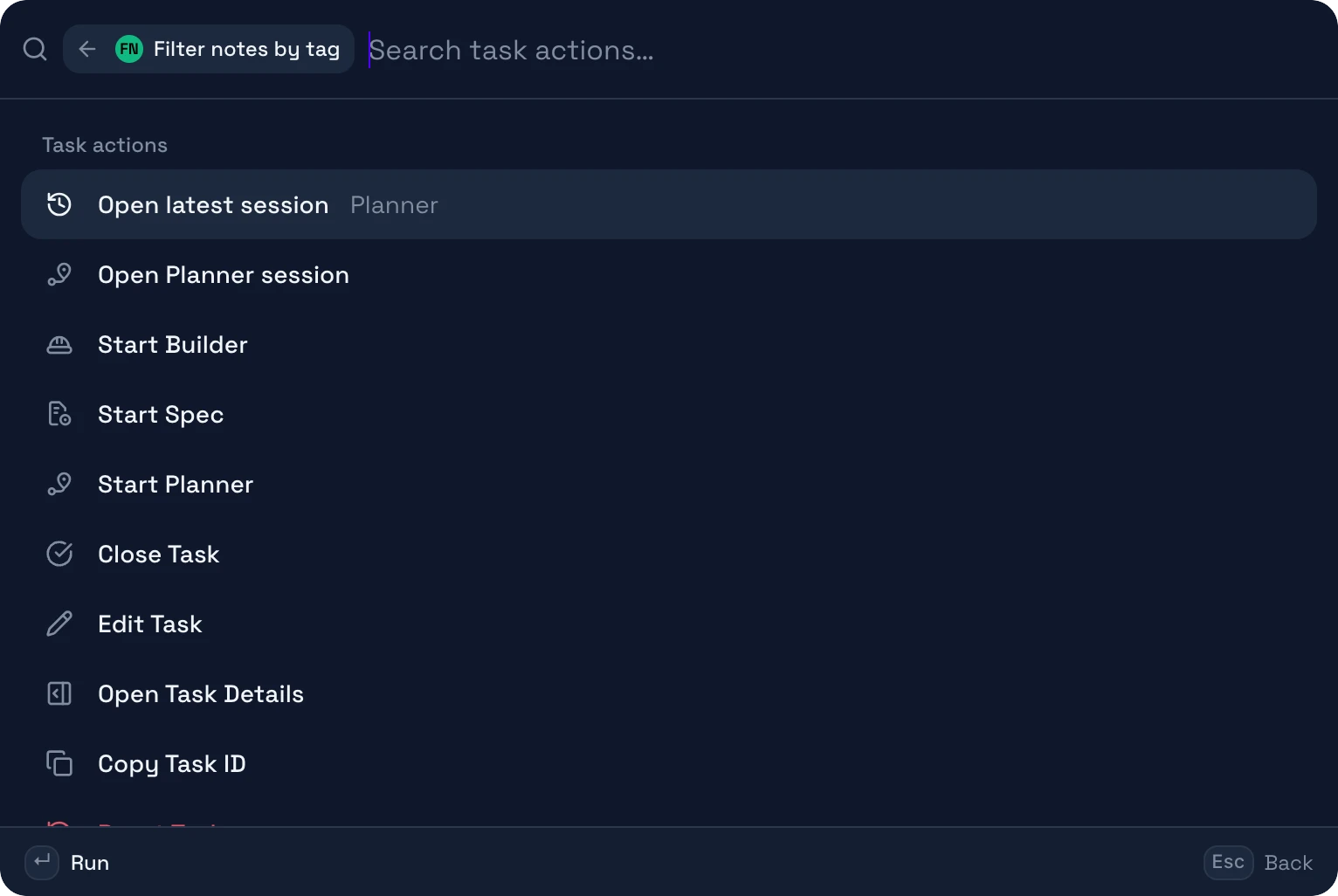
To skip the action list, move to the task row with Up or Down, then press Cmd+Enter on macOS or Ctrl+Enter on Windows and Linux. It runs the main action of the task card. The palette footer shows its name, for example Start Builder.
Answer an agent
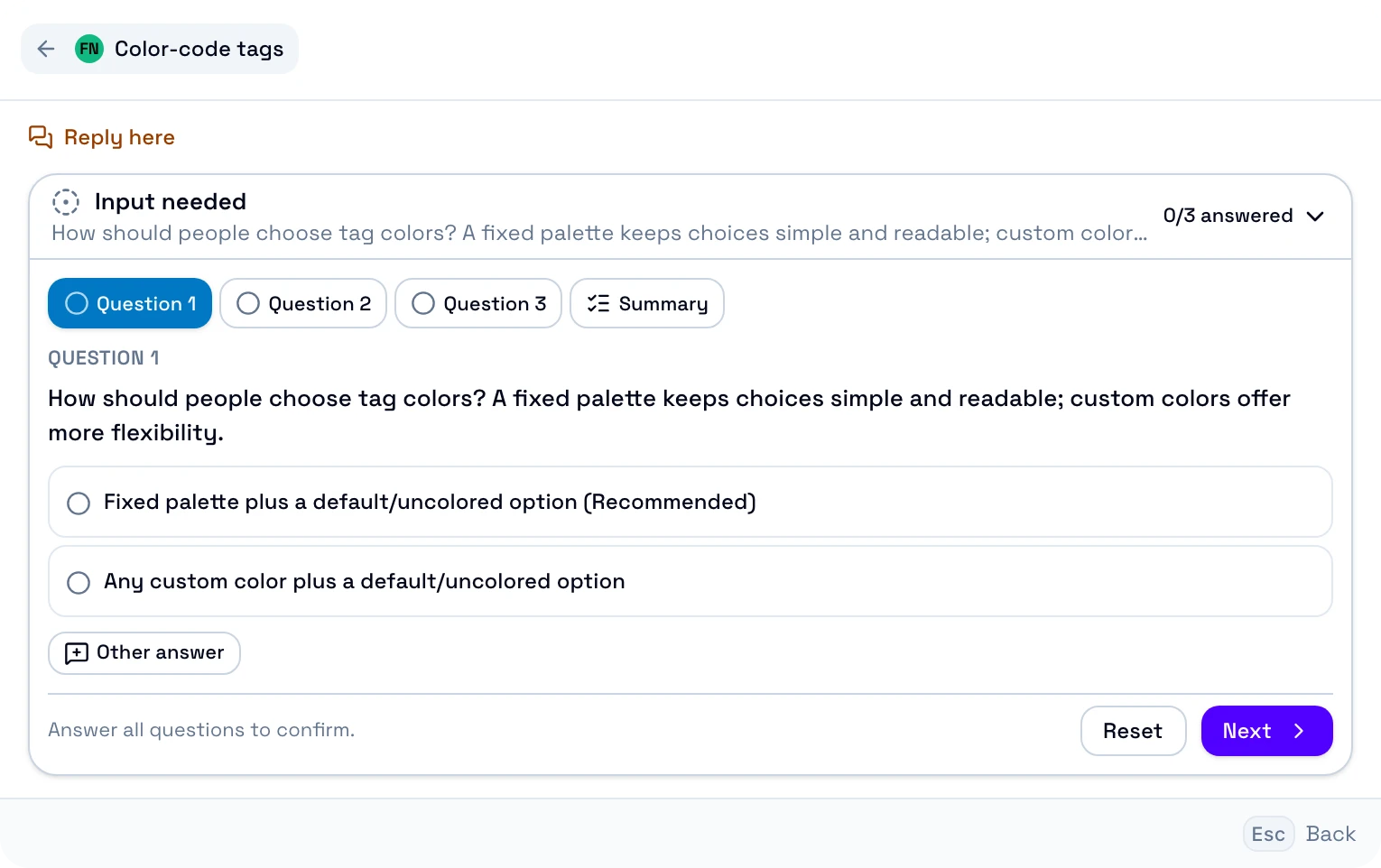
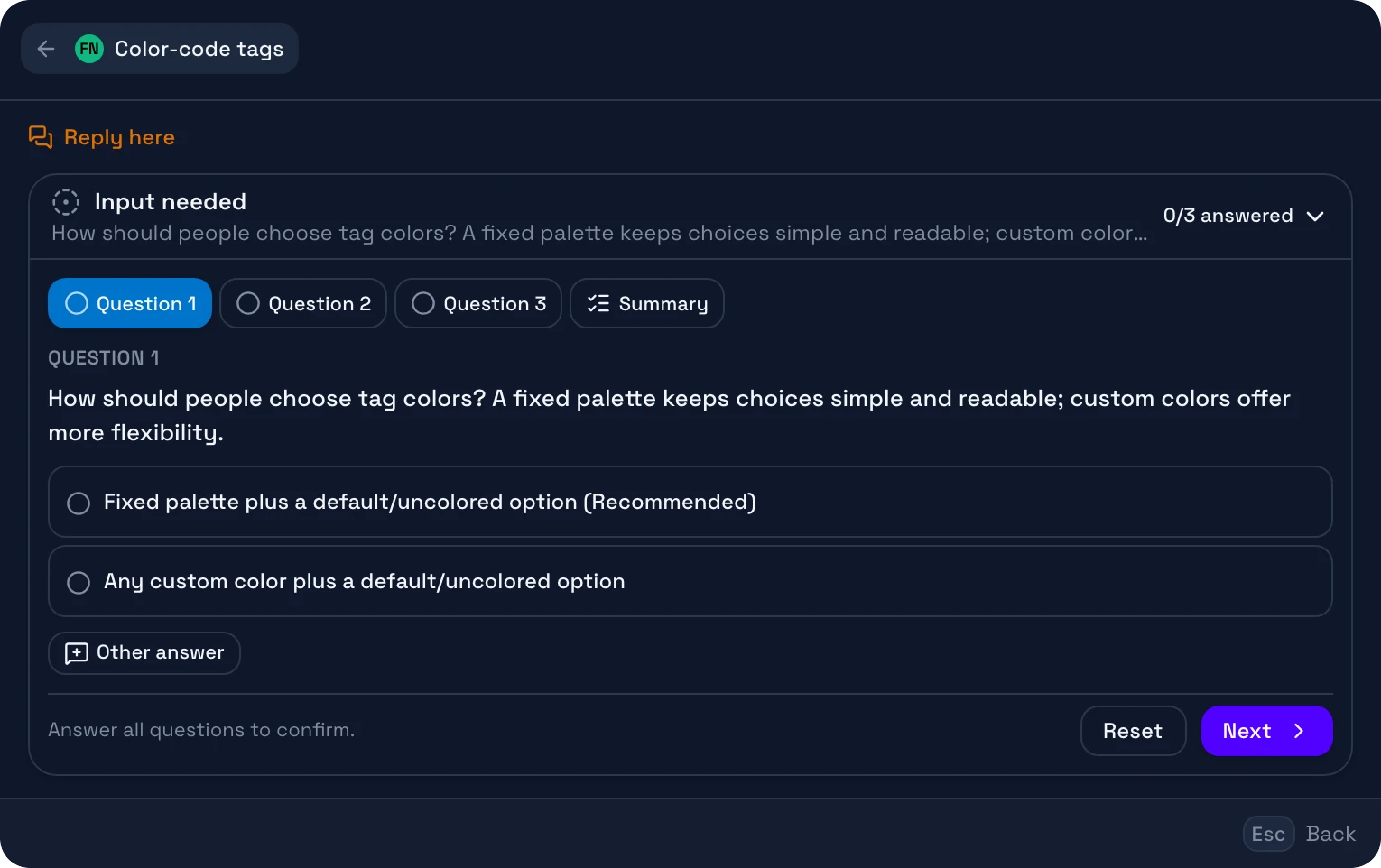
- On a row in Needs you, press Tab.
- Select Reply to question, Reply to permission request, or Reply to requests. The request shows in the palette.
- Answer it there. You stay on the current page. After the last answer, the palette closes.
Other keys
| Keys | What it does |
|---|---|
| Right | Shows the actions of a task or workspace session, as Tab does. It works when the cursor is at the end of the search. |
| Cmd+E on macOS, Ctrl+E on Windows and Linux | Edits a task or renames a workspace session. |
| Backspace | In an action list with an empty search, goes back to the main list. |
Actions
A workspace action runs in the workspace that the filter selects. With All workspaces, it runs in the current workspace. Its row shows the workspace name. When an action is not available, its row shows the reason.
| Action | What it does |
|---|---|
| New task "…" | Opens the new task form with your search as the title. Shows when you type a search. |
| Import tasks from … | Imports issues as tasks. The label names your Git provider, for example GitHub Issues. With no provider set up, the label is Import tasks from the Git provider, and the action opens Settings. |
| Import session from an external runtime | Opens the Import session dialog. See Import a session from an external runtime. |
| Open latest session | Opens the last session that started and that works or waits for you. Without one, it opens the session that started last. |
| Start Builder, Request QA Review, Approve Task, … | Runs a workflow step. The palette shows only the workflow actions that the task allows now. See Actions of each lane. |
| Reset Task, Close Task, Delete Task | Ask you first. For what each action deletes, see Reset, close, or delete a task. |
| Open diagnostics | Checks the harnesses, the tools, and the workspace. See Troubleshooting. |
| Show tour | Shows the tour of the main features again. OpenDucktor shows it once, after the setup. |
Git actions
| Action | What it does |
|---|---|
| Sync pull requests | Reads the pull requests of one workspace or all open workspaces from the Git provider. It closes the tasks whose pull request merged. |
| Check merged tasks | Checks whether the task branches merged into their target branch. A merged task shows Close Task on its board card. |
OpenDucktor also runs both actions every 5 minutes. See Git and pull requests.