External MCP
Connect another agent, such as Claude Code or Codex, to OpenDucktor through MCP. It can then create, find, read, and update your tasks.
Connect a client
Run OpenDucktor on the same computer as the client. Install Bun.
Add the server to your client.
claude mcp add openducktor -- bunx @openducktor/mcp- Restart the client. It now lists the
odt_*tools.
The server finds the running OpenDucktor app by itself. The agent gets your workspaces from odt_get_workspaces, and gives a workspaceId in each call. So one client can work in all your workspaces.
Set a default workspace
When a client works in one repository, you can give the server a default workspace. The agent can then leave out workspaceId.
In OpenDucktor, open Settings, then Repositories. Select your repository, and copy the Workspace ID from Configuration.
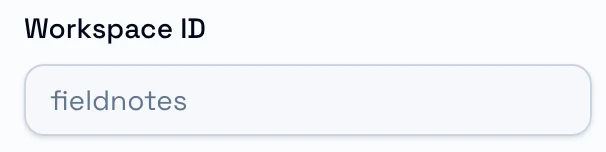
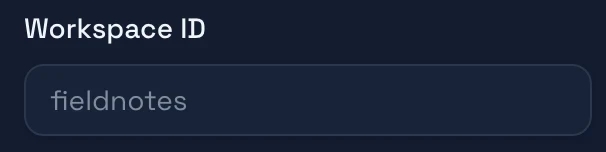
Add
--workspace-idand the ID after@openducktor/mcp. For example, in the repository folder:claude mcp add openducktor -- bunx @openducktor/mcp --workspace-id fieldnotes
The agent can still give another workspaceId. To keep it in the default workspace, also set ODT_FORBID_WORKSPACE_ID_INPUT to true.
Server options
Give an option after @openducktor/mcp, or set its environment variable in the MCP config of your client. The option wins over the variable.
- Default workspace:
--workspace-id <id>, orODT_WORKSPACE_ID. The agent can leave outworkspaceId. The server stops if OpenDucktor has no workspace with this ID. See Set a default workspace. - One workspace only:
ODT_FORBID_WORKSPACE_ID_INPUTset totrueor1. With a default workspace, it removesworkspaceIdfrom every tool, so the agent can use only that workspace. - Tools:
ODT_ALLOWED_TOOLS, with tool names separated by commas, such asodt_search_tasks,odt_read_task. The server offers only these tools. The default is the task tools. - Address:
--host-url <url>, orODT_HOST_URL. The server connects to this address of OpenDucktor, and not to the address that it found. - Token:
--host-token <token>,ODT_HOST_TOKEN, orODT_HOST_TOKEN_FILEwith the path of a file that holds the token. Use it with the address.
For example, this entry keeps a client in the workspace fieldnotes:
{
  "mcpServers": {
    "openducktor": {
      "command": "bunx",
      "args": ["@openducktor/mcp"],
      "env": {
        "ODT_WORKSPACE_ID": "fieldnotes",
        "ODT_FORBID_WORKSPACE_ID_INPUT": "true"
      }
    }
  }
}
Without --host-url, the server reads the address and the token of the running app from runtime/mcp-bridge.json, in the folder of OpenDucktor: ~/.openducktor, or the folder of OPENDUCKTOR_CONFIG_DIR.
Create a task from the client
Ask the client, for example:
Approve the odt_create_task call if the client asks. The card shows in the Backlog lane, with the Bug and P1 badges.
Task tools
| Tool | What it does |
|---|---|
odt_get_workspaces | Lists the workspaces with their IDs, names, and repository paths. |
odt_create_task | Creates a task, feature, or bug in Backlog. |
odt_search_tasks | Finds tasks that are not closed, by status, issue type, priority, title, or label. |
odt_read_task | Reads one task and the list of its artifacts. |
odt_read_task_artifacts | Reads the content of task artifacts, such as the Specification or the Implementation Plan. |
odt_read_task_assets | Reads the images in a task description. |
odt_update_task | Changes the title, description, priority, labels, or issue type. It never changes the status. |
odt_set_task_artifact | Saves the Specification, the Implementation Plan, the QA Report, or another artifact. A workflow artifact can move the task to another lane. See Artifacts. |
odt_delete_task_artifact | Deletes an artifact that is not a workflow artifact. |
The server also lists odt_apply_workflow_event and odt_set_pull_request. In Spec, Plan, Build, the Builder uses odt_apply_workflow_event to send the events build-blocked, build-resumed, and build-completed, which change the status of a task. build-blocked requires a note. The Builder uses odt_set_pull_request to save the pull request of a task. Your client can call both tools too.
Fix connection problems
If the client shows no odt_* tools, read the MCP server log of the client. The first error names the cause. For each error and its fix, see Troubleshooting.