Sessions
The Sessions tab lists the sessions of the host. Tap one to open its transcript and its composer.
The Sessions tab
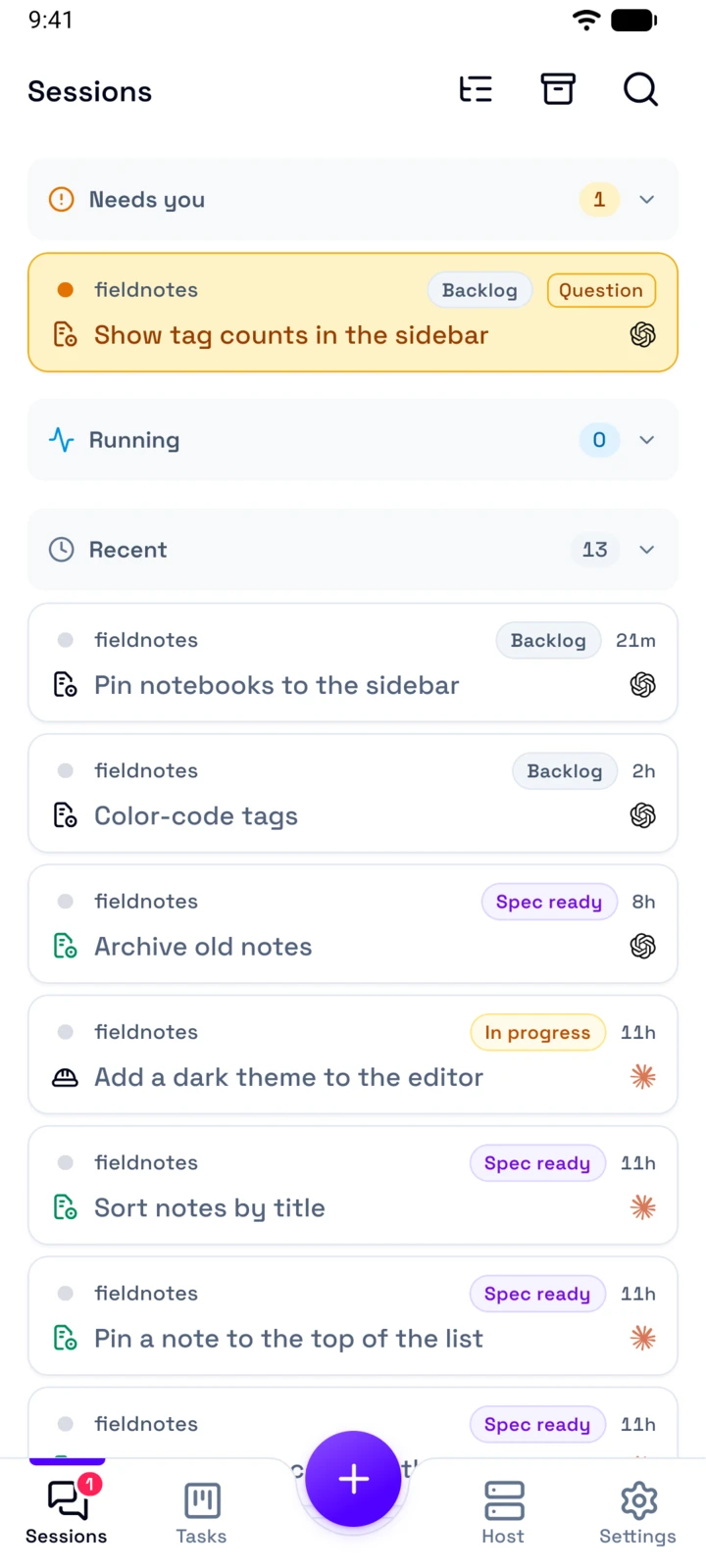
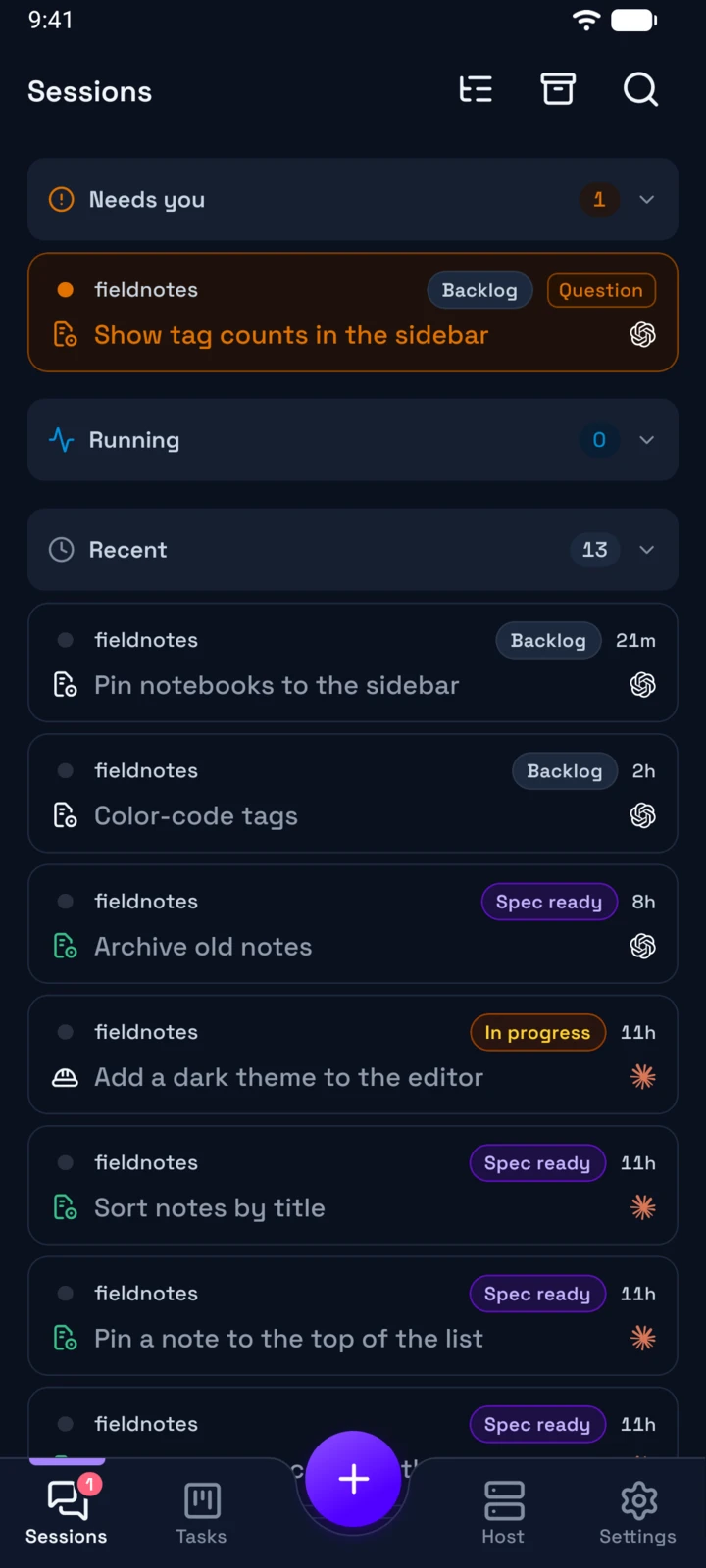
Session tools
Group sessions by task, Archived Sessions, and Search sessions. Search matches the title, the workspace, the role, the task ID, and the folder.
Needs you
The sessions that wait for your answer. The chip tells why: Question, Permission, or Blocked.
Running
The sessions where an agent works.
Recent
The other sessions. Tap a section title to fold it.
A session
The workspace, the task status, and the time of the last activity, then the role and the title.
Pull down to read the list again. With more than one open workspace, a switch above the list shows your workspace or All workspaces. Group sessions by task is a host setting, so all your clients group the same way.
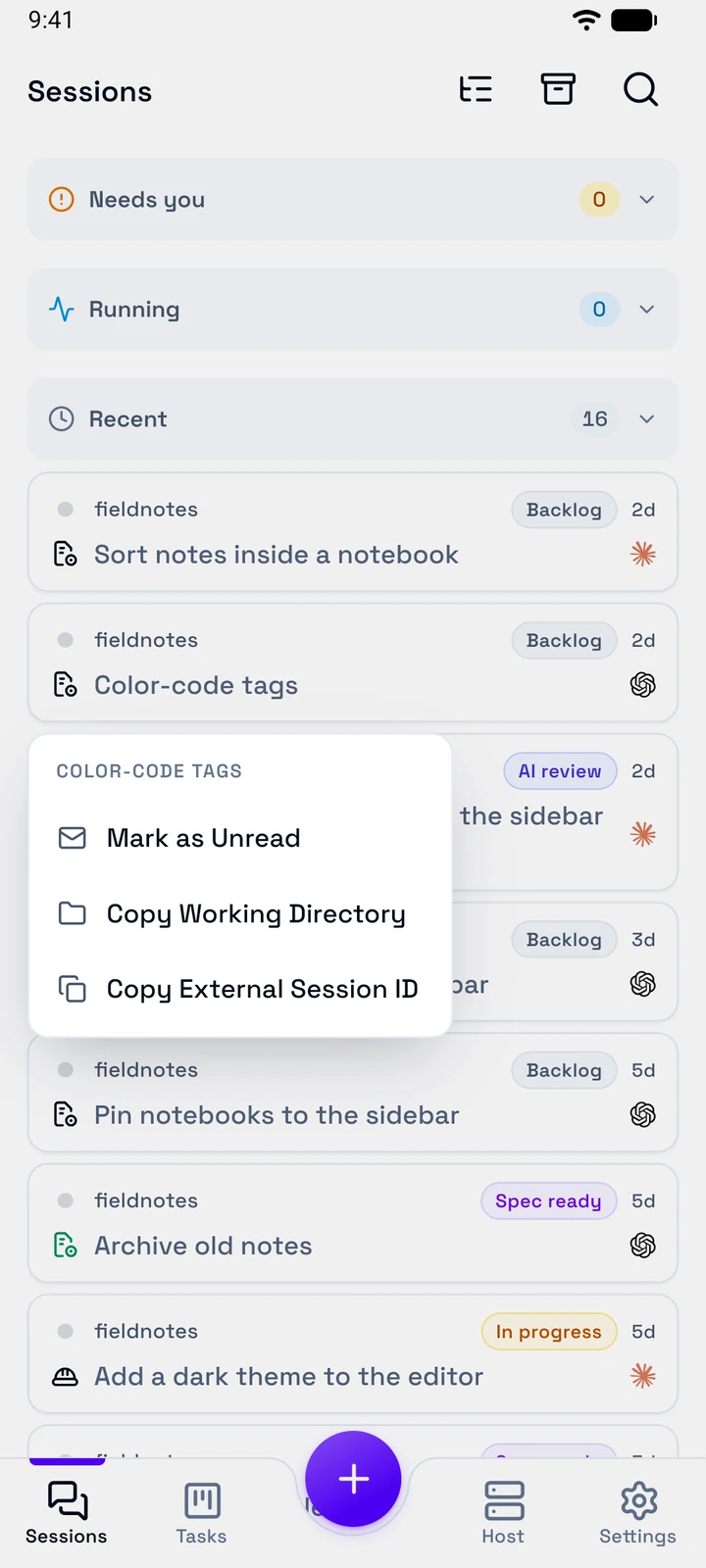
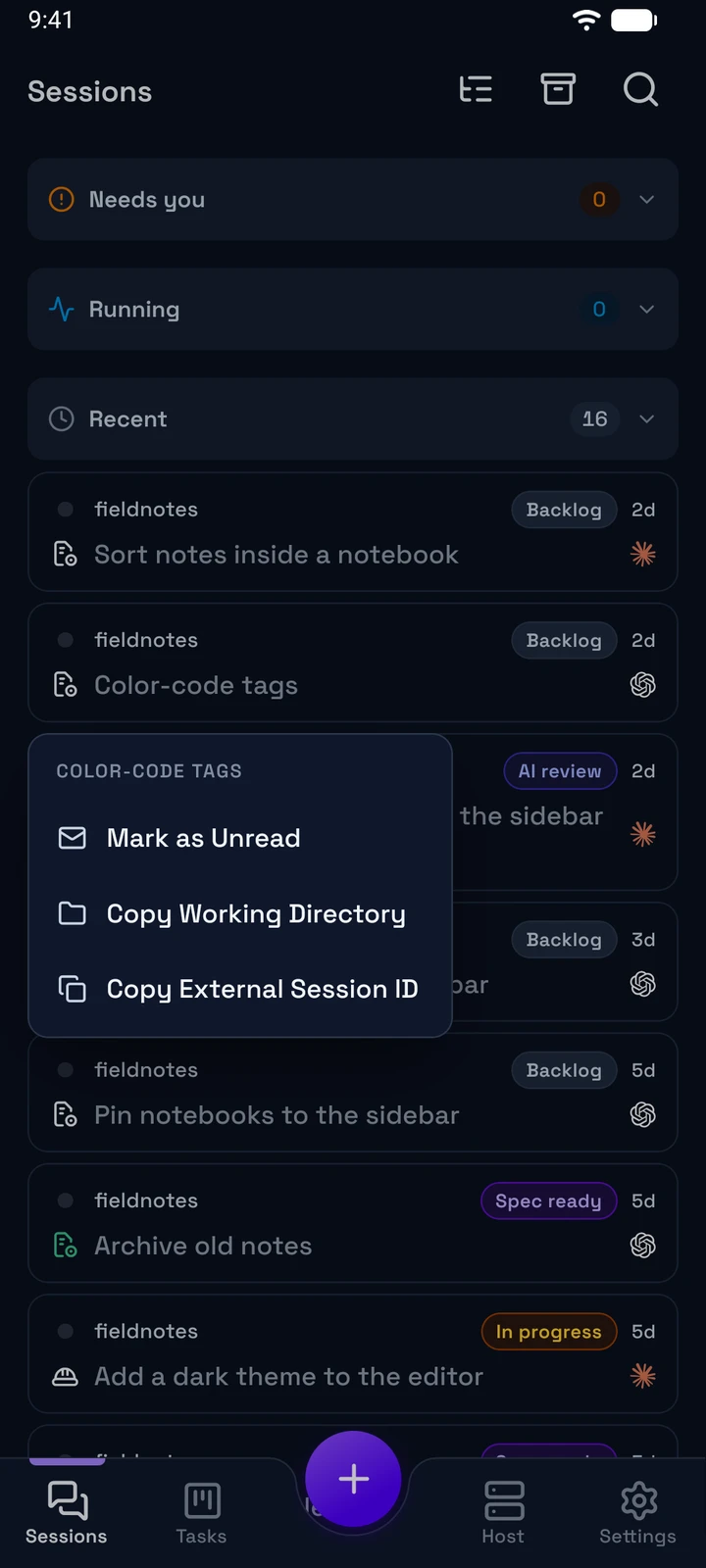
Long press a row for its menu:
- Mark as Read or Mark as Unread
- Copy Working Directory
- Copy External Session ID
- Rename Session and Archive Session, for a workspace session
To archive a workspace session, you can also swipe its row to the left.
The session screen
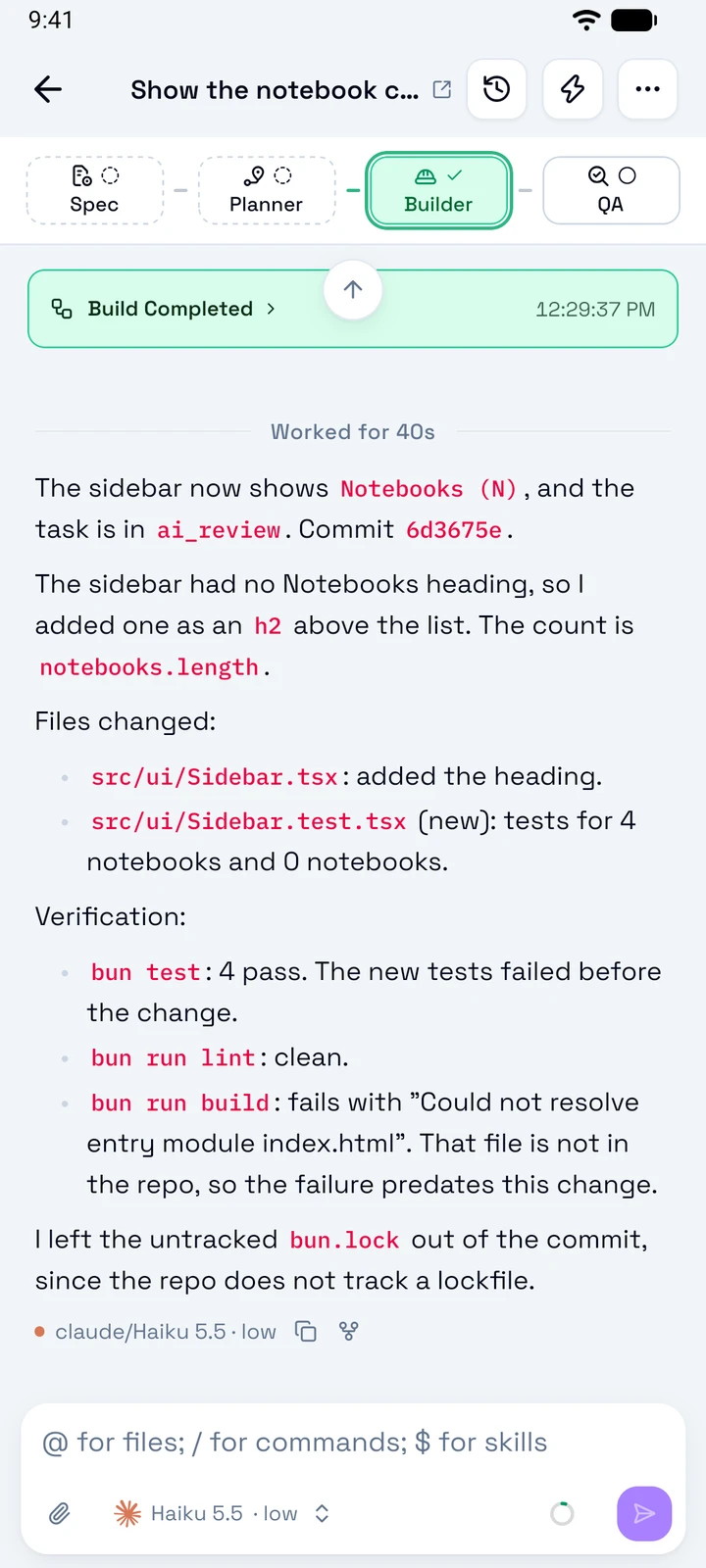
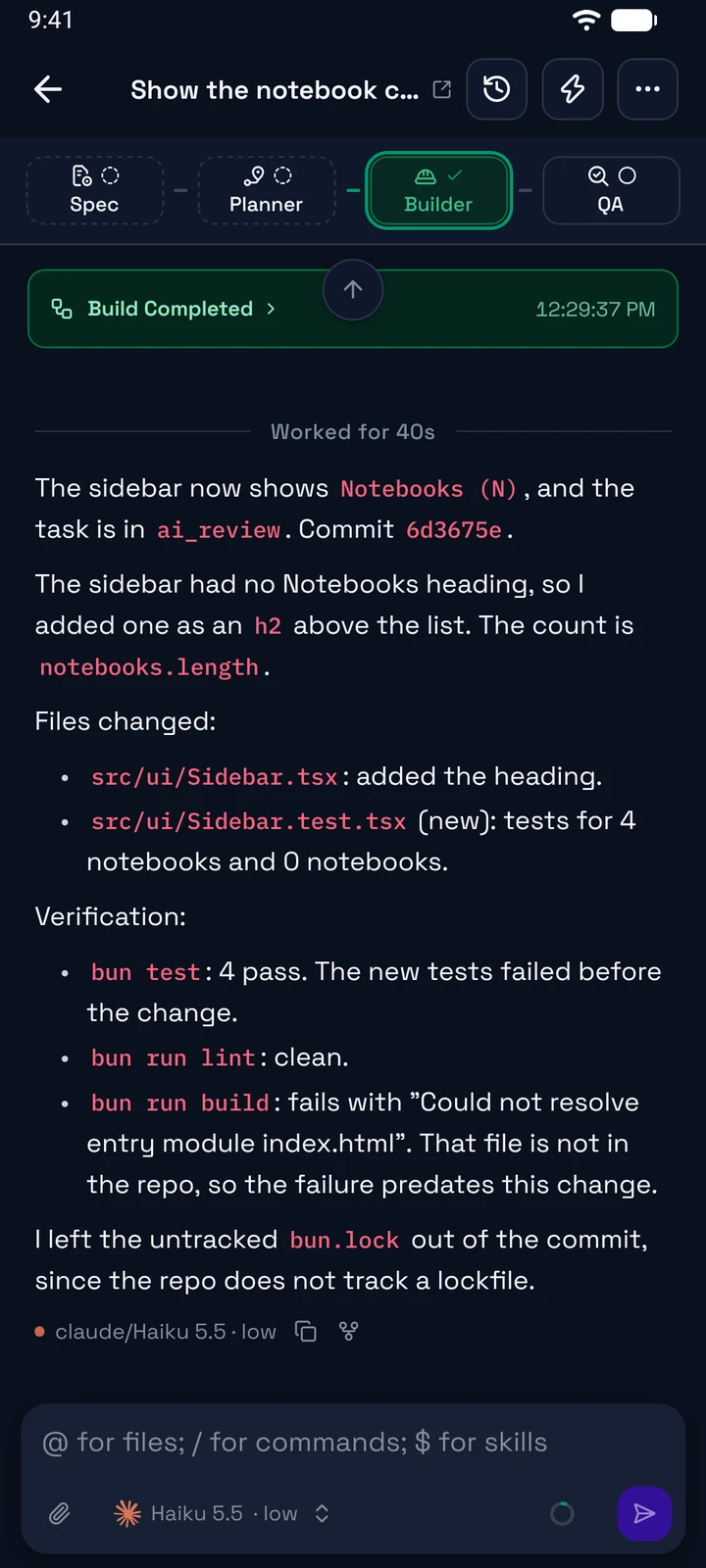
Title
Tap it to open the task details.
Header buttons
Task sessions, Quick actions, and Session actions. See the list under the screenshot.
Workflow steps
Spec, Planner, Builder, and QA. Tap a step to open its last session, or its start sheet.
Message
Type @ for files and subagents, / for commands, and $ for skills.
Composer buttons
Attachments, Message options, Context, and Send. See the list under the screenshot.
A subagent session opens read-only. In landscape, the workflow steps move to a panel at the side.
Answer the agent
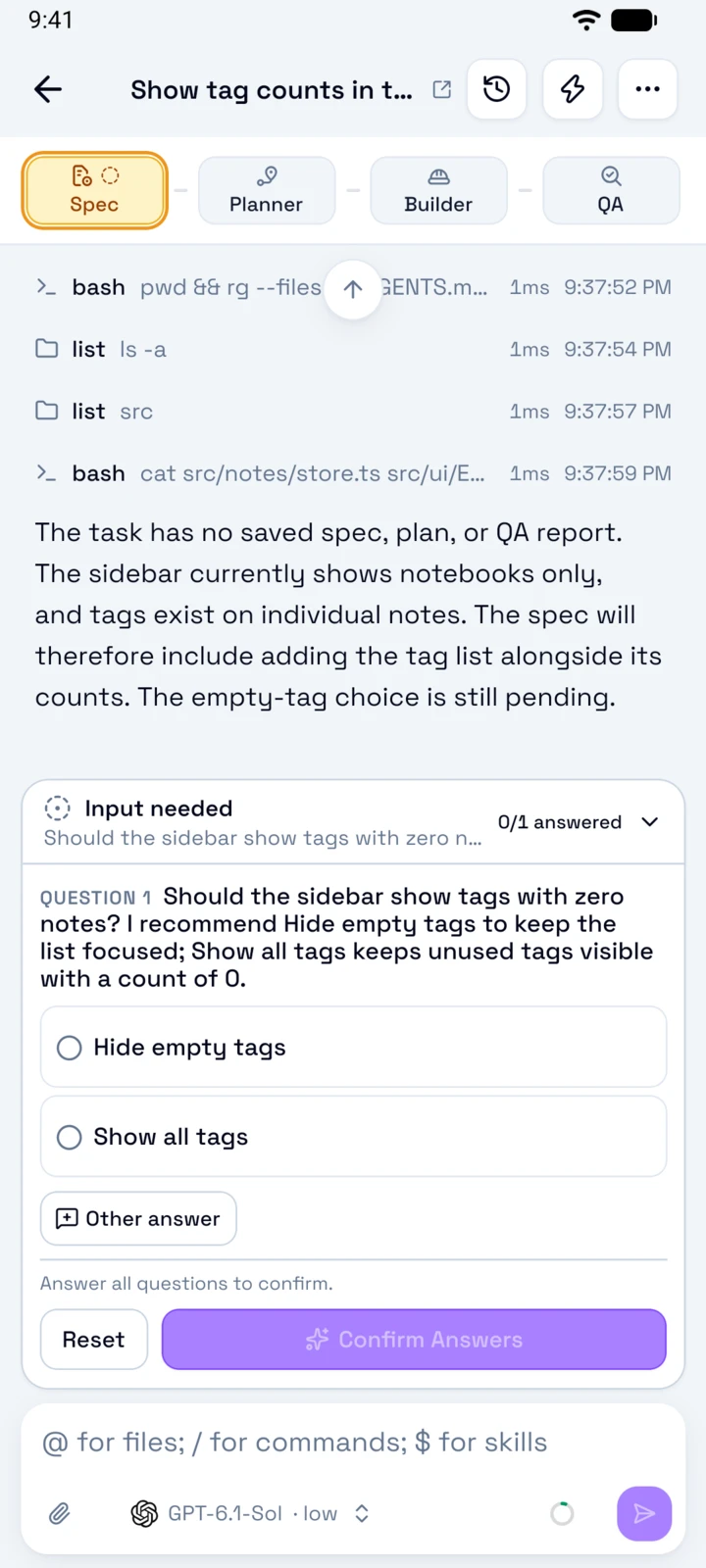
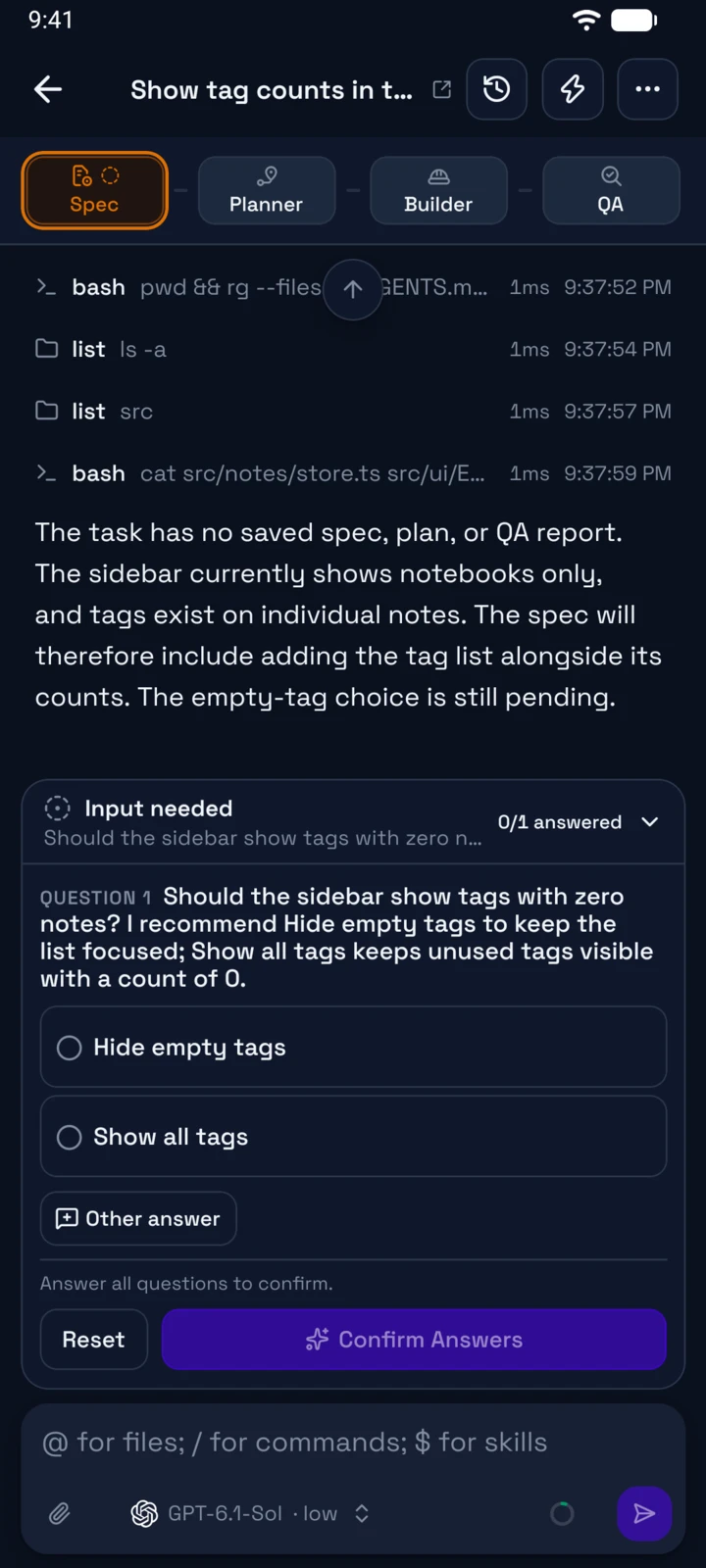
Tap a session under Needs you. It opens at the card that waits for you.
- Approval required: read the command, then tap Approve once, another approval, or Reject. The runtime of the session decides which approvals show. See Coding sessions.
- Input needed: tap an answer, or Other answer. With more than one question, tap Next after each answer, then Review Answers and Confirm Answers.
A Blocked task opens its latest session, or its task details. After your answer, the session moves to Running.
Send and steer messages
While the agent works, you choose when it reads your message:
- Send queues the message. The agent reads it when its turn ends.
- Steer, the lightning button next to Send, gives the message to the agent in the running turn.
- Queued messages show above the composer. Tap the stack, then Steer now, Edit, or Remove.
- Stop session stops the turn.
With Steer messages by default on the host, Send steers and the small button queues.
Follow a goal
When the Builder works in Goal mode, the goal row shows above the composer: Goal, the status, the objective, and icon buttons to pause, resume, or clear the goal. Tap the objective to read the whole goal.
- To set or change a goal, send
/goalwith the objective, or/goal pause,/goal resume, or/goal clear. The message shows a Goal chip. - While a goal drives the work, your other queued messages wait until the goal stops.
Start a session
Tap + in the tab bar, then New Session. A new session is a workspace session: it belongs to no task.
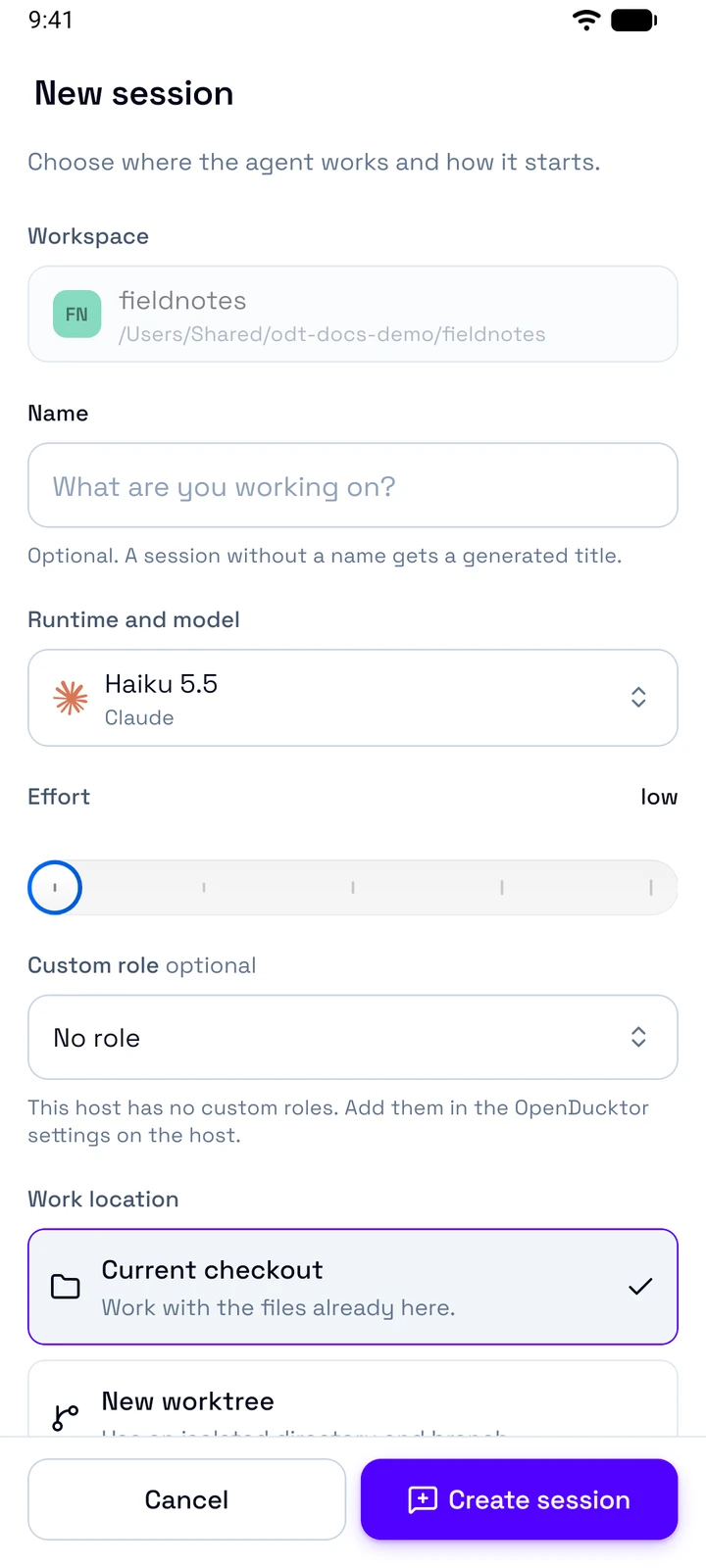
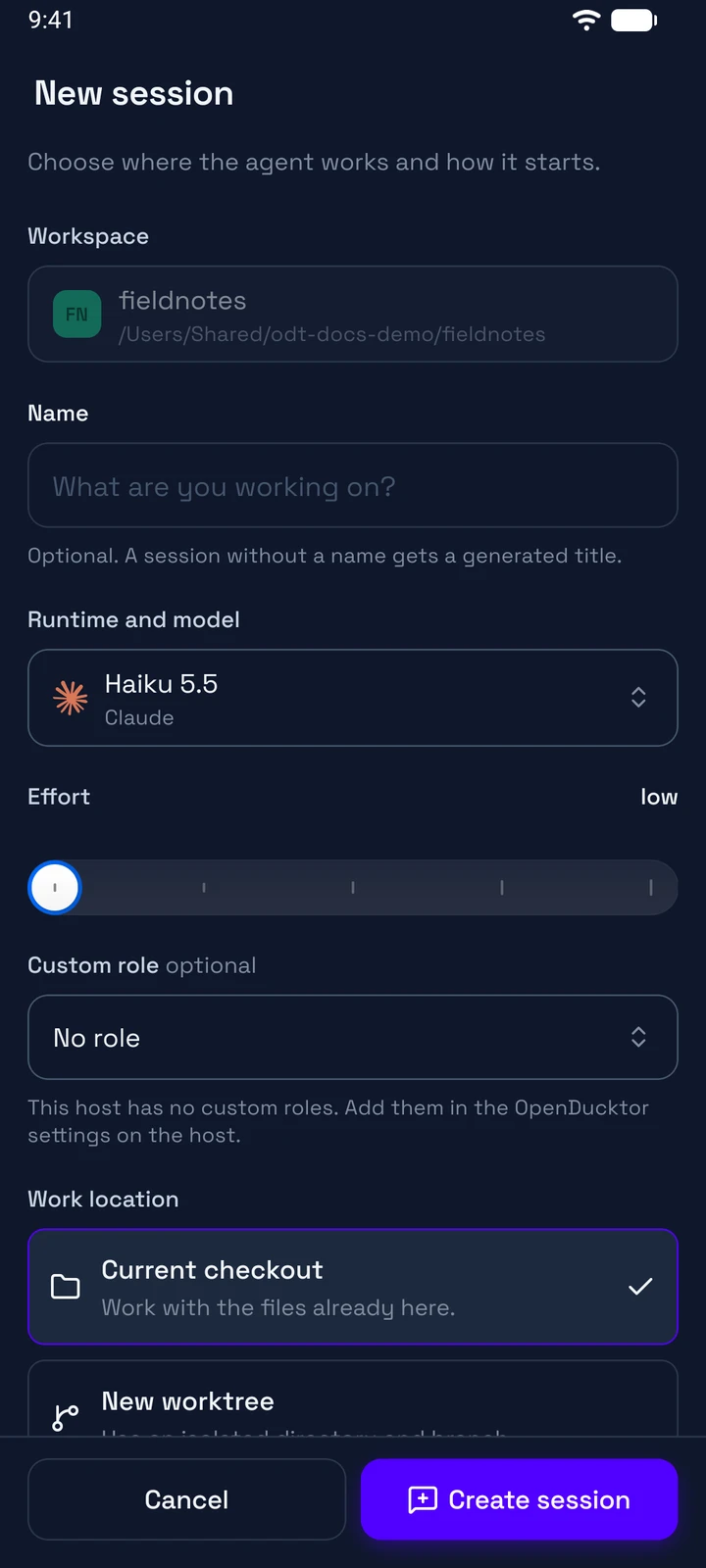
- Choose the Workspace. Type a Name, or leave it empty for a generated title.
- Choose the Runtime and model and the Effort. A Custom role gives the agent the instructions of that role. You add custom roles on the desktop.
- Choose the Work location: Current checkout, New worktree, or Existing worktree. For Existing worktree, choose the Worktree. For New worktree, choose Existing branch or New branch, then type the Worktree name. New branch also takes an optional Branch name.
- Choose the Target branch. Changes compares the session with it.
- Tap Create session.
Fork, rename, and archive
- Fork: tap the fork icon under a reply of the agent, Fork from this reply. A workspace session asks where the copy works: Same folder or New worktree. A task session forks at once.
- Rename: long press a workspace session, then Rename Session. Leave the name empty to use the generated title.
- Archive: long press a workspace session, then Archive Session. For a session in its own worktree, Remove worktree and branch is on by default.
- Restore: tap Archived Sessions, the archive button at the top of the Sessions tab. Then tap Restore next to a session. If its worktree was removed, the restore makes it again from the target branch of the session. An archived session opens read-only, with Restore Session.