Git and pull requests
Each task works on its own branch. You review the branch, then finish the work with a direct merge or a pull request on GitHub, GitLab, or Azure DevOps.
Task worktrees and branches
A worktree is a second folder of your repository. It has the task branch checked out, so your checkout does not change. The first session of the task creates the branch and the worktree.
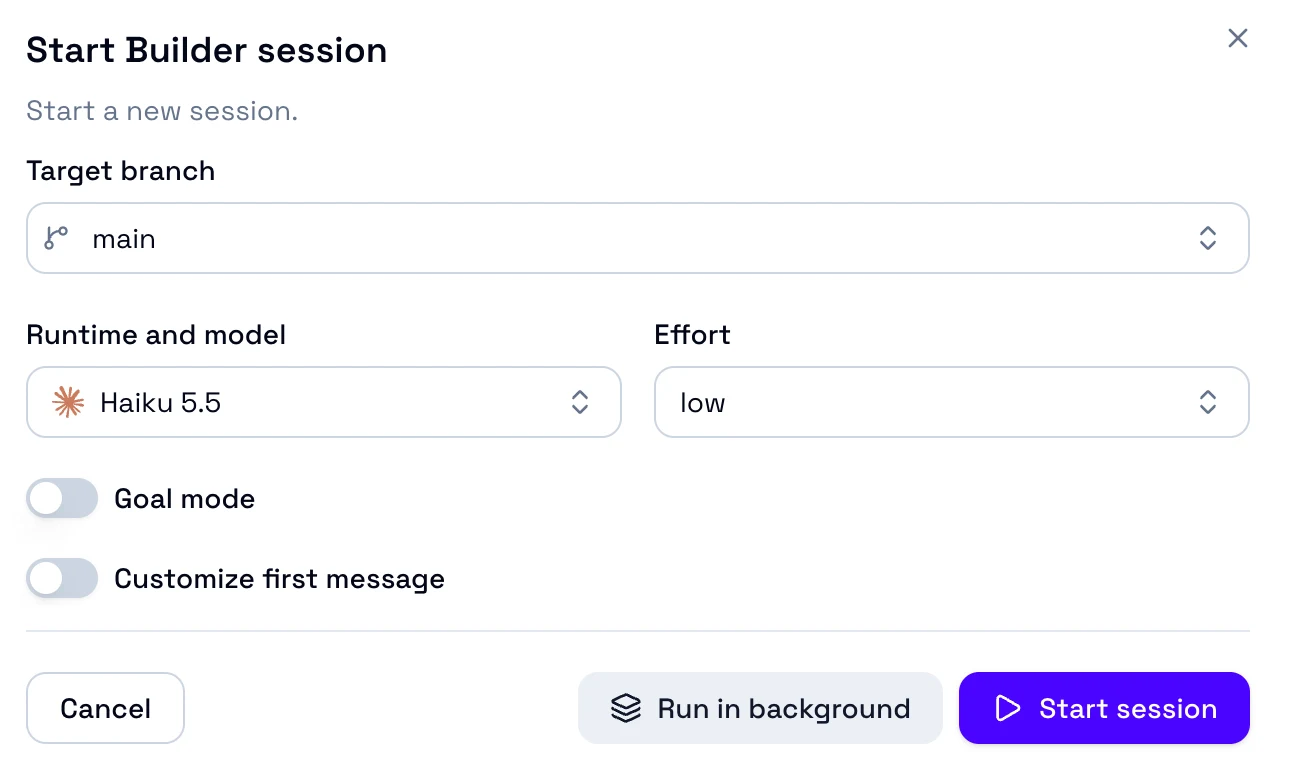
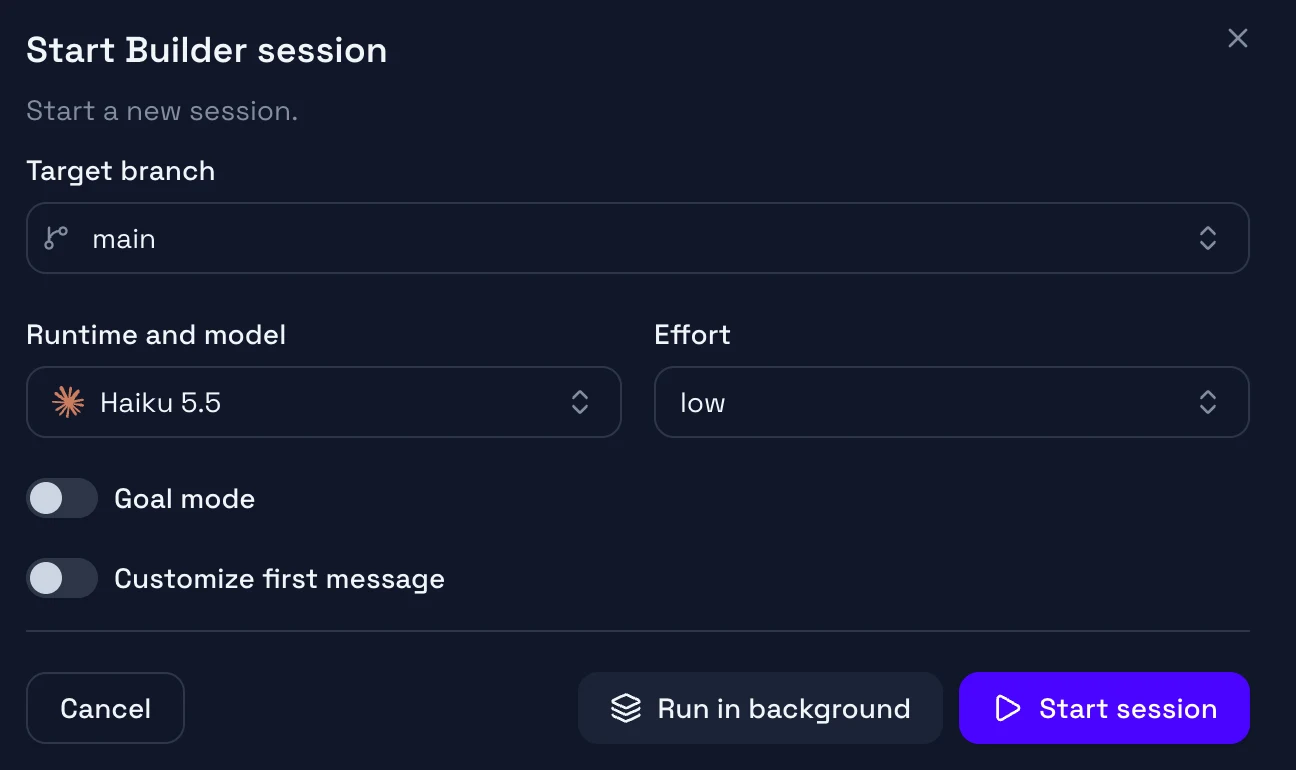
The target branch is the branch that the work merges into. You choose it when the Builder starts.
To change the folder, the branch prefix, or the default target branch, see Repository configuration.
Connect a Git provider
A Git provider links a repository to GitHub, GitLab, or Azure DevOps. With a provider, the Builder opens pull requests, the CI Checks tab shows their checks and review comments, and you can import issues as tasks. A direct merge needs no provider.
Each repository has its own provider. Set it in Settings, Repositories, your repository, then the Git tab. The setup wizard of a new workspace has the same step.
GitHub
GitLab
Azure DevOps
OpenDucktor calls them pull requests for every provider. On GitLab, they are merge requests.
Sync the task branch
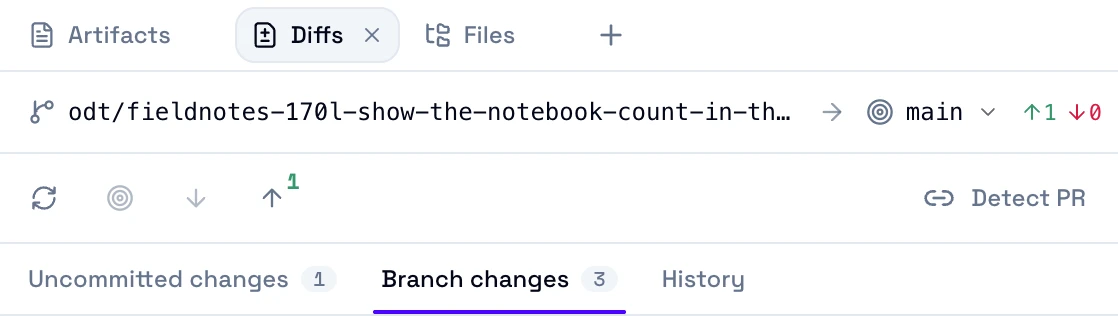
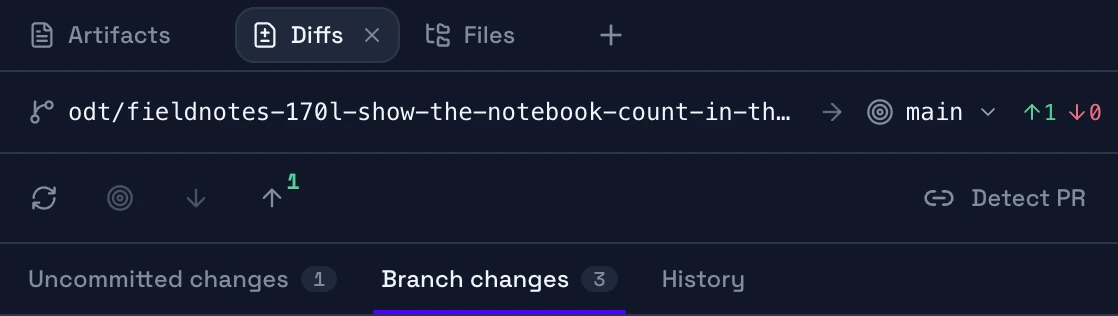
The top of the Diffs tab keeps the task branch in sync with its remote and its target branch. To read the changes, see Review the work.
Branches
The task branch, then the target branch. Select the target to change it. Green counts the commits to push. Red counts the target commits that the task branch does not have.
Sync buttons
Refresh, rebase, pull, and push. See the list under the screenshot.
Detect PR
Finds the pull request of the task branch on the Git provider and links it to the task. It shows while the task has no pull request.
Rebase and Pull are off while the worktree has uncommitted changes. Commit or stash them first.
Resolve a conflict
Rebase in progress1 conflicted file
The rebase onto origin/main is still paused on conflicts.
When a rebase, a pull, or a direct merge stops on conflicts, a dialog lists the conflicted files and the Git output. Until the conflict ends, a strip at the top of the Diffs tab shows it.
- Select Resolve conflicts to send the conflict to the Builder. Choose a Builder session, then select Start session. The Builder resolves the files, runs the checks, and finishes the rebase or merge.
- Select Abort rebase or Abort merge to stop the operation. The branch goes back to its state before it.
Approve a task
Before a merge or a pull request, commit or discard the changes in the task worktree. Stop the running sessions of the task before a direct merge.
- At the top right, select Approve Task. If the main button shows another action, open the menu next to it, then select Approve Task.
- Select Direct merge, Pull request, or Close task. Close task merges no code.
Pull request shows only when the repository has a Git provider. The dialog then selects it first. If the provider is not ready, the choice shows the reason. If the task branch is already merged into the target branch, the dialog selects Close task.
Merge directly
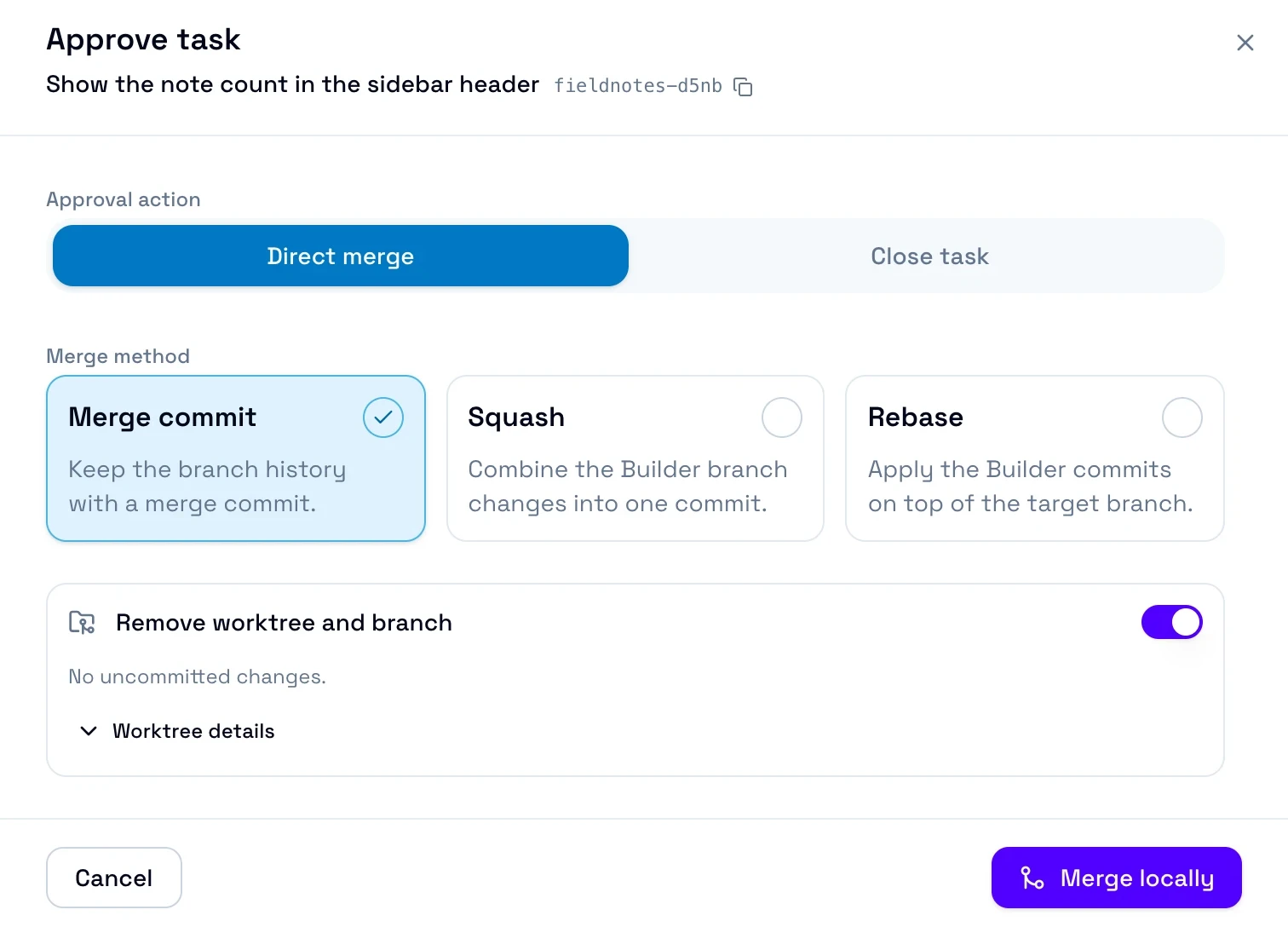
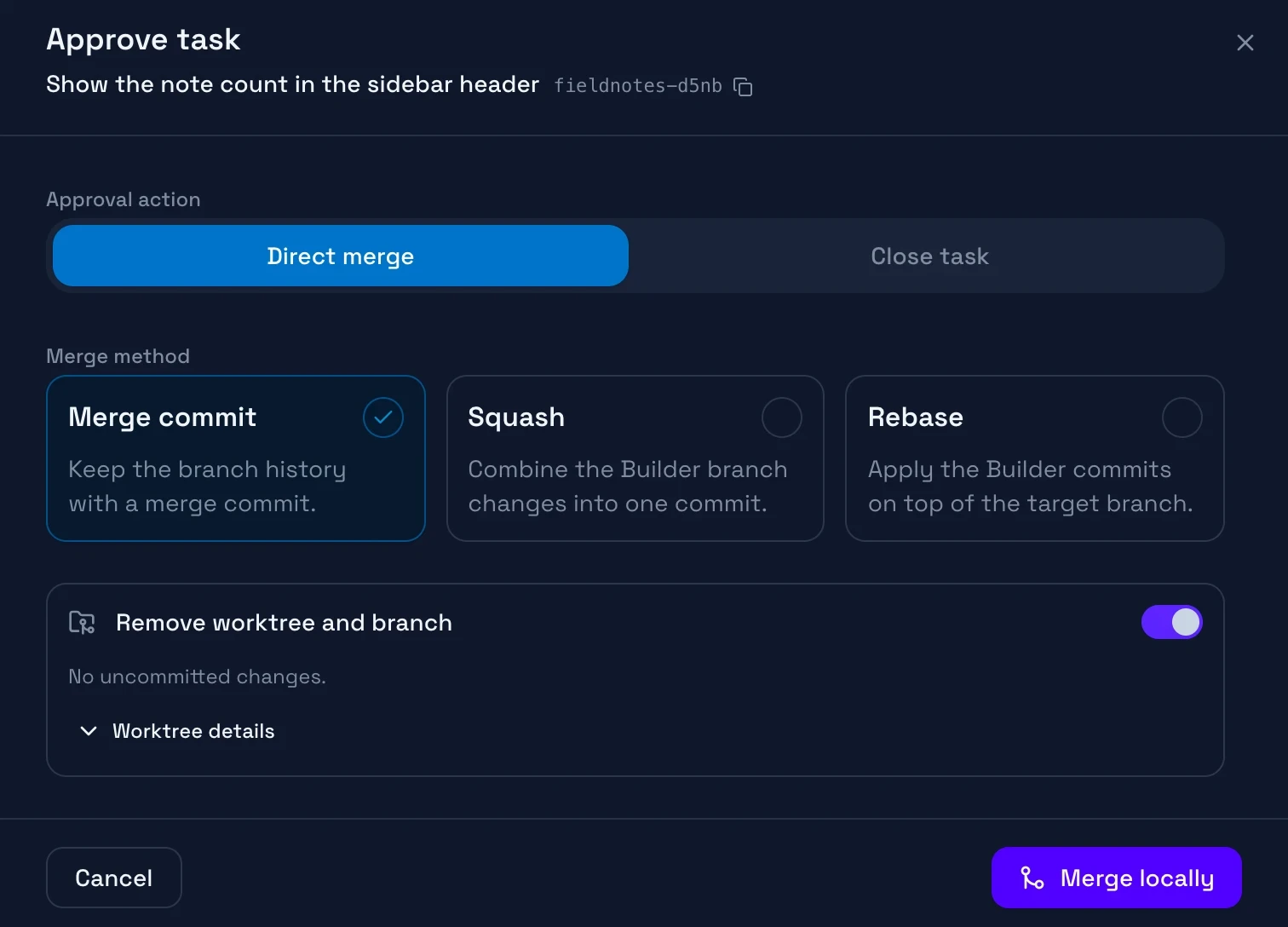
- Select a merge method: Merge commit, Squash, or Rebase. For Squash, enter the Squash commit message.
- Select Merge locally. OpenDucktor merges the task branch into your local target branch.
- If the target branch has a remote, select Push main and mark done. The button shows the name of your target branch. Without a remote, the task moves to Done at once.
Finish later closes the dialog before the push. The merge stays in your local target branch, and the task stays in Human Review. Until you push, no agent session of the task can start. The task offers only Approve Task, Close Task, Reset Implementation, and the actions that open its sessions. Select Approve Task again to push.
If the merge stops on conflicts, see Resolve a conflict. To change the merge method that the dialog selects first, see Default merge method.
Open a pull request
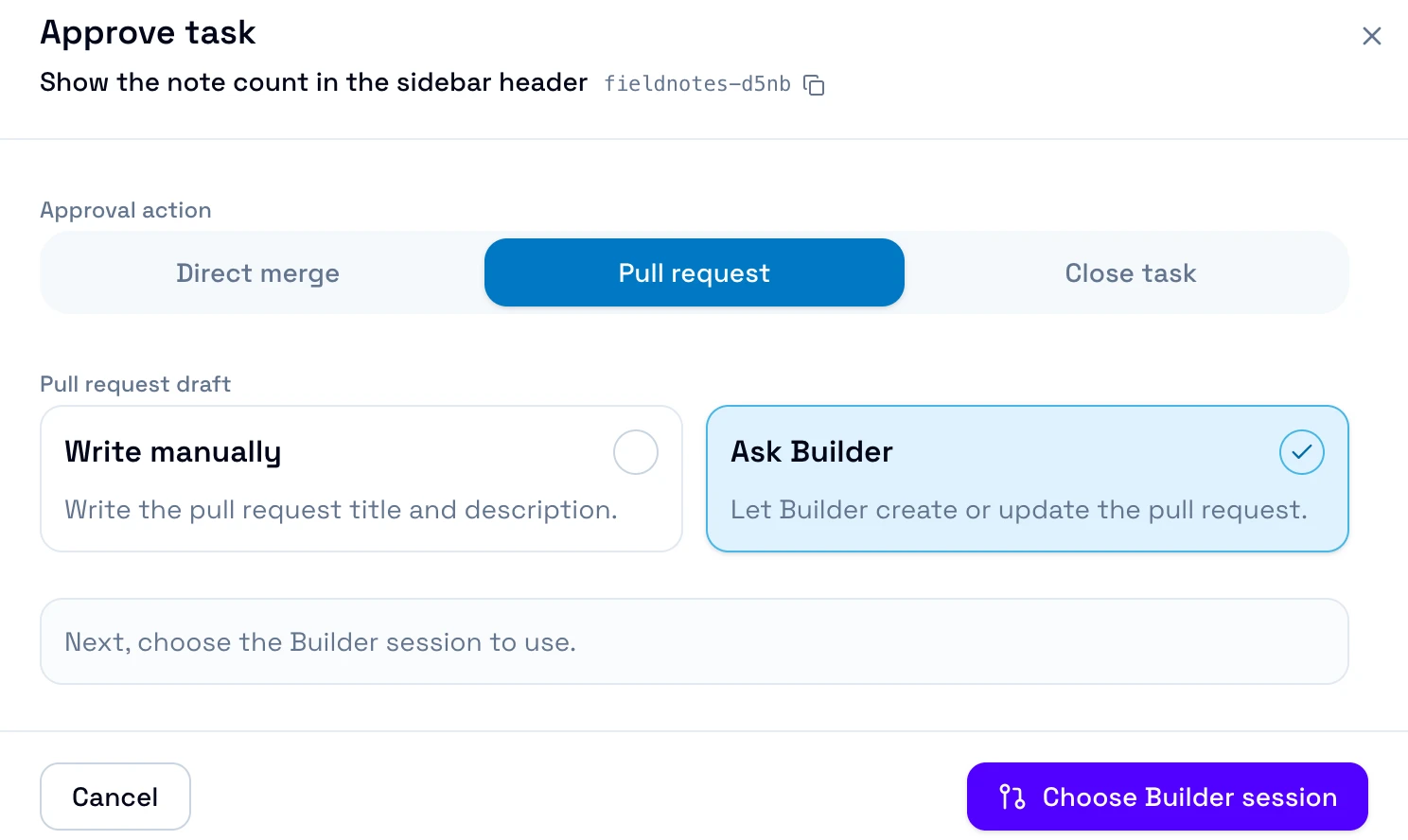
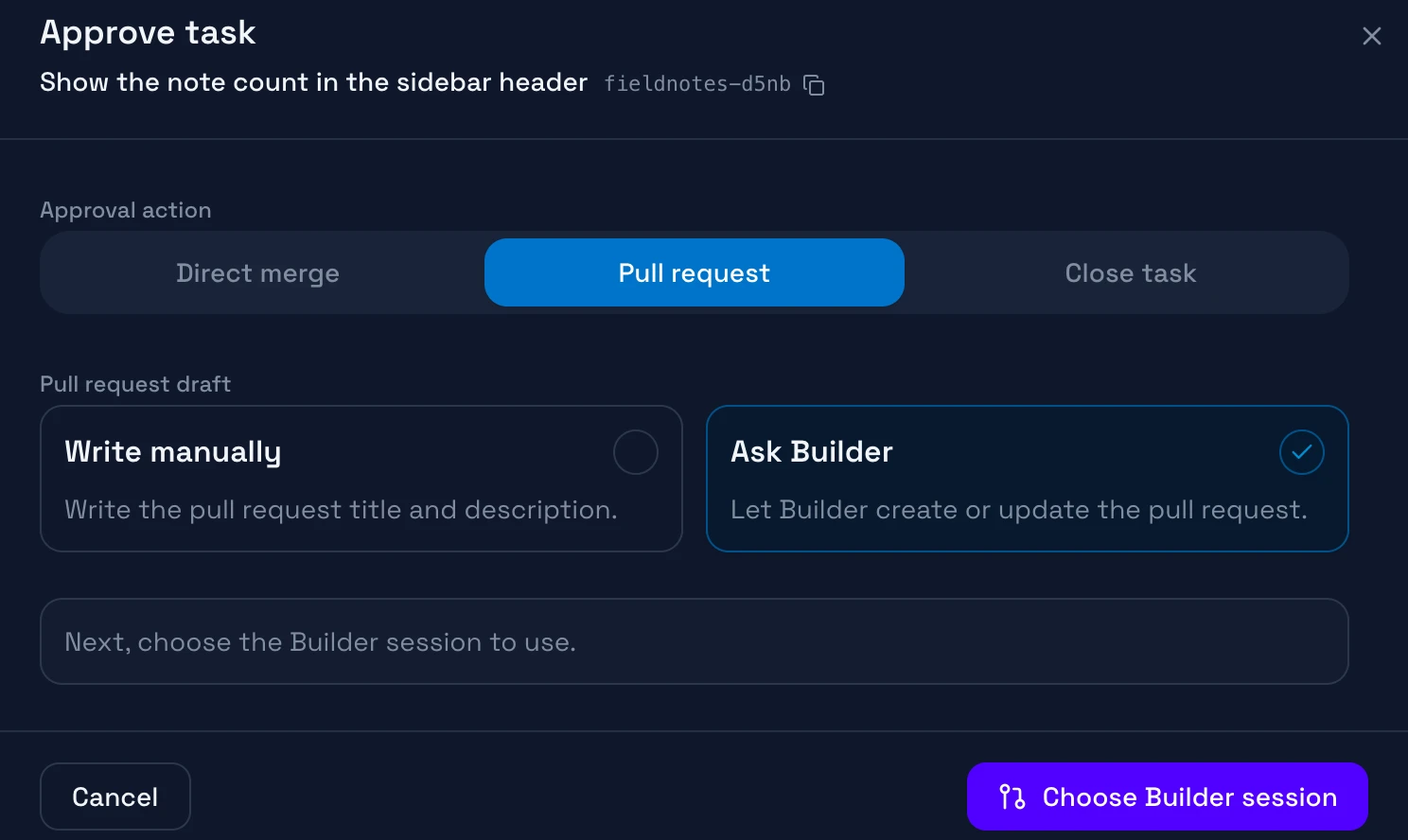
Choose who writes the pull request:
- Ask Builder: select Choose Builder session. Select Reuse existing to continue a Builder session, or Fork existing to continue in a copy of it, then select Start session. The Builder follows the pull request template of the repository, pushes the branch, and opens the pull request with the tools of its shell. For GitLab and Azure DevOps, install a CLI first. See GitLab and Azure DevOps.
- Write manually: enter the Pull request title and the Pull request description, then select Create pull request. OpenDucktor pushes the branch and creates the pull request with the provider connection. If the task has an open pull request, OpenDucktor updates it.
In Human Review, the session page can also show Generate Pull Request. It opens the same session choice.
Follow a pull request
The Builder runs the local checks, pushes the task branch, and creates or updates the pull request. Then it links the pull request to the task and waits for the required checks. If a check fails, the Builder fixes the cause and pushes again. The task stays in its lane, and the top bar of the session page shows the pull request.
OpenDucktor does not merge the pull request. You merge it on the Git provider.
CI checks
The right panel of a task session shows the CI Checks tab when the task has a linked pull request. The tab shows the checks of the pull request, then its comments.
- The tab reads the checks when it opens. It does not update itself. To read them again, select the refresh button next to Updated.
- Open a check to see its workflow, its details, and its start and end times. To read its log, select its link icon. The check opens on the Git provider.
- The dot on the tab shows the status: blue while checks run, red when a check fails, and green when all checks pass. A number on the tab counts the open review threads.
The tab does not start a fix. The Builder session that wrote the pull request fixes failed checks while it waits. After that session ends, send it a message to ask for a fix.
Review comments
Under the checks, Comments lists the reviews and the comments of the pull request, as the Git provider shows them.
- Reviews show their result: Approved, Changes requested, Commented, or Review dismissed. Comments of automated accounts show Bot.
- Comments on a line show Unresolved or Resolved, the file and the line, and the code that they are about. Unresolved comments open, and resolved comments stay closed.
- Suggested changes of a reviewer show as a diff in a Suggested change box under the comment.
- Filters: select All, Humans, or Bots. To hide the resolved comments, select Filter comments, then turn on Hide resolved. OpenDucktor keeps this choice.
- Replies: select the link icon of a comment to open it on the Git provider. You reply to a comment and resolve it there.
The agent does not read the tab. To fix a comment, tell the Builder what to change, for example:
When the pull request merges
OpenDucktor reads the pull requests of each open workspace when it starts, then every 5 minutes. When it finds a merged pull request, OpenDucktor stops the task terminals and sessions, runs the cleanup, and moves the task to Done. It asks for no confirmation. A pull request closed without a merge does not close the task.
To read the pull requests now, run Sync pull requests from the command palette. If a task cannot close, for example because its worktree has uncommitted files, the task card shows the reason and a Close Task action.
Cleanup
When a task closes, OpenDucktor can remove the task worktree and the local task branch. The way the task closes decides:
- Direct merge and Close task: the Remove worktree and branch switch of the dialog decides. Cleanup removes the task worktree, the session worktrees, and their local branches.
- A merged pull request: the Remove worktree on close field of the task decides. Default follows Remove task worktree on close. Cleanup removes the task worktree and the task branch. Uncommitted files stop the close.
Cleanup keeps the task, its artifacts, its session history, and its pull request link. To remove a kept worktree later, open the closed task and select Remove Worktree in its actions menu.
Cleanup deletes work