Settings reference
Each entry gives what a setting changes, its values, its default, and when a change applies. Each section links to the guide with its steps.
Open the Settings dialog
- Select Settings at the bottom of the sidebar. When the sidebar is collapsed, select the gear icon.
- Run Open settings in the command palette.
- Run a palette command that starts with
Settings:, such as Settings: Notifications, to open that section. - Select a control that opens one section. For example, Manage actions in the actions menu of a session opens Scripts.
Settings opens on the section that you used last. The first time, it opens Configuration in Repositories.
Save or discard changes
Your changes stay a draft until you select Save settings. The dialog closes when the save succeeds.
Cancel discards the draft without a confirmation. Esc, the close button, and a click outside the dialog close it but keep the draft. The next time that you open Settings, the draft comes back. Values that you did not change show the latest saved values. The dialog stays open while a save runs.
A change applies after you save, unless its entry says otherwise. Some changes apply only to new work, such as new sessions or new worktrees.
Validation errors
When the draft has an error, you cannot select Save settings. The footer names the error. The number in the message is the number of errors.
| Footer message | Fix |
|---|---|
Fix the placeholder error in QA Kickoff (Spec, Plan, Build, System prompts). | Open the named prompt. Correct the placeholder, or turn off the append or override that has it. With more errors, the message is Fix 2 prompt placeholder errors. The first is in and a prompt. See Agent prompts. |
1 reusable prompt field error. | Give each prompt a valid, unique name and content. See Reusable prompts. |
1 custom role field error. | Give each role a unique name and a system prompt. See Custom agent roles. |
1 runtime executable error. | Correct the path, or turn off the harness. See Executable path. |
1 OpenCode permission field error. | Fill the empty selector or pattern. See OpenCode permissions. |
Confirm the Codex safety acknowledgement before saving. | Turn on the acknowledgement. See Codex safety acknowledgement. |
Fix Claude settings: and a field | Correct the field in the policy group that shows the error count. The group opens by itself. |
Confirm the Claude safety acknowledgement before saving. | Turn on the acknowledgement. See Claude safety acknowledgement. |
Could not load runtimes: and a reason | Select Reload runtimes in Agent runtimes. |
Runtime executable check failed: and a reason | Select Retry executable check in Agent runtimes. |
A prompt error also shows a red dot on the icon of System prompts or Repositories. A reusable prompt or a custom role with an error shows an alert icon in its list.
Some errors show only after you select Save settings. They show in a Cannot save settings message, for example Fix 1 Git provider field error in the selected repository before saving.
If a kept draft changes a workspace or custom role that no longer exists, Settings shows, for example, Workspace alpha is no longer available. Copy your edits or discard them with Cancel. Copy the text that you need, then select Cancel.
When the host rejects the save, Failed to save workspace settings gives the reason, for example Workspace is not a git repository: and the path.
Changes that save at once
These controls save on their own:
- Theme saves when you select a value.
- Remote control applies its changes at once, with its own switch and buttons.
- Save and continue in Azure DevOps saves the whole draft and keeps the dialog open. The sign-in and the personal access token use their own buttons.
- Outside Settings, the session grouping button of the sidebar and the task card view control of the Kanban page save at once.
A save sends only the values that you changed. If another client of the host changed the same value while your dialog was open, your save replaces it. Other values keep what the other client saved.
Setting scopes
| Scope | Where the value applies | Sections |
|---|---|---|
| Host | Every desktop or browser client of the host. | Appearance, Remote control, Git, Agent runtimes, System prompts, Reusable prompts, Custom agent roles, Sessions, Notifications, Kanban, Autopilot |
| Repository | Only the workspace that you select in Repositories. | Configuration, Scripts, Git, Agents, Repository prompts |
| Device | Only the device that shows OpenDucktor. | The preferences of the mobile app |
System default in Theme and Horizontal scrollbars follows the system of each device, not the system of the host.
Repository prompts change the System prompts for one workspace. No other workspace setting changes a host setting.
Desktop, browser, and mobile
| Client | Settings access |
|---|---|
| Desktop app | All sections. |
| Local browser runner | All sections. Updates shows Browser runner. |
| Hosted or remote browser client | All sections except Remote control, because only the host computer can share the host. Updates shows Browser runner. |
| Mobile app | No Settings dialog. Its Settings tab has Theme and Show Thinking Messages for that device only. |
The mobile app also uses these host settings: reusable prompts, Steer messages by default, Expand file diffs by default, Done tasks visible for, Empty columns, and Remove task worktree on close. Change them from a desktop or browser client.
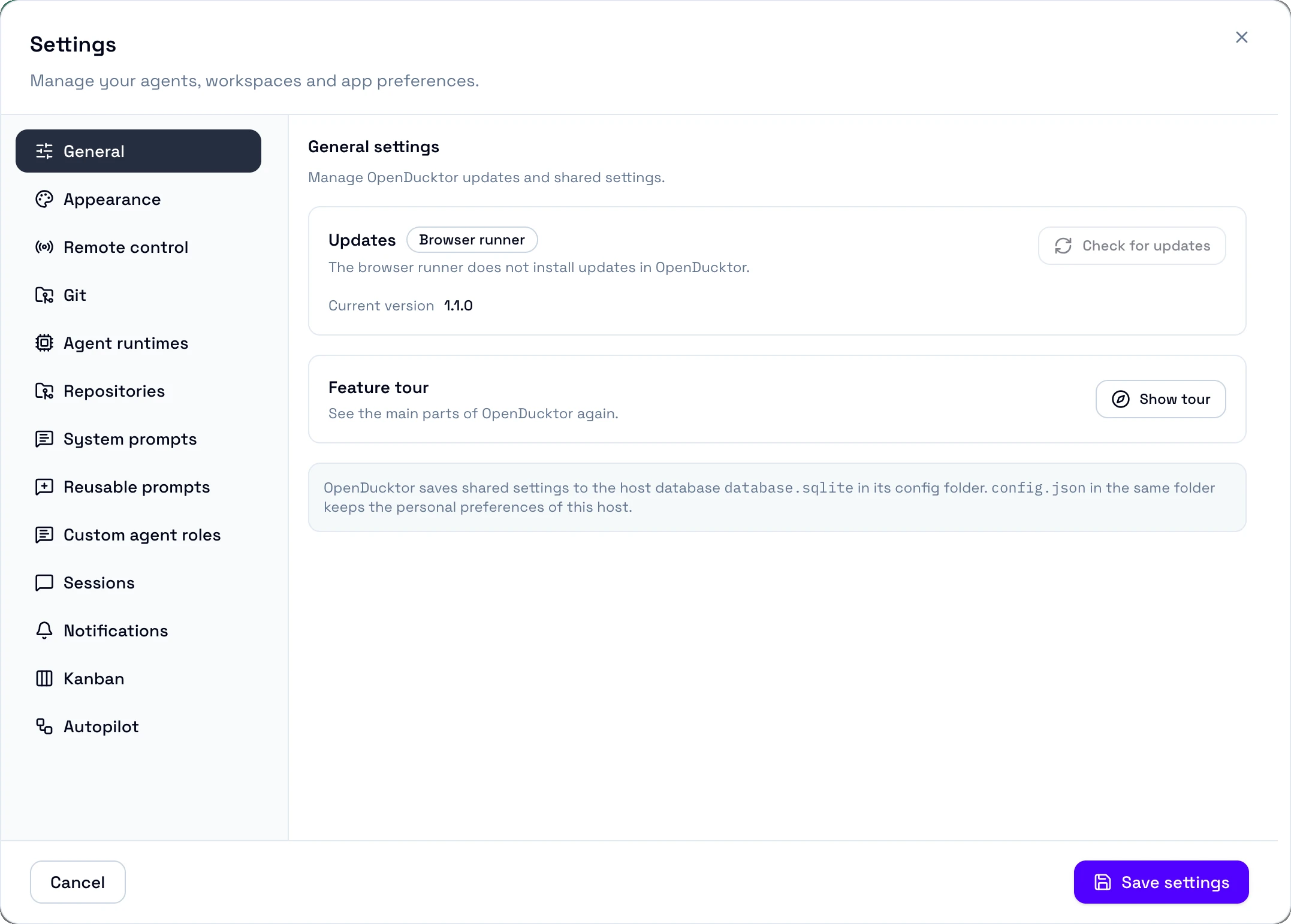
General
Updates
- Updates work only in the packaged desktop app. The browser runner shows Browser runner, and a development build shows Development build.
- For the update steps, see Install and update.
Feature tour
The tour shows once after the first-run setup. Show tour shows it again.
Settings files
The host keeps shared settings in its database, database.sqlite. It keeps the personal preferences of the host in config.json. These are the Appearance, Sessions, Notifications, Kanban, and Reusable prompts settings. Both files are in ~/.openducktor. To use another folder, set the OPENDUCKTOR_CONFIG_DIR environment variable.
Appearance
Theme
- Choose System default, Light, or Dark. System default follows the device.
- The default is System default.
- The theme saves when you select it. Cancel does not undo it. If the save fails, Theme change failed shows and the previous theme comes back.
- The mobile app has its own theme.
Preferred Open In tool
- Sets the app that Open In uses for repository and worktree folders. The app opens on the host computer.
- The choices are the supported apps that the host finds: Finder, File Explorer, Files, Terminal, iTerm2, Ghostty, VS Code, Cursor, Zed, IntelliJ IDEA, WebStorm, PyCharm, PhpStorm, Rider, RustRover, and Android Studio.
- The default is the first supported app that OpenDucktor finds.
- If the saved app is not installed, the section names the app that Open In uses. If the list does not load,
Failed to load supported apps:shows with Retry.
Sidebar sessions
- Sets which sessions the sidebar lists. By task shows one current session for each task, plus each session that needs input. Ungrouped shows every session.
- The default is By task.
- The grouping button in the sidebar also changes this value, and it saves at once.
Horizontal scrollbars
- Sets whether horizontal scroll bars show. Choose System default, Show, or Hide.
- The default is System default. On each device, it shows the scroll bars on Windows and Linux, and it hides them on macOS.
Remote control
This section shares this host with the devices that you pair. For the steps, see Remote control.
- Only the desktop app and the local browser runner on the host computer list this section. In a remote client, Settings: Remote control shows
Open Settings on the computer that runs the host to change remote control. - Its changes apply at once. The footer shows Cancel and
Remote control changes save immediately., with no Save settings button. - OpenDucktor keeps these settings after a restart. If Remote control was on, it starts again with OpenDucktor, at the same address.
Enable Remote Control
- The default is off.
- When sharing is on, select Change on the Network card to edit the fields below, then select Apply changes.
- When another app uses the port, select Use another port. The host then gets a free port and keeps it. This button does not show when you set a public host address.
Add device
- Shows when Remote control is on. It gives a one-time six-digit code, the host address, and a QR code for the mobile app. For the code rules, see Pair a device.
- Pairing also stops when you select Stop pairing or when Remote control stops.
Paired devices
- Remove revokes the access of a device at once, with no confirmation. See Remove a device.
- Access stays after a restart and when Remote control is off. The list also shows when Remote control is off, so you can remove a device.
Network
- Sets the network address of this computer that your other devices use.
- When the computer has only one address, that address is the default. Otherwise, there is no default.
- The errors are
Choose a network, or enter a public host address in Advanced.andNo network found. Connect this computer to a network, then refresh.
Port
- Select Advanced to see this field.
- Sets the port of the host. Enter a whole number from 1 to 65535.
- The default is
14328. The host keeps the port after a restart. - An invalid value shows
Enter a whole port number from 1 to 65535.
Local listen address
- Select Advanced to see this field.
- Sets the IP address that the host listens on. Enter it with no scheme, port, or path.
- The default is the address of the selected network.
0.0.0.0listens on all IPv4 networks.127.0.0.1listens on this computer only. Both values need a public host address.
Public host address
- Select Advanced to see this field.
- Sets the full
httporhttpsURL that clients use. Copy, the QR code, and the request checks use this URL. - The default is blank. Clients then connect to the network address directly.
- Set it when clients reach the host through a reverse proxy or a tunnel. You set up the proxy outside OpenDucktor. A public host address needs a fixed port.
- An invalid value shows
Enter a full http or https host URL, or leave it blank.
Other web clients
- Select Advanced to see this field.
- Sets the origins of other web apps that can use this host, for example
https://my-openducktor.example. - Separate the origins with commas. Enter up to 32 origins, with no path or trailing slash.
- The default is blank. Local clients and
app.openducktor.devalways work. - An invalid value shows
Enter web client URLs separated by commas, with no path or trailing slash.
Git
This section sets the direct merge method and the cleanup when a task closes, for every workspace. See Git and pull requests.
Default merge method
- Sets the method that the approval flow selects first for a direct merge. Choose Merge commit, Squash, or Rebase.
- The default is Merge commit.
- You can select another method in each approval.
Remove task worktree on close
- When a task closes, removes the task worktree and the local task branch.
- The default is on.
- Each task has a Remove worktree on close field with Default, Yes, or No. Default follows this setting and shows its value, for example Default (Yes).
Agent runtimes
Sets up OpenCode, Codex, and Claude Code. Select a harness in the list to see its settings. See Harnesses.
Enabled
- OpenDucktor does not start a disabled harness, and new sessions cannot use it.
- The default is off until the first-run setup turns on the harnesses that you choose.
- When a workspace uses a disabled harness, Agents shows a warning, such as
Default Model runtime "Codex" is disabled. - When the change stops running sessions, Apply runtime changes opens before the save.
Executable path
- Sets the file that OpenDucktor runs. Type the path, or select Browse.
- The first-run setup fills in each path that it finds.
- The status is Available with the version, Checking, Not found, Needs attention on an enabled harness, or Unavailable on a disabled harness whose file fails the check. Check again searches again. It keeps a path that you edit during the search.
- An invalid path on an enabled harness blocks the save with
1 runtime executable error.For path problems, see Troubleshooting. - A new path replaces the running harness. When sessions run, Apply runtime changes opens first.
Apply runtime changes
This dialog opens when a save turns off a harness or changes its path while its sessions run.
- The dialog lists the live sessions that stop. The change rejects the pending input of these sessions. Saved sessions stay in history.
- Save and apply saves and applies the change. Cancel keeps the draft.
- If the list of sessions changes, the dialog shows
The affected sessions changed. Review the updated list, then confirm again. - If the save succeeds but a harness change fails, Settings saved, but a runtime change failed shows. Restart the harness from Diagnostics.
OpenCode permissions
Adds permission rules to OpenCode sessions. The default is no rules. OpenCode then uses its own behavior, and the OpenDucktor workflow policy still applies.
| Part | What it does |
|---|---|
| New rule | A new rule starts with Commands, the pattern *, and Ask. |
| Target | Sets what the rule covers: Commands, Read files, Edit files, Find files, Search file content, List directories, External directories, Fetch web pages, Search the web, Repeated tool calls, Skills, Subagents, or Tools and MCP tools. Some targets also take a pattern. |
| Action | Allow runs without approval from this rule. Ask waits for approval. Deny blocks the action. |
| Role overrides | Adds rules for one role. Inherited uses the default rules. Use role rules adds rules after the defaults. Turning off Role overrides removes all role rules. |
| Order | Native OpenCode rules come first, then Defaults, then role rules, then the OpenDucktor workflow policy. In each list, the last matching rule wins. The workflow policy has final priority. |
| Applies to | New and forked sessions. Existing sessions and pending approvals keep their rules. |
- The field errors are
Enter a permission or tool selector.,Enter a pattern; use * to match all inputs., andThis selector supports only a whole-permission action. Use * as its pattern. - A rule changes permissions only. It does not install or turn on a tool.
Codex policy
Sets the sandbox and approval behavior of Codex sessions. The change applies to Codex sessions that start or resume after the save.
- Each field has a default value. To set a value for one role, turn on Role overrides for the field.
- Inherited sets one role back to the default. Turning off Role overrides removes all role overrides of the field.
Sandbox mode
| Value | What it does |
|---|---|
| Read-only | Codex reads files but cannot change the workspace. |
| Workspace-write | Codex edits files in the workspace, inside the sandbox. |
| Danger full access | Codex runs with no sandbox boundaries. |
The default is Workspace-write.
The Builder cannot use Read-only. When the Builder inherits Read-only, it uses Workspace-write, and the section shows a note.
Approval prompts
| Value | What it does |
|---|---|
| Untrusted | Codex asks before writes or commands that need trust. |
| On request | Codex asks when it decides that a command needs approval. |
| Never | Codex never asks. |
The default is On request.
Prompt reviewer
- Sets who reviews approval prompts. User sends approval prompts to you. Auto review sends eligible prompts to the Codex automatic review.
- The default is Auto review.
- This field has no effect while Approval prompts is Never.
Command network access
- Sets whether commands in sandboxed turns can use the network. On lets them use it. Off blocks it.
- The default is Off.
- Danger full access has no network limit.
Codex safety acknowledgement
When the draft adds Danger full access or Never, the section shows Confirm reduced Codex protections. Before you save, turn on I understand these Codex settings reduce safety protections. Values that you saved before need no new confirmation.
Claude Code policy
Sets the tools, permissions, and sandbox of Claude Code sessions.
- The default is no OpenDucktor value. Each field shows Native Claude settings and uses the settings of your Claude Code installation.
- In a default, the first choice is Use native settings, which removes the OpenDucktor value. In a role override, the first choice is Inherited, which uses the default of the field.
- An on or off field then offers On and Off. A list field offers Use this list, with Add entry and Remove. An empty list adds no OpenDucktor entries, and the native entries stay.
- The change applies to new and forked sessions. Resumed and imported sessions use the native settings.
- OpenDucktor role limits and native mandatory restrictions always apply. Spec, Planner, and QA keep their read-only tool and worktree limits.
The section puts the fields in these groups:
| Group | Fields | Values |
|---|---|---|
| Tool availability | Tool availability | A switch for each tool |
| Approval mode | Approval mode | A mode |
| Bash sandbox | Bash sandbox | On or off |
| Command options | Approve sandboxed commands automatically, Allow outside-sandbox requests | On or off |
| Command options | Excluded commands | A list |
| Permission rules | Allow rules, Ask rules, and Deny rules | A list each |
| Sandbox file access | Additional writable paths, Denied writable paths, Denied readable paths, Read exceptions | A list each |
| Sandbox network access | Allowed domains, Denied domains, Permitted Unix sockets | A list each |
| Sandbox network access | Block unlisted domains, Allow local network binding, Allow all Unix sockets | On or off |
Approval mode
Sets when Claude Code asks you for permission. Managed restrictions and role limits stay active in every mode.
| Mode | What it does |
|---|---|
| Standard approvals | Asks when the native permission checks require approval. |
| Accept edits | Approves eligible file edits. Other tools keep their native checks. |
| Deny instead of asking | Denies a call that needs a permission prompt. The session does not ask you. |
| Bypass permissions | Skips routine prompts. Mandatory restrictions remain. Needs the safety acknowledgement. |
| Automatic approvals | Lets the automatic approval classifier of Claude Code check each call, when your Claude Code version has it. The session reports the mode that it applied. |
Bash sandbox
- Isolates Bash and its child processes. It does not isolate every file tool, web tool, MCP server, or subagent.
- If the computer cannot isolate a command, the command or the session launch fails.
- To turn off the sandbox, confirm the safety acknowledgement.
Approve sandboxed commands automatically
When on, Claude Code approves Bash commands that run in the sandbox, without a prompt. This field is separate from Approval mode and from the automatic approval classifier.
Allow outside-sandbox requests
When on, Claude Code can ask to run a command outside the sandbox after the command fails in the sandbox. Excluded commands follow their own native behavior.
Excluded commands
Lists the commands that run outside the sandbox. Each entry is one native pattern, such as git or docker *. A matching command still needs permission approval, and it runs without the protection of the sandbox.
Permission rules
- Allow rules, Ask rules, and Deny rules take one native rule in each entry. Examples are
Read,Bash(git status),Read(./src/**),WebFetch(domain:example.com), andmcp__github__*. - Beside Add entry, select the kind of rule: Tools, Commands, File paths, Network domains, MCP tools, or Subagents. The field then shows an example.
- A rule for one subagent, such as
Agent(Explore), works only in Deny rules. Allow and ask rules take the wholeAgenttool. - A deny rule wins over an ask rule, and an ask rule wins over an allow rule. Native rules still apply.
- An allow rule approves a tool, but it does not make the tool available. See Tool availability.
- In file patterns,
./is the working directory,//starts an absolute path,~/is your home folder, and/is relative to the settings source. - Sandbox path fields use other path rules.
Additional writable paths
Adds paths where sandboxed commands can write. The native baseline access stays. In sandbox path fields, a relative path starts at the launch directory, / starts an absolute path, and ~/ is your home folder.
Denied writable paths
Lists paths where sandboxed commands and their child processes cannot write. The path rules are the same as in Additional writable paths.
Denied readable paths
Lists paths that sandboxed commands cannot read. The path rules are the same as in Additional writable paths.
Read exceptions
Lists paths inside a denied readable path that sandboxed commands can read again. The native path rules and the managed policy decide which entry applies.
Allowed domains
- Lists domains or native patterns, such as
*.example.com, that sandboxed commands can reach. Native entries still apply together with these entries. - WebFetch domain rules also affect the sandbox. WebFetch and MCP calls need their own permission rules.
Denied domains
Lists domains that sandboxed commands cannot reach. Native denials and managed restrictions stay active.
Block unlisted domains
When on, the sandbox blocks each domain that is not in Allowed domains. Claude Code does not ask for access.
Allow local network binding
When on, sandboxed commands can listen on local ports, for example for a test server. This works only where the platform supports it.
Permitted Unix sockets
Lists Unix socket paths that sandboxed commands can use. A relative path starts at the launch directory. macOS applies its native socket access controls, and Linux follows its native platform limits.
Allow all Unix sockets
When on, sandboxed commands can use every Unix socket. A command can then reach services outside the sandbox network limits, such as a Docker daemon. To allow only the sockets that you need, use Permitted Unix sockets.
Tool availability
- Shows a switch for each tool of Claude Code. When you turn off a tool, OpenDucktor removes it from Claude Code and its subagents. When you turn it on, OpenDucktor stops removing it. Native availability, permission rules, and role limits still apply.
- By default,
Artifact,ArtifactComments, andArtifactDataare off. Other tools are on. Use Role overrides to set other tools for one role. - When Claude Code is not ready, the section shows
Claude is not ready. Check Claude in Diagnostics, then reopen tool availability. - These switches do not turn on the native Claude Artifact feature.
Claude safety acknowledgement
When the draft adds Bypass permissions or turns off the Bash sandbox, the section shows Confirm reduced Claude protections. Before you save, turn on I understand these Claude settings reduce safety protections. Values that you saved before need no new confirmation.
Repositories
This section holds the settings of one workspace. Select the workspace in the Repository list, then select Configuration, Scripts, Git, Agents, or Repository prompts.
- The list shows only open workspaces. When no workspace is open, the section shows
Add a repository first, then configure repository settings. - One save writes the changes of all workspaces in the draft.
Configuration
Workspace ID
Shows the fixed ID of the workspace. You cannot change it. External MCP clients use it.
Workspace name
A blank name fails the save with Workspace name cannot be blank.
Abbreviation
- Sets the text on the workspace tile, up to 3 characters.
- The default is blank. The tile then shows initials from the workspace name, and the field placeholder shows them too.
- To use the initials again, delete the text.
Tile color
- Sets the color of the workspace tile. Choose Default, a palette color, or a 6-digit RGB value in Hex code.
- The default is Default.
- An invalid hex value shows
Enter a 6-digit RGB hex value, such as f08c00.
Repository path
- Sets the folder of the Git repository.
- When the repository moves, select Change folder and choose the new folder. The workspace ID stays the same.
- The errors are
Workspace path does not exist:,Workspace is not a git repository:, andRepository path is already registered to workspacewith the ID. Choose another folder.
Custom worktree folder
- Sets an absolute folder outside the repository for new worktrees. Type the folder, or select the folder icon. The field is optional.
- The default is blank, which uses
~/.openducktor/worktrees/followed by the workspace ID. Worktree location shows the path in use. - To use the default again, clear the field.
Branch prefix
- Sets the first part of task branch names, in the form
prefix/task-id-slug. - The default is
odt. A blank field saves asodt. - The change applies to new branches.
Default target branch
- Sets the local or remote branch that task work starts from and merges into.
- When you add the repository, OpenDucktor fills in its default branch. With a remote, it uses the branch that the remote HEAD names, such as
origin/main. Without a remote, it uses the current branch. - If Git does not tell the default branch, the field stays empty and you choose the branch.
- A task or workspace session with its own target branch uses that branch.
- If the branch list does not load,
Failed to load branches for repository:shows with Retry.
Scripts
Sets the repository actions and the worktree scripts. For the steps, see Actions, worktrees, and prompts.
Actions
- Sets the commands that you run from the session top bar. Each run opens a new terminal in the task worktree, or in the directory of the workspace session.
- The default is no actions.
- The list order is the menu order and the run order at worktree creation. For the 5-minute limit of an action that the agent waits for, see Run setup commands.
- The first action that you add becomes the default action. When you delete it, the first remaining action becomes the default.
- Open sessions show the changes without a reload.
| Field | Values | Default |
|---|---|---|
| Icon | Play, Test, Lint, Configure, Build, Debug | Play |
| Name | Any text that is not blank. | Blank |
| Command | One command on each line. The lines run in one shell, and a line runs only after the previous line succeeds. OpenDucktor skips lines that start with #. | Blank |
| Run automatically on worktree creation | On or off. | Off |
| Wait for it to finish before the agent starts | On or off. You can turn it on only when the previous switch is on. | Off |
The dialog errors are Enter an action name., Enter a command., and Add a command line. Lines that start with # are comments.
Before worktree removal script
- Before worktree removal script (one command per line) sets commands that run in a task worktree right before OpenDucktor removes that worktree.
- Close Task, Delete Task, Reset Task, Reset Implementation, Remove Worktree, and the cleanup of a merged task run the script. A worktree that no longer exists has no script run.
- The default is blank.
- OpenDucktor runs the lines in order. Each line runs as a program, not in a shell, with a 5-minute limit.
- For shell features, call a shell, for example
sh -c "npm run clean && rm -rf tmp". - The first failed command stops the removal. OpenDucktor keeps the worktree, deletes no branch, and does not change the task status. See Before worktree removal script command failed:.
Files copied to worktrees
- Files copied to worktrees (one path per line) sets the files and folders that OpenDucktor copies from the repository into each new task worktree or workspace session worktree, such as
.env. A folder copies with its content. - The default is blank.
- Give each path relative to the repository root. Keep each path inside the repository, and leave out
.git. Settings does not check the paths when you save. - A bad path fails the worktree setup with
Configured worktree copy source is unavailable:,Configured worktree copy path must be relative:,Configured worktree copy path cannot traverse outside the repository:, orConfigured worktree copy path cannot include the repository metadata directory:. Correct the line, then start the work again.
Git
Sets the Git provider for pull requests and work item imports. For the steps, see GitHub, GitLab, and Azure DevOps.
Git provider
- Choose No provider, GitHub, GitLab, or Azure DevOps.
- The default is No provider. If OpenDucktor found a provider in the Git remotes when you added the workspace, that provider is the default.
- For another provider, the section shows
This repository uses a provider that this settings page cannot edit.
GitHub
- The card has an Enabled switch, Detect from origin, and Edit manually with Host, Owner, and Repository.
- Needs the
ghGitHub CLI, signed in. - The card shows CLI installed or CLI missing. Its status is Ready when pull requests work, Configured when they work on a host other than
github.com, Not ready, or Unavailable when another provider is set. Before the save, it showsSave settings to check GitHub health. - When GitHub is ready, the Approve task dialog offers Pull request.
GitLab
The GitLab setup card has an Enabled switch, a Project step, and an Account step. Its status is Disabled, Link project, Connect account, Checking, Ready, or Needs attention. GitLab needs no CLI.
- Project: select Detect from origin, or enter the Instance URL and the Project path. The default instance is
https://gitlab.com. A self-managed instance can use a sub-path, and it needs GitLab 17.4 or later. - Project remote shows when no local remote matches the project, for example with an SSH host alias. Enter the name of the remote that points to the project.
- An
http://instance needs the confirmationSend the GitLab token tothe instanceover HTTP without encryption. - Account: on GitLab.com, choose Sign in with GitLab to approve OpenDucktor in the browser, or an Access token. A self-managed instance accepts only a token. The token is a personal, project, or group access token with the
apiscope. Create a token in GitLab opens the token page with that scope. - One account serves every repository on the same instance. When an instance has more than one saved account, choose one, or select Use another account. Disconnect unlinks the account from this repository.
- OpenDucktor keeps the token in the secure store of the operating system. When no workspace uses an account anymore, the next save deletes it.
- The card shows
The token expires ona date when 7 days or less remain. A problem shows a fix button: Replace token, Sign in again, Use another account, Retry, or Confirm HTTP.
Azure DevOps
The Azure DevOps setup card has an Enabled switch and these fields. Its status is Disabled, Link repository, Connect account, Check connection, Choose area, Save area, or Ready. For the steps, see Azure DevOps.
- Repository: Detect remote or Enter manually. Choose Azure DevOps Services or Azure DevOps Server. Then enter the Organization, or the Server address and Collection, then the Project and the Repository.
- Connection: Save and continue saves the mapping. Then connect with Work or school account through Microsoft Entra, or with Personal Microsoft account and a personal access token. Azure DevOps Server accepts only a personal access token. The token needs the scopes Code read and write, Build read, and Work Items read. The connection belongs to this repository only.
- Work item area: the Area path for work item imports. Imports include its child areas. Pull requests work without it, but imports need it.
- Advanced remote mappings: when no local remote uses the Azure Repos URL, for example with an SSH host alias, select Add mapping. Enter the Remote name, its Fetch URL, and its Push URLs. The default is no mappings. Remove mapping deletes one.
An invalid server address shows Enter a valid HTTP or HTTPS server address. An HTTP server address needs the confirmation Allow credentials over unencrypted HTTP to this exact collection. The mapping errors are Remote name is required., Each remote mapping needs a different name., Enter a valid fetch URL., and Enter at least one valid push URL.
Agents
Sets the models that new sessions in this workspace use. See Models.
For the model that each new session uses, see Which model a session uses. A start that gets no model fails with a message such as No model is configured for the build session. The message names the role ID: spec, planner, build, or qa.
Default model
- Sets the Runtime and model, Agent profile, and Effort for new workspace sessions and for roles without a default. When the harness has no agent profiles, Agent profile shows Not supported by runtime. When the harness sets the effort itself, Effort shows Runtime sets effort.
- Generate goal in Goal mode also uses this model, with the Goal Writer prompt. Without a default model, Generate goal is off.
- The default is none, unless you set a model when you added the workspace.
Agent defaults by role
- Sets the model of Spec, Planner, Builder, and QA, with the same fields as Default model.
- The default is none, so the role uses the Default model. Clear sets the role back to the Default model.
- A default on a disabled harness shows a warning with the role ID, such as
build agent runtime "Codex" is disabled. - If the saved model is not available, the session start fails with a message such as
The saved build default or repository Default Model is not available for runtime codex.Choose another model.
Repository prompts
- Sets prompt appends and overrides for the selected workspace only. The screens and the controls are the same as in System prompts.
- A repository override replaces the global override and the built-in prompt. A repository append goes after the global append. See Which version applies.
- The Global changes badge marks a prompt that the System prompts change. The Final text of the prompt shows these changes with the labels
Override · all repositoriesandAppend · all repositories. - Errors work as in Agent prompts. The footer names the place as
Repository prompts ofand the workspace name.
System prompts
Sets the global appends and overrides of the prompts of the workflow agents. A Repository prompts change of the same prompt applies on top. For the prompts, the placeholders, the errors, and when a change applies, see Agent prompts.
The first screen lists Agent roles and Workflows. Select a workflow to see its prompts, then select a prompt to edit it. See Find a prompt.
Append instructions
- Adds your text after the prompt. The built-in text keeps its updates.
- The default is none. Typing in the empty field turns the append on.
- The switch turns the append off and keeps its text. Remove append deletes it. Settings removes an empty append.
- Insert a placeholder adds a placeholder at the cursor. See Placeholders.
Replacement prompt
- Replaces the whole prompt with your text. The override does not get the updates of the built-in prompt.
- The default is none. Replace in Replace the whole prompt creates the override. It starts with the built-in text, or in Repository prompts with the global override when that override is on.
- The switch turns the override off and keeps its text. Remove override deletes it.
- View built-in text shows the built-in prompt.
- When the built-in prompt changes, The built-in prompt changed shows with Keep my override and Remove override. See Outdated overrides.
Final text
Shows what the agent gets, part by part. Each part has a label: Built-in, Override · all repositories, Override · this repository, Append · all repositories, or Append · this repository. A placeholder that the prompt cannot fill is crossed out.
Reusable prompts
Sets the Markdown prompts that you insert with a slash command, such as /review, in a task session or a workspace session. See Actions, worktrees, and prompts.
The default is no prompts.
Name
- Sets the command name after
/. Enter it with no leading slash. - Use letters, digits, dots, underscores, colons, or dashes. Each name must be unique. Case does not matter.
- The errors are
Prompt name is required.,Use only letters, digits, dots, underscores, colons, or dashes., andPrompt names must be unique.
Description
Optional. The slash-command menu shows it.
Content
- Sets the Markdown text to insert. For
$ARGUMENTS, see Add a reusable prompt. - An empty field shows
Prompt content is required.
Custom agent roles
Sets reusable instructions for workspace sessions, such as a code reviewer or a research assistant. You choose the role when you start a workspace session. See Use a custom role.
- The default is no roles.
- A deletion applies when you save.
- New sessions use the saved role. Existing sessions keep their role, even after you edit or delete it.
Name
- Sets the name in the role menu. Each name must be unique. Case does not matter.
- The errors are
Role name is required.andRole names must be unique.
System prompt
- Sets the instructions of a new workspace session with this role.
- An empty field shows
System prompt is required.
Sessions
Sets message delivery and transcript display for task sessions and workspace sessions. See Coding sessions.
Steer messages by default
- When on, Enter and Send steer the message into the running turn. Cmd+Enter on macOS, or Ctrl+Enter on other systems, uses ordinary delivery.
- The default is off. Ordinary delivery queues the message while the session works or already has queued messages.
- The mobile app also uses this value.
Show thinking messages
- The default is off.
- The mobile app has its own switch on each device.
Show conversation minimap
- Shows a minimap of your messages beside session transcripts.
- The default is on.
Expand file diffs by default
- When on, file diffs in session transcripts start expanded.
- The default is on.
Diff style
- Sets the layout of file diffs in session transcripts. Choose Split or Unified.
- The default is Split.
Diff indicators
- Sets the markers next to added and removed lines. Choose Bars, Classic, or None.
- The default is Bars.
Diff height
- Sets the height of transcript diffs. Full shows each diff at full height. Scroll uses a compact scroll area.
- The default is Full.
Line overflow
- Sets how long diff lines show. Wrap wraps them. Scroll scrolls them horizontally.
- The default is Wrap.
Hunk separators
- Sets the separator for collapsed unchanged lines. Choose Line info, Line info basic, Metadata, or Simple.
- The default is Line info.
Notifications
Sets which agent and workflow events notify you, where the notifications show, and which sound they play. See Notifications.
System notification permission
- The top of the section shows the permission state of system notifications. For each state on each platform, see System permission.
- Some platforms show
System notifications may still make a sound on this device.
Test notifications
Test system notification works only where the platform supports system notifications. The tests do not change your settings.
Default sound
- Sets the sound of each rule with Use global sound. Choose Success, Close, Open, Select, Tap, Toggle, Error, Navigate, Loading, or Ready.
- The default is Success.
Volume
- Sets the volume of every notification sound, from 0% to 100%.
- The default is 30%.
System notifications
- When unfocused shows system notifications only when OpenDucktor does not have focus. Always shows them at all times.
- The default is When unfocused.
Notification sounds
- Mute when focused mutes sounds while OpenDucktor has focus. Always play plays them at all times.
- The default is Mute when focused.
Notification rules
Each event has a rule with Enabled, Delivery, and Sound. Delivery is In-app, System, or Both. Sound is Use global sound, No sound, or one sound. For each event and its default, see Notifications.
Kanban
Sets which tasks and lanes the board shows. See Tasks and workflows.
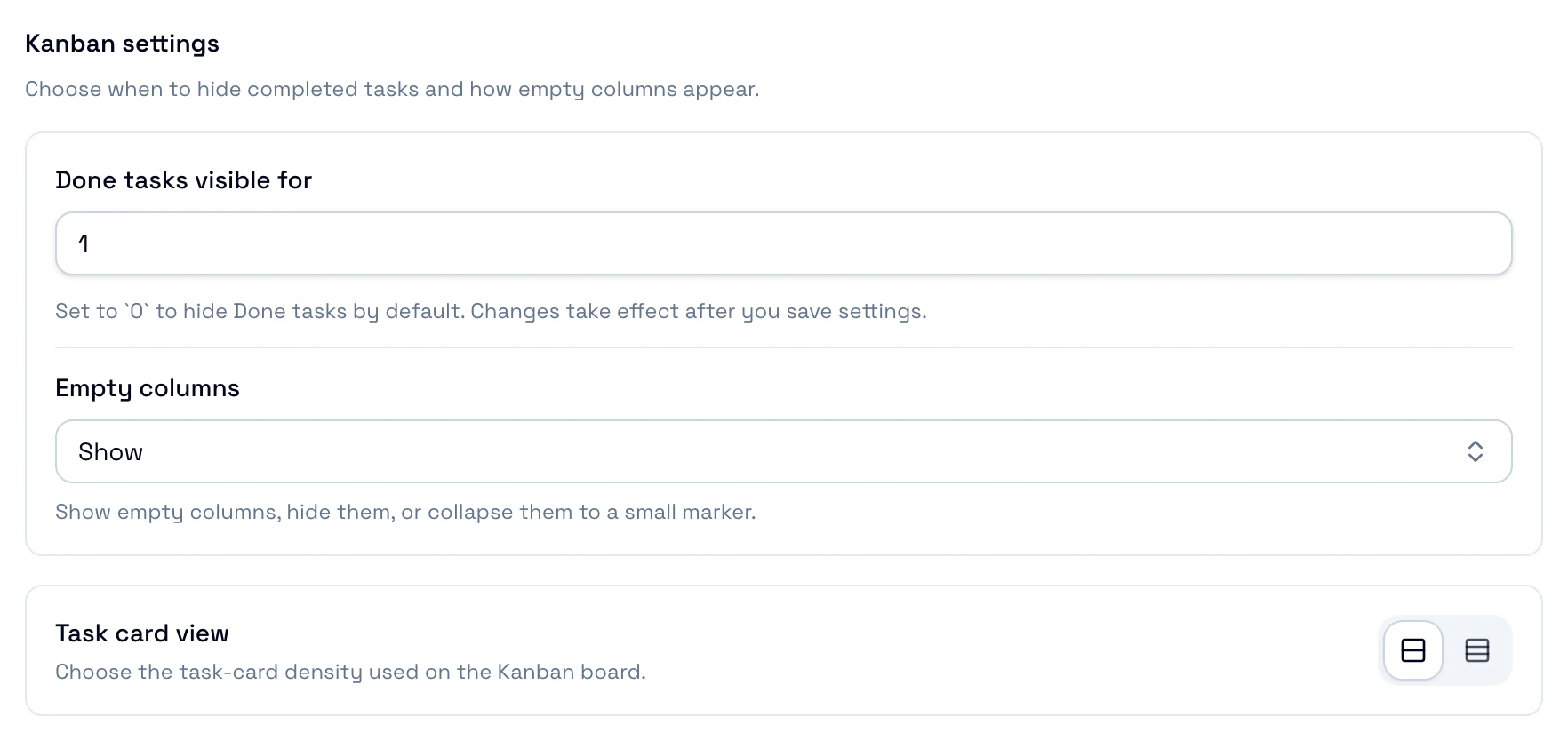
Done tasks visible for
- Sets the number of days that Done tasks stay on the board. To hide Done tasks, set 0.
- The default is 1.
- The mobile board and the command palette search also use this value.
Empty columns
- Sets how the board shows a lane with no task. Show shows the lane. Hidden hides it. Collapsed shows a compact marker.
- The default is Show.
Task card view
- Sets the size of the task cards on the board. Choose Normal or Compact.
- The default is Normal.
- The control in the Kanban page header and the palette commands Task cards: Normal and Task cards: Compact also change this value. They save at once.
Autopilot
Sets which workflow action starts by itself after a task change. See Autopilot.
- Autopilot runs on the host for every open workspace while the host runs, even when no client is connected.
- Autopilot acts only on task changes that occur after the host starts. When the host stops, Autopilot forgets the sessions that it did not start yet.
- If the saved rules do not load, the section shows
The saved Autopilot rules could not load:and you cannot edit it. Close Settings, then open it again.
Always start QA reviews in a fresh session
- When on, each QA review that Autopilot starts gets a new session. When off, QA reviews in its last session.
- It applies to the review step of every workflow, such as QA in Spec, Plan, Build.
- The default is off.
Autopilot rules
- Each workflow shows its own events. Each event has one list. Choose Disabled, or the action for that event. For the events of the built-in workflow and what each action starts, see Autopilot rules.
- The default is Disabled for every event.