GitLab
OpenDucktor calls the GitLab API with an account that you connect. It needs no CLI. GitLab calls a pull request a merge request. OpenDucktor calls it a pull request.
Before you start
Get one of these:
- A GitLab.com account. You sign in through your browser. See Browser sign-in.
- An access token with the
apiscope. It can be a personal, project, or group access token. A self-managed GitLab accepts only a token, and it must run GitLab 17.4 or later.
Connect the project
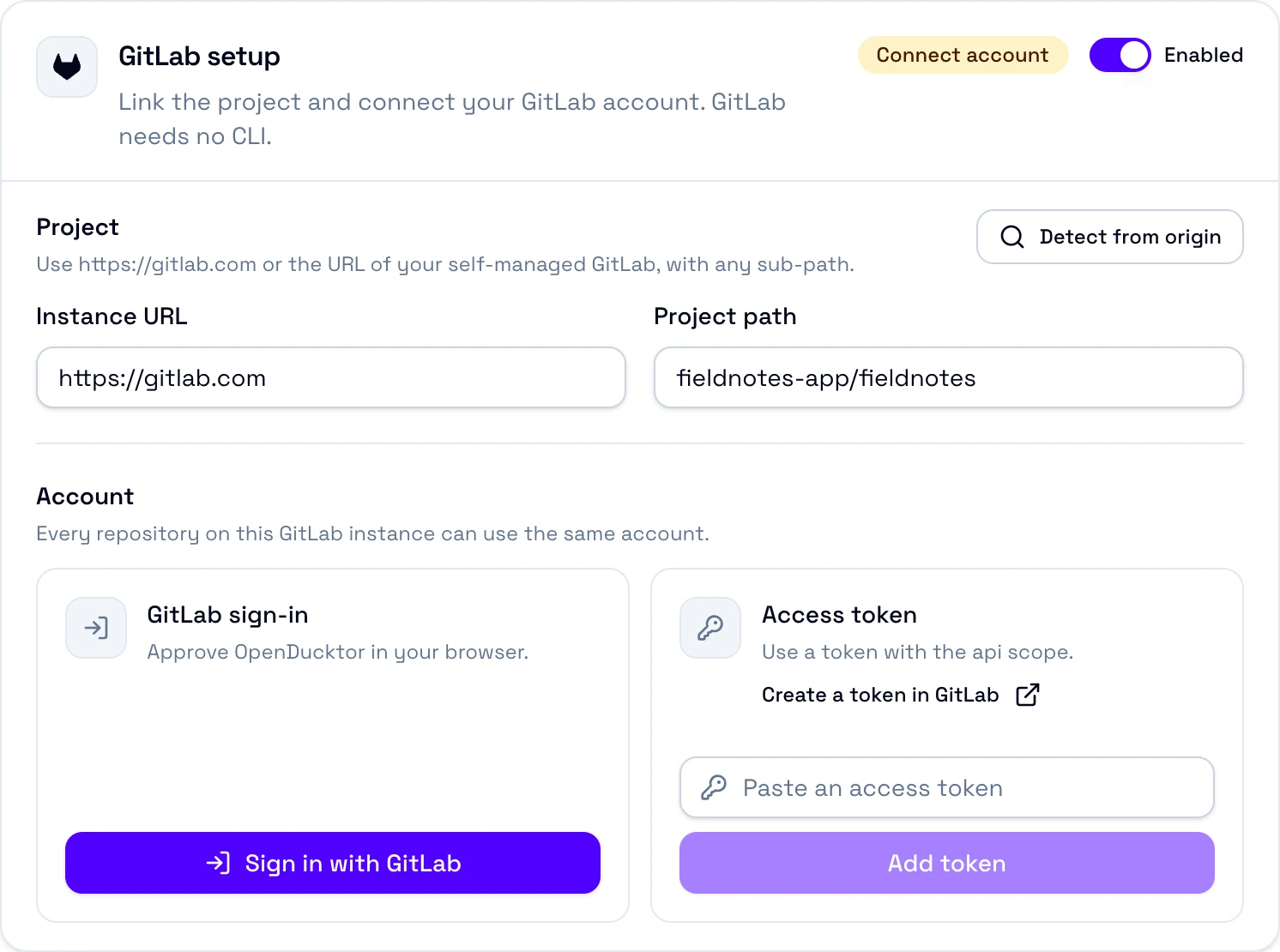
Status
Shows the next thing to do, then Ready.
Project
The instance URL and the project path. Detect from origin fills both.
GitLab sign-in
Browser sign-in. It shows only for GitLab.com.
Access token
A token with the api scope. The link opens the token page of your instance.
- Open Settings, Repositories, your repository, then the Git tab. Select GitLab.
- Select Detect from origin. OpenDucktor fills Instance URL and Project path from the
originremote. It finds the host when its name containsgitlab, or when you already have an account on that instance. Otherwise, enter the values, for examplehttps://git.example.com/gitlabandgroup/subgroup/project. - Connect an account. On GitLab.com, select Sign in with GitLab. Or select Create a token in GitLab, create a token with the
apiscope, paste it, then select Add token. - Select Save settings. The repository keeps the link to the account only after the save.
Browser sign-in
Browser sign-in works only on GitLab.com. You do not paste a token.
Open GitLab sign-in opens a GitLab.com page that already has the code. To stop, select Cancel sign-in. OpenDucktor renews the token of a browser sign-in by itself.
One account for each instance
An account belongs to a GitLab instance, not to a repository. Every repository on the instance can use it.
- When the instance has one saved account, a new repository on that instance uses it. With more accounts, you choose one, or select Use another account.
- Replace token changes the token for every repository that uses the account.
- OpenDucktor keeps the token in the secure store of your system. When no repository uses an account anymore, the next save deletes it.
- Seven days before a token expires, the card shows
The token expires ona date. Replace the token before that date.
Import issues
Select the arrow next to New task, then Import tasks from GitLab issues.
- The list shows the open issues and incidents of the project, the most recently updated first.
- Search matches titles. Type
#42or42to find one issue. - Each task gets the title, the description, and the labels of its issue as tags. You choose the type and the priority before the import.
- The task keeps a link to its issue. OpenDucktor does not change the issue.
Merge requests
When you approve a task, you choose who writes the merge request:
- Ask Builder: the Builder pushes the branch and creates or updates the merge request with the tools of its shell. OpenDucktor gives it no GitLab tool. Install and sign in to the GitLab CLI,
glab, on your computer, or use Write manually. - Write manually: you enter the title and the description. OpenDucktor pushes the branch and creates the merge request with your GitLab account. If the task has an open merge request, OpenDucktor updates it.
A new merge request is ready for review. An update keeps a draft as a draft.
Checks and comments
The CI Checks tab reads:
- Checks: the jobs of the latest pipeline of the merge request, its trigger jobs, and the external commit statuses. A failed job that is allowed to fail shows as a warning. A manual job shows as an action to take.
- Comments: the discussions of the merge request, and its approvals as reviews. A
suggestionblock shows as a suggested change on an added line. - Count on the tab: the discussions that you can resolve and that are not resolved.
Limits
- OpenDucktor supports merge requests inside the project only. A merge request from a fork shows an error.
- Browser sign-in works only on GitLab.com. A self-managed GitLab needs a token.
- A self-managed GitLab must run GitLab 17.4 or later.
- OpenDucktor does not follow redirects. Enter the final URL of your instance.
- An
http://instance sends the token without encryption. You must confirm it for that instance. - A branch can have one open merge request. With more, OpenDucktor asks you to close the extra ones.
Problems
| The card shows | Fix |
|---|---|
| Link project | Enter a valid Instance URL and Project path. |
| Connect account | Sign in, add a token, or choose a saved account of the instance. |
| Needs attention | Read the message, then select its fix: Replace token, Sign in again, Use another account, Retry, or Confirm HTTP. |
No local Git remote points to the GitLab project | Your remote uses an SSH host alias. Enter its name in Project remote, for example origin. |
GitLab limited the request rate. | Wait, then select Retry. |
For more, see Git providers in Troubleshooting.