Mobile
The mobile app is a client of your host. The agents, Git, the files, and the terminals stay on the host. The phone shows them and sends your actions, also while you are away from your desk.
Sessions
Tasks
Review work
Get the app
The app needs iOS 16.4 or later, or Android 7.0 or later. It is not in the App Store or Google Play yet.
- iOS: If the OpenDucktor team invited you, install the app with TestFlight. Other users build the app from source on a Mac with Xcode 26 and CocoaPods.
- Android: If the OpenDucktor team invited you, install the app from Google Play internal testing. Other users install
OpenDucktor-<version>-android.apkfrom a GitHub release that has one, or build the app from source.
On Android, the QR scanner uses Google ML Kit, which sends diagnostics to Google. For what the app stores and sends, see the mobile privacy policy.
On Android, uninstall the app before you install it another way
Connect to a host
- On the host, turn on Remote control. Then select Add device and Scan a QR code.
- In the app, tap Scan QR code. The first time, tap Allow camera, then allow access. If you denied the camera before, tap Open settings, or tap Enter address.
- Scan the code. The app shows Connected to host and opens the Sessions tab.
On iOS, the first connection to a host on your local network asks for Local Network access. Allow it.
To connect without the camera, open the Enter a code tab of Add device on the host. In the app, type its address in Host address, tap Continue, and type its six-digit code. The sixth digit connects.
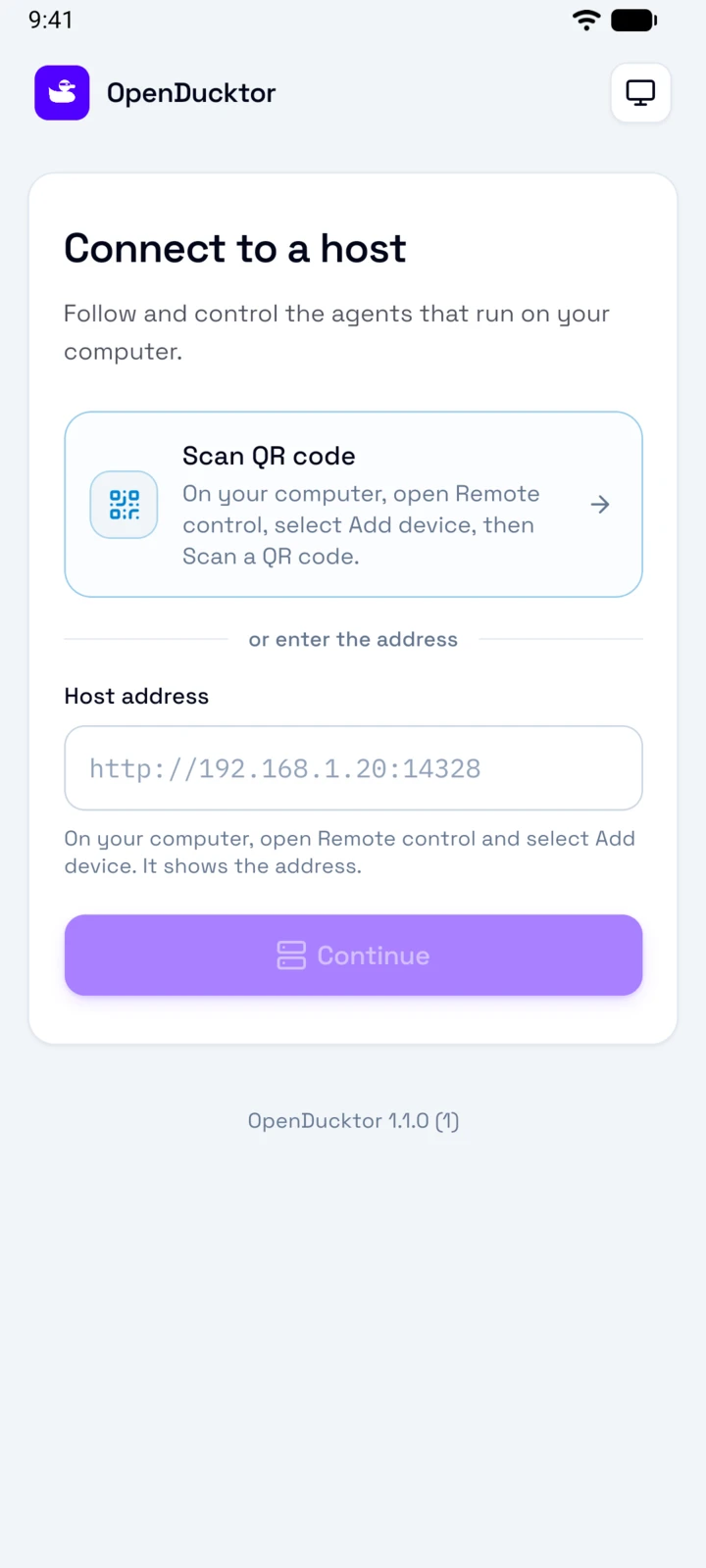
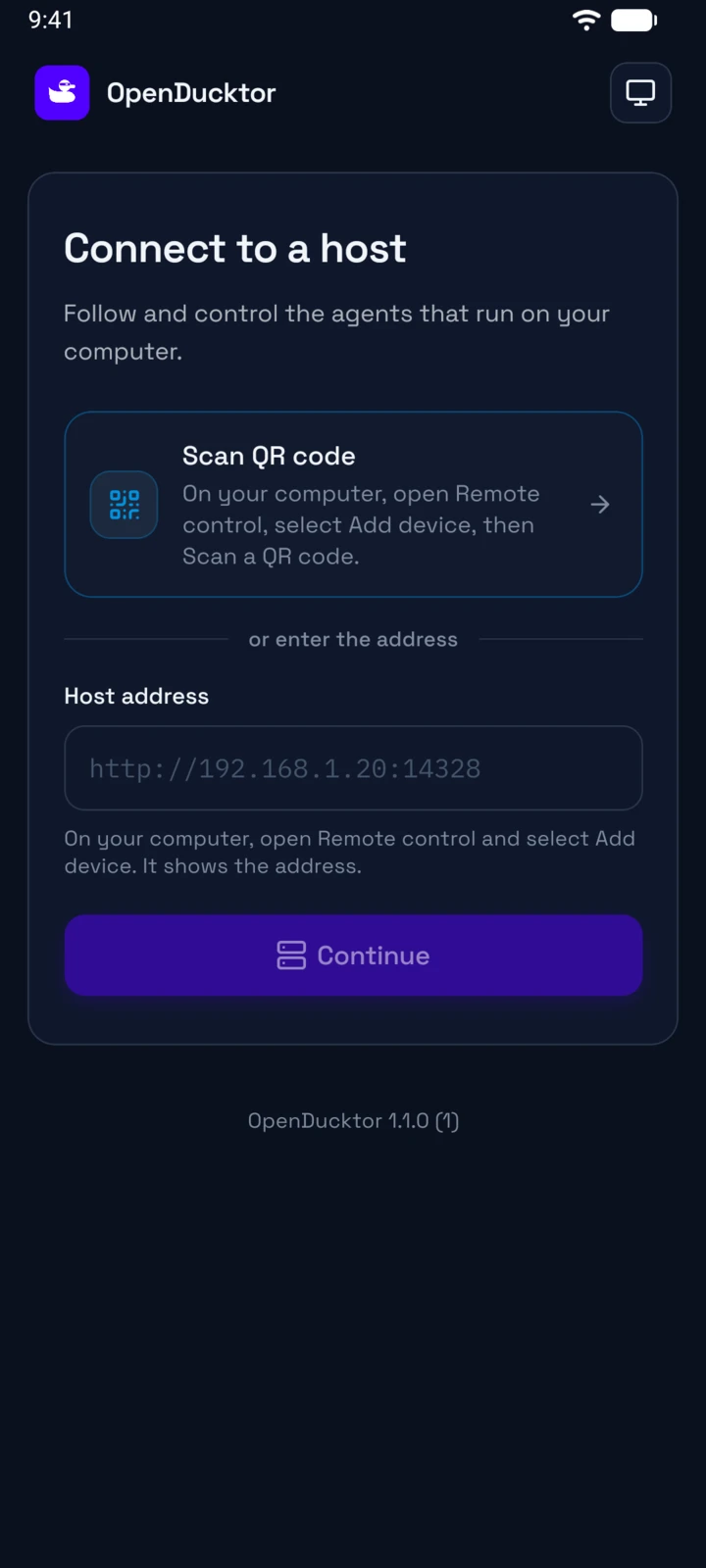
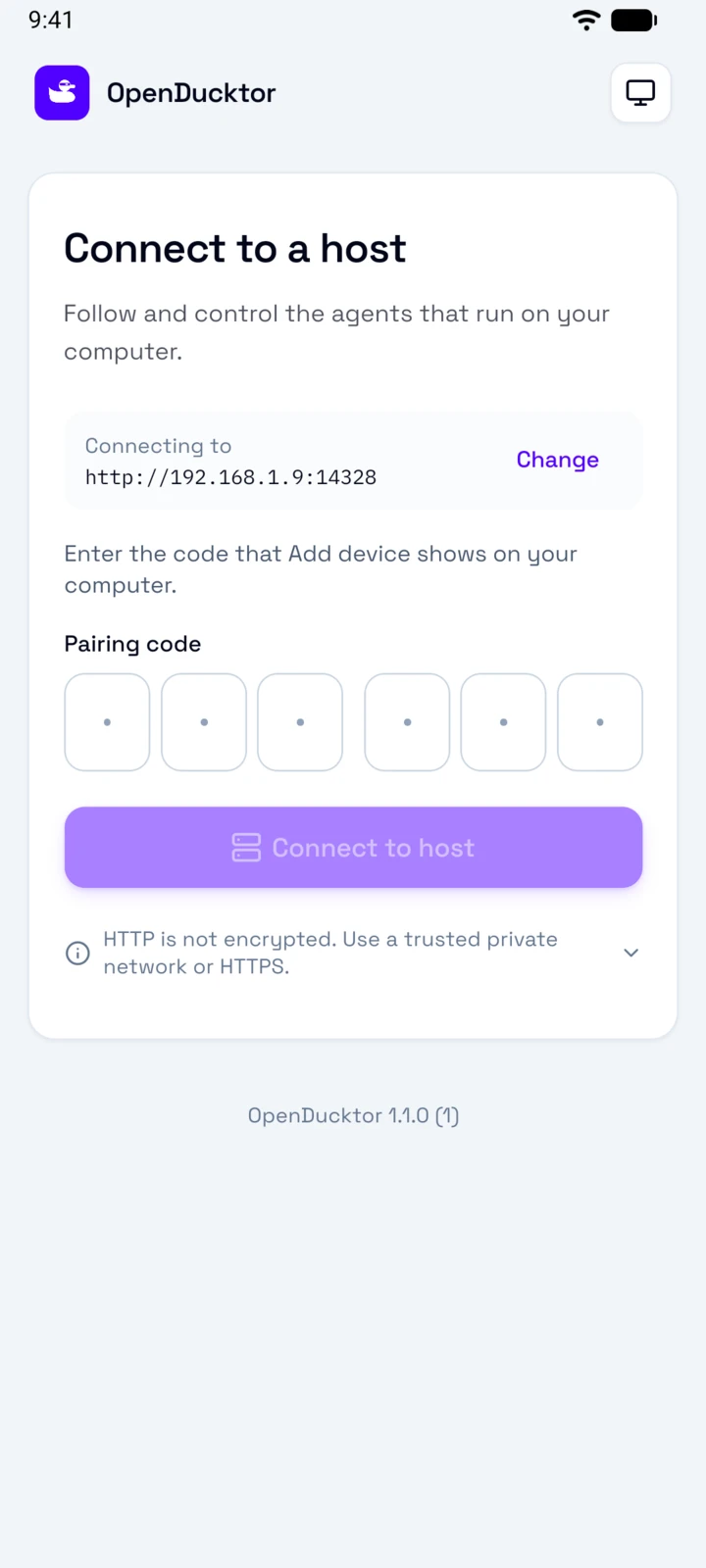
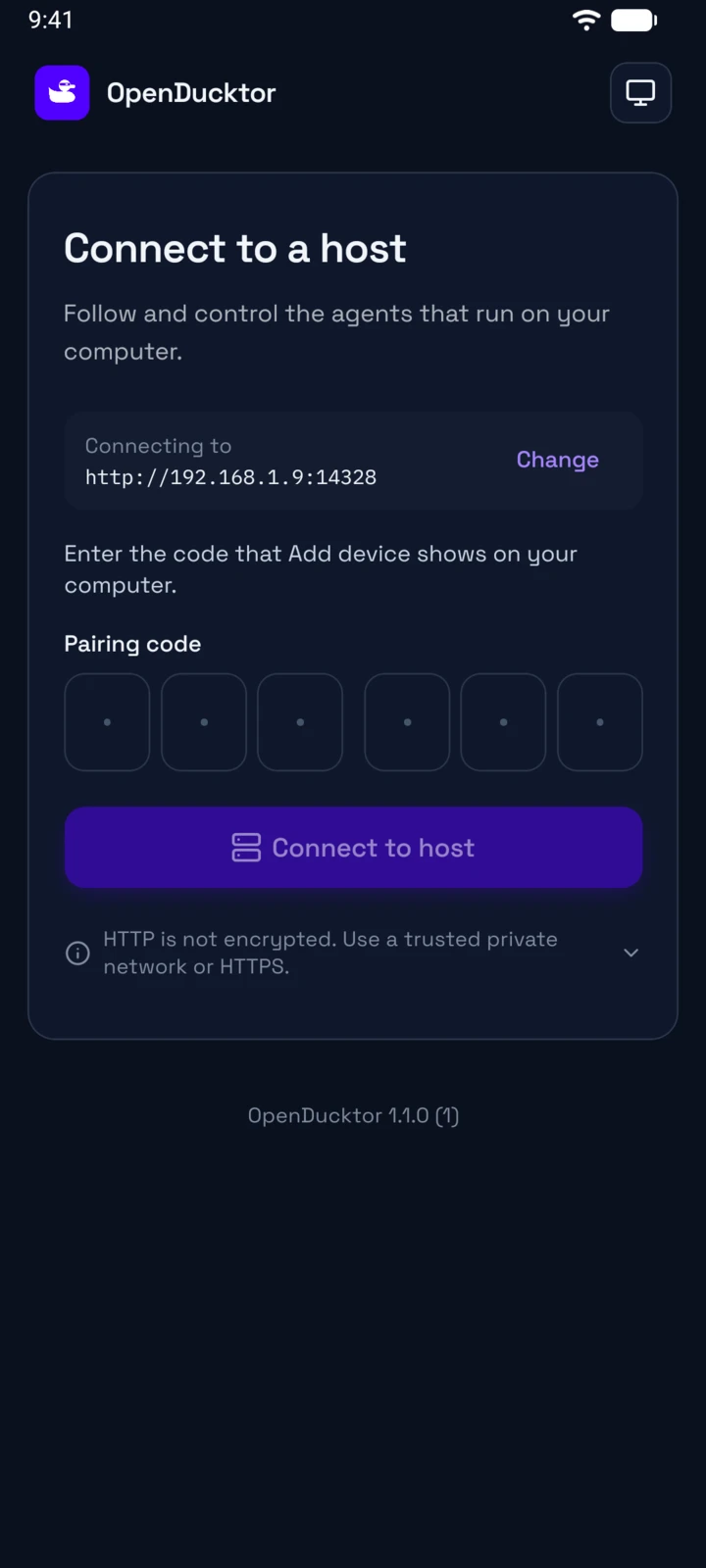
The phone stays paired when the app or the host restarts. An http:// address shows HTTP is not encrypted. Use it only on a trusted private network, or give the host an HTTPS address. If the app and the host do not work together, the app tells you which one to update. See Compatibility.
Find your way
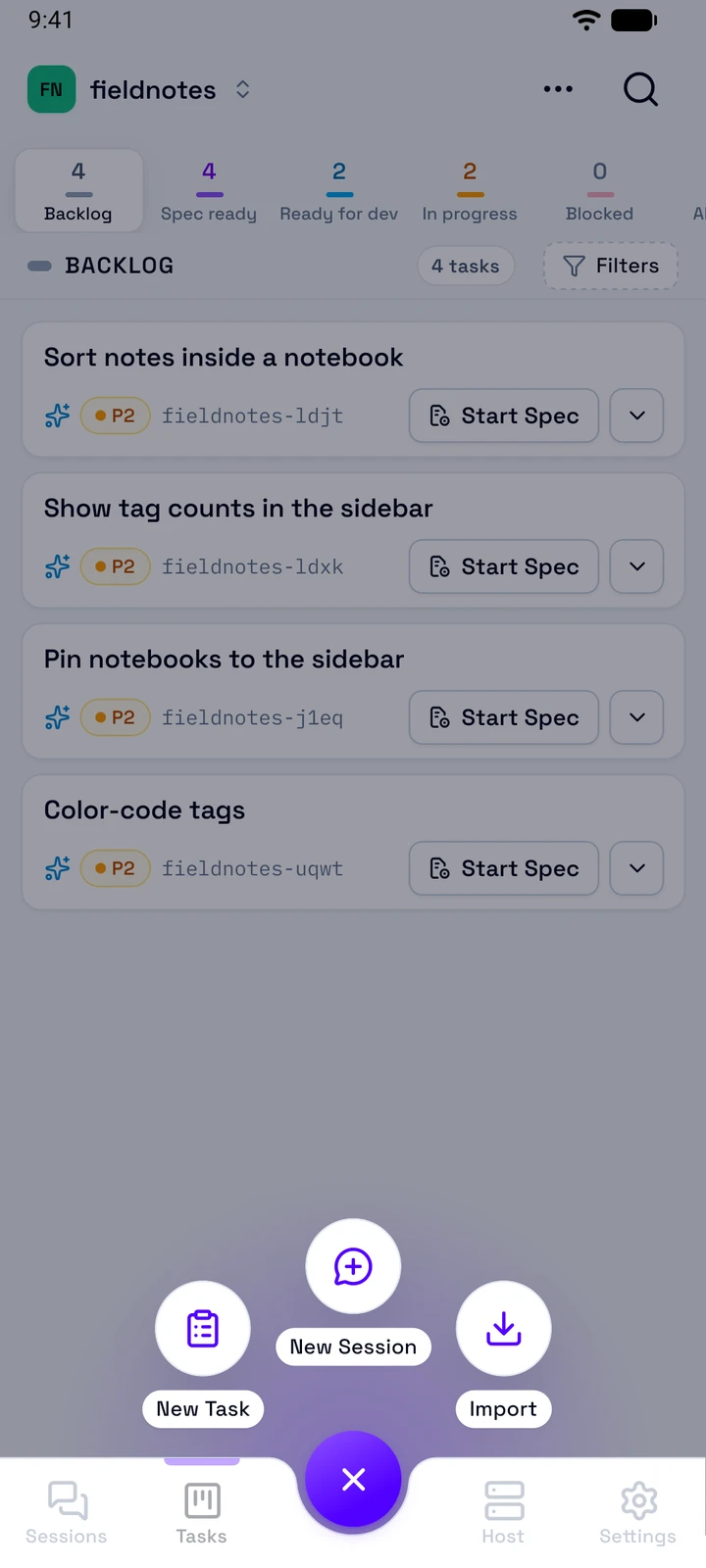
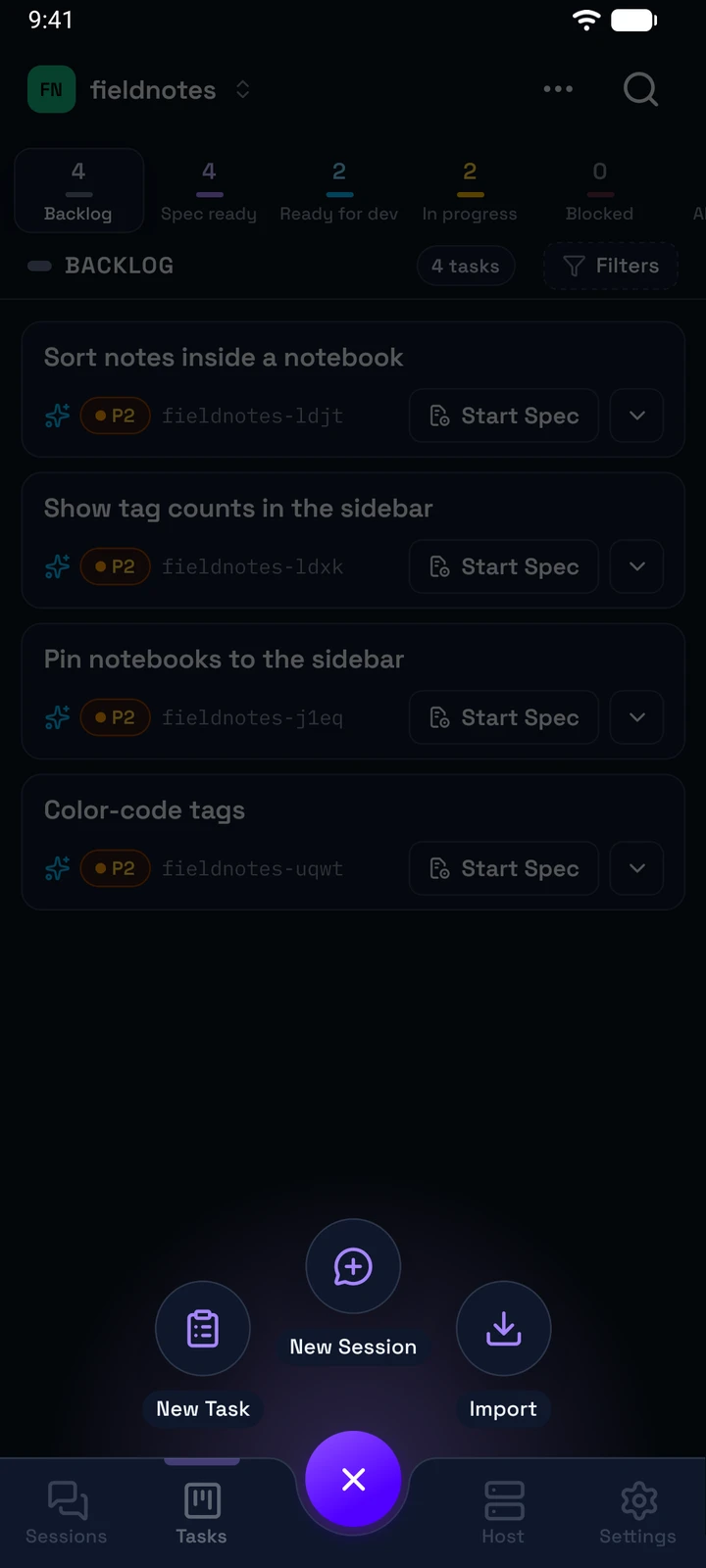
Sessions
The sessions that need you, run, or ran recently. Its badge counts the sessions that need you. See Sessions.
Tasks
The board of a workspace. See Tasks.
Create
Opens New Task, New Session, and Import, as here. Tap it again to close.
Host
Your hosts and the diagnostics of the connected host.
Settings
The preferences of this phone.
The Sessions tab opens first. When you go back to a tab, it shows the last screen that you opened. In landscape, the tabs move to a rail on the left edge.
The app sends no notifications. Check the badge on the Sessions tab.
Hosts
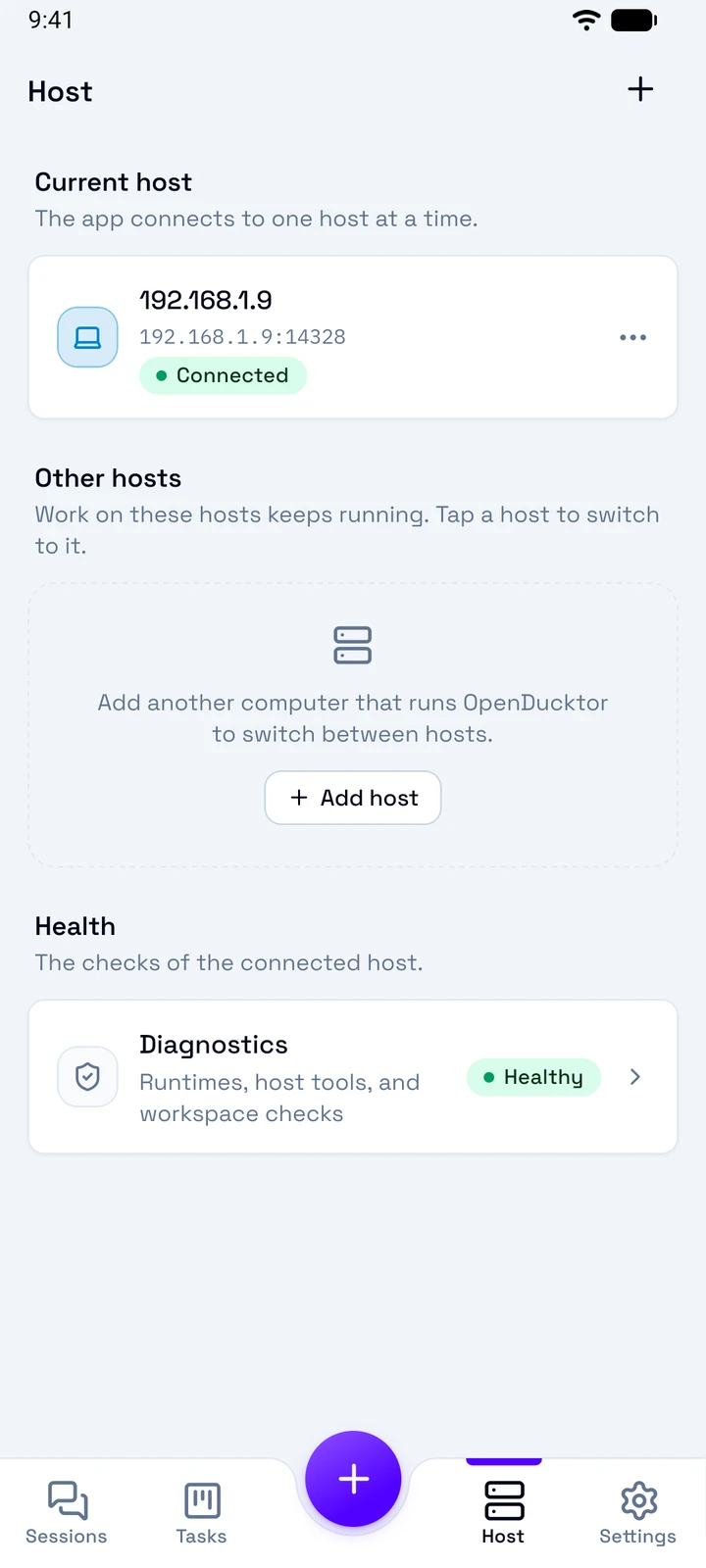
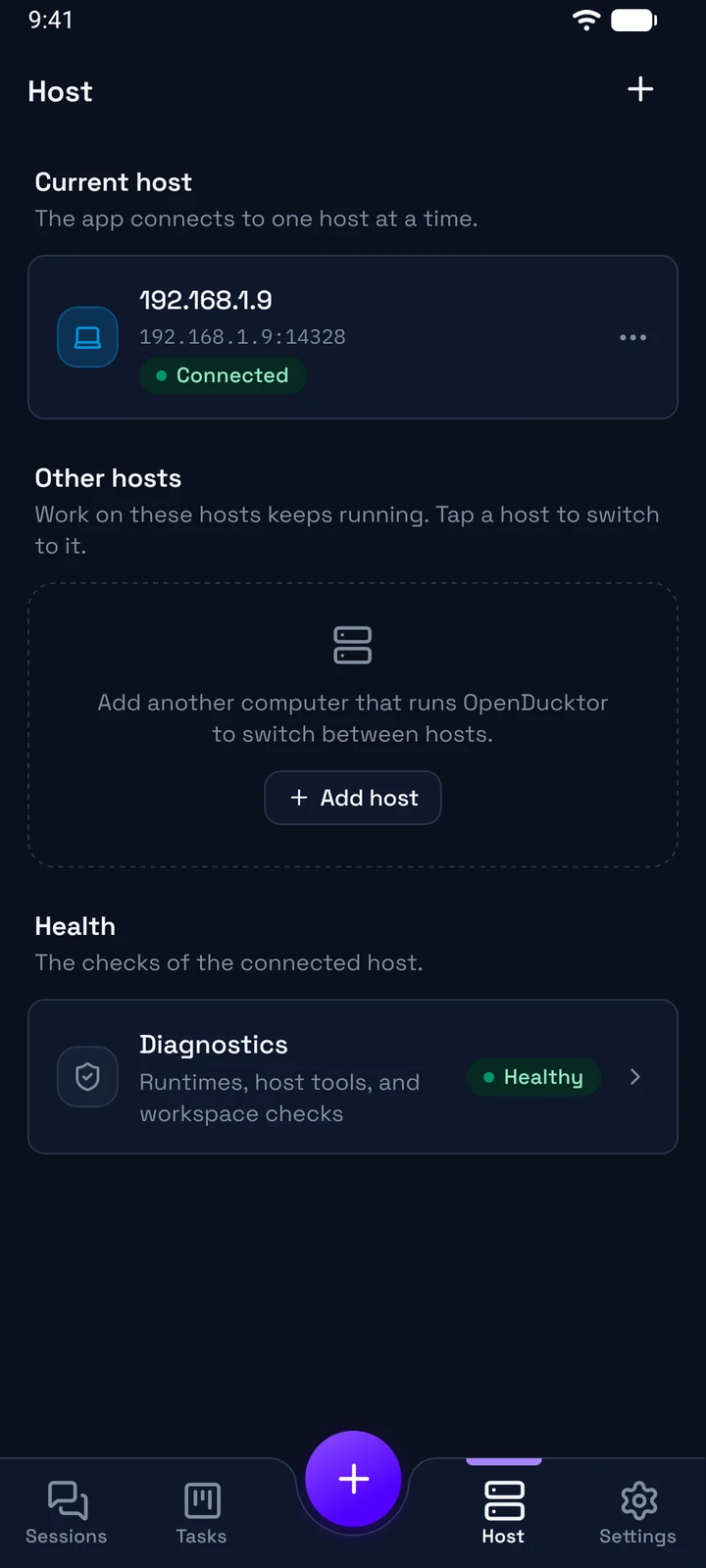
The app connects to one host at a time. The Host tab lists your hosts.
- Add: tap + at the top of the tab.
- Switch: tap a host under Other hosts. The work on the other hosts keeps running.
- Rename or remove: open the menu of its row. A removal deletes the data that the app stored for that host, and the unsent drafts. The work on the host continues.
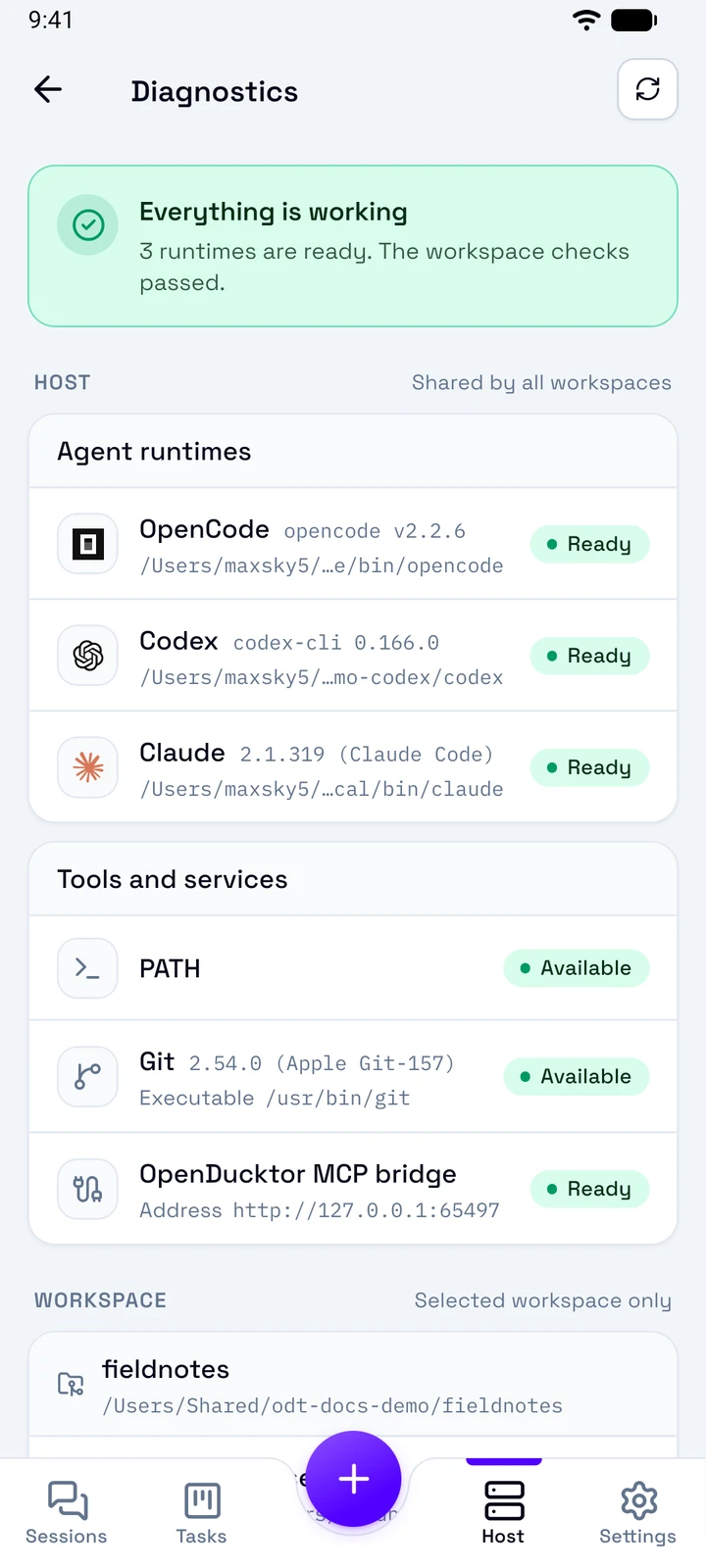
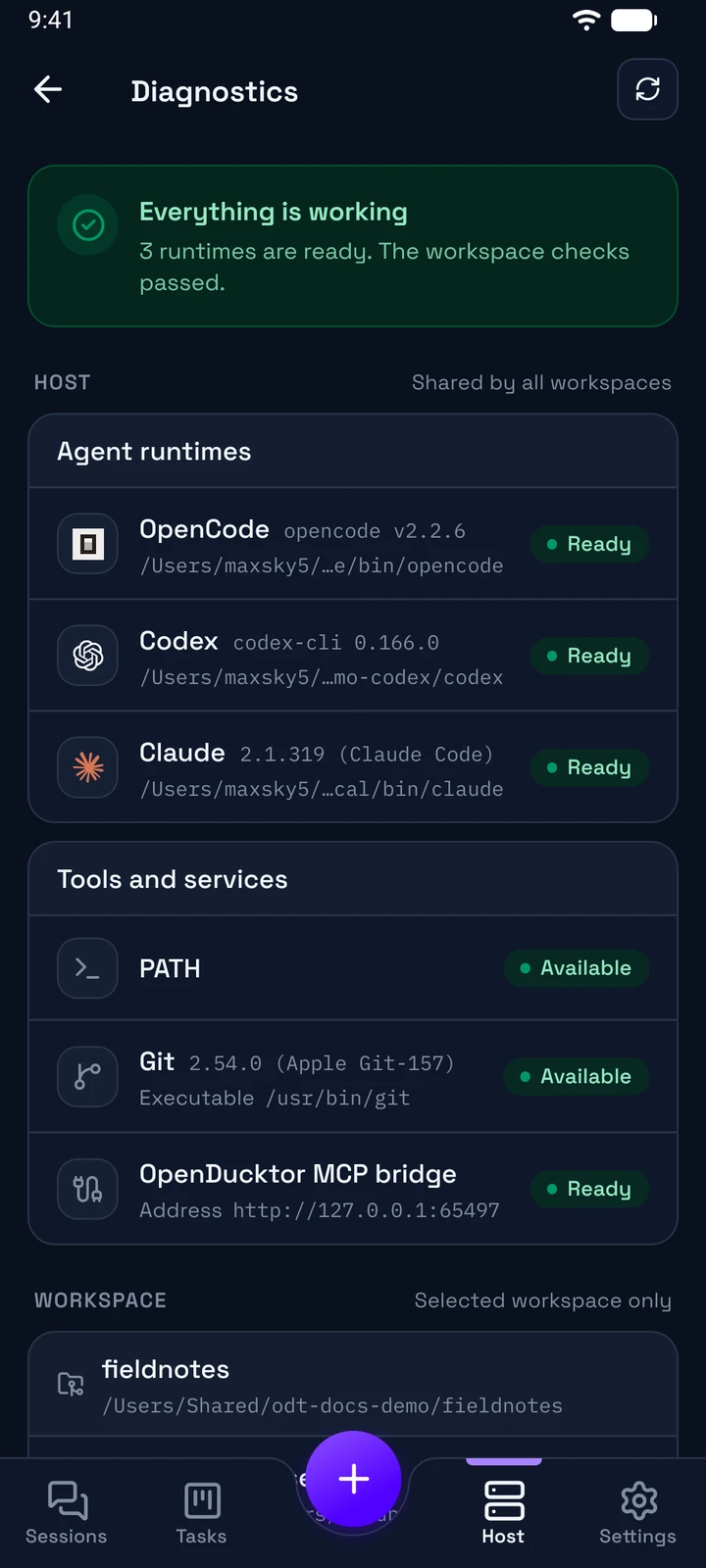
Tap Diagnostics to check the connected host:
- Agent runtimes: the runtimes that the host found, and their versions.
- Tools and services: Git, the
PATH, and the OpenDucktor MCP bridge. - Workspace: the checks of the selected workspace.
Tap the refresh button to run the checks again.
When the connection drops
The app reconnects by itself, also when the network changes. In the background, it closes the connection after 60 seconds, and it connects again when you open it.
- While the host is out of reach, a banner shows
Can't reach the host,Reconnecting…, orYou're offline, with Retry. The app shows the last content that it loaded. The controls that change work on the host stay off until the connection is back. You can still write drafts. - A screen with no content yet shows Can't reach your host, with Retry connection and Choose another host. Other failures, such as an old host version, show Connection failed with the reason.
- If an action shows Result unknown, the connection dropped before the host replied. The host may have run the action, and the app does not send it again. Check the session, task, or terminal before you do it again.
- If the host removes the phone, the app shows Pair with host. Type a new code from Add device.
For more, see Mobile in Troubleshooting.
Settings
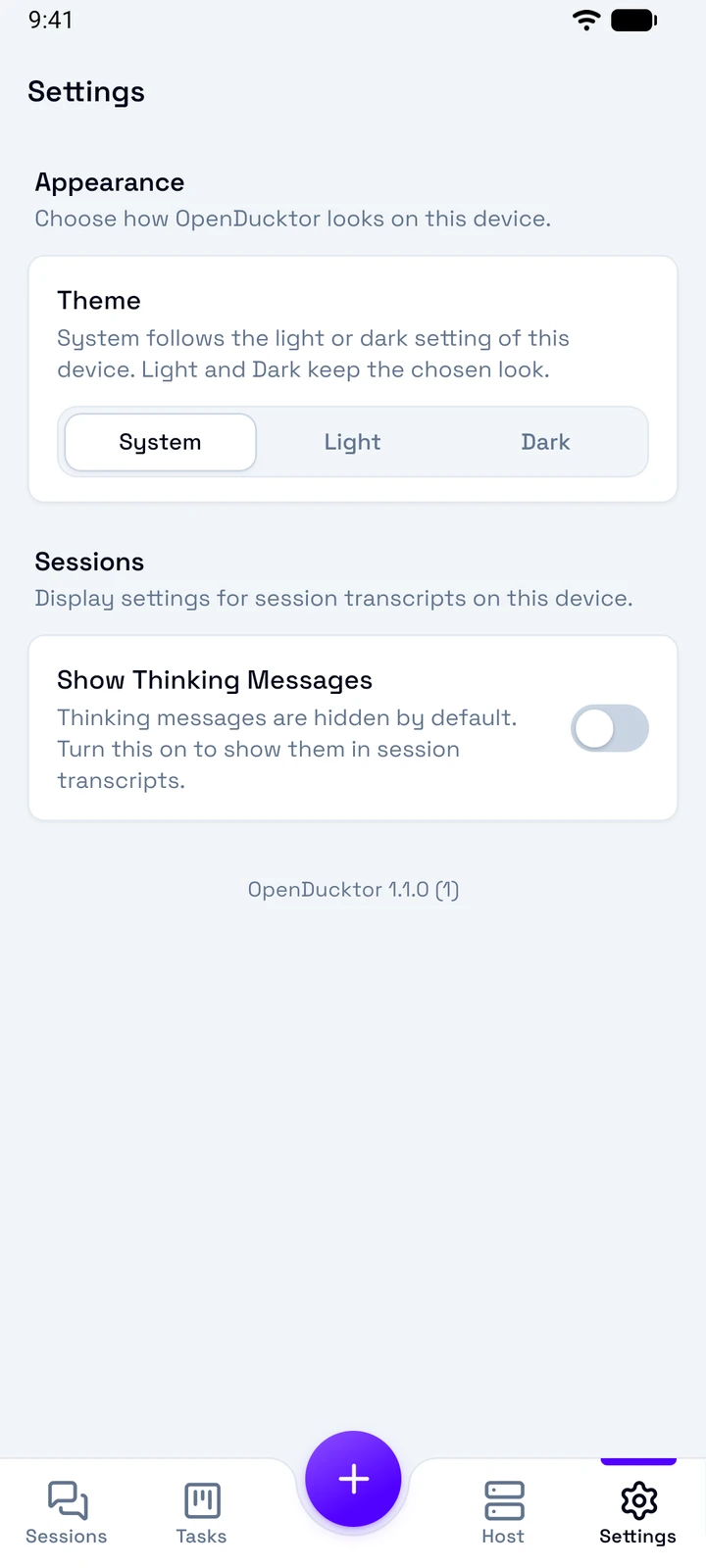
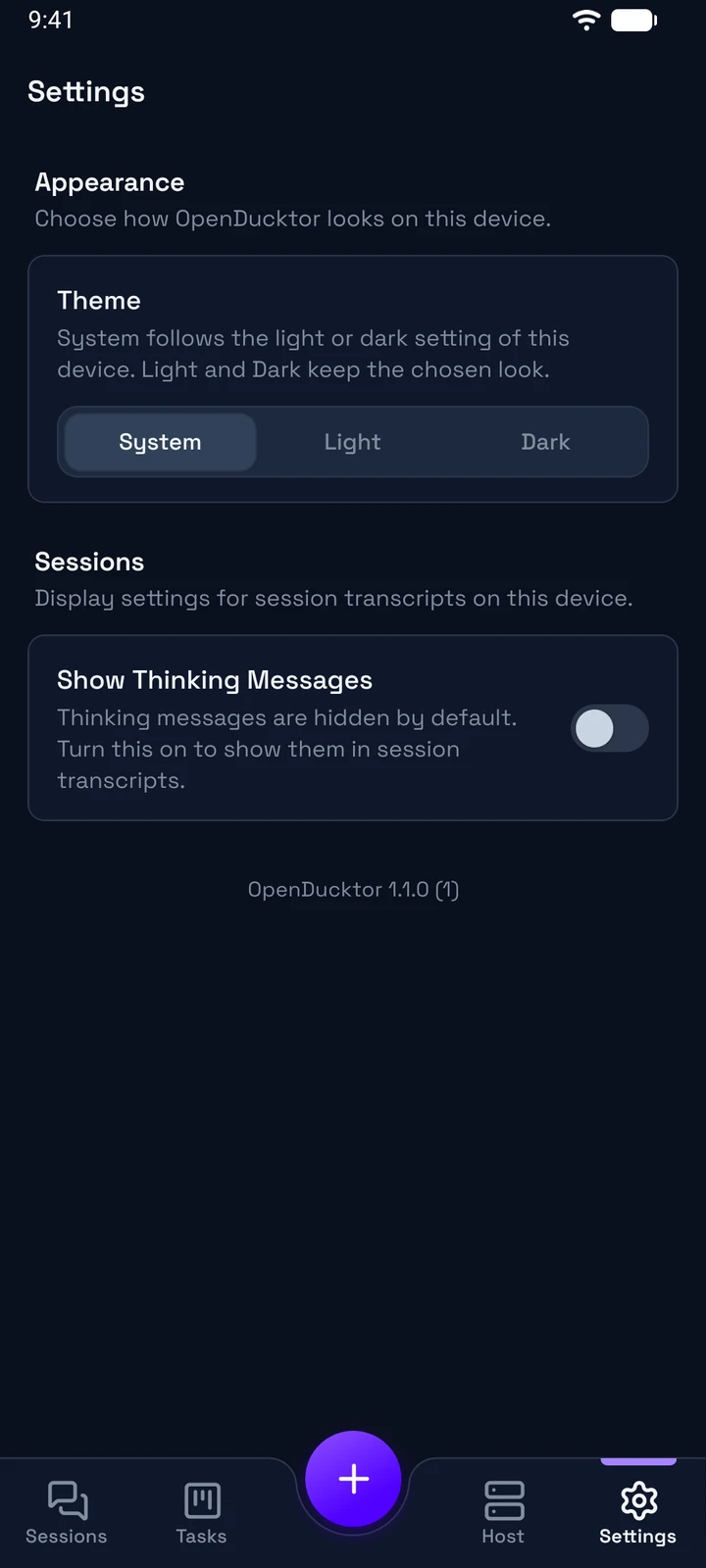
The Settings tab holds only the preferences of this phone:
- Theme: System, Light, or Dark.
- Show Thinking Messages: shows the thinking of the agents in the transcript. It is off by default.
You change the settings of the host on the desktop.
What needs the desktop
Do these on the desktop app or in the browser runner:
- Open, close, or remove a workspace.
- Change the settings of the host and of a repository, such as the Git provider, the Kanban lanes, the custom roles, and the repository actions.
- Use browser tabs and annotations. See Web pages.
- Stage, commit, or push from the Changes view, and edit files. On the phone, the files are read-only.