Spec, Plan, Build workflow
Spec, Plan, Build is the built-in workflow of OpenDucktor. A task gets a spec, a plan, a build, a QA review, and then your review. For the board, the task details, and the actions that every workflow shares, see Tasks and workflows.
Steps and roles
The workflow has four agent steps, then your approval. Each step saves an artifact that the next step reads, and the task moves to the next lane.
| Role | Works in | Reads | Saves |
|---|---|---|---|
| Spec | The repository, read-only | The task and the code. It asks you about open decisions. | The Specification |
| Planner | The repository, read-only | The Specification and the code | The Implementation Plan |
| Builder | The task worktree, with write access | The Specification and the Implementation Plan | Commits on the task branch. It can also update the spec and the plan. It also writes the pull request. |
| QA | The task worktree, read-only | The Specification, the Implementation Plan, and the build | The QA Report, with the verdict Approved or Rejected |
The workflow in action
Spec
The Spec agent reads the task and asks you what it needs to know. Then it writes the specification.
Shortcut Which shortcut opens search?
Other answerText fields Should the shortcut work while typing in a text field?
Other answerShortcut
Cmd+K / Ctrl+K
Text fields
No, ignore it in text fields
Answer all questions to confirm.
Plan
The Planner reads the spec and the code, and designs the change: a diagram of the flow, the modules and their contracts, and the requirement coverage.
Search opens only from the toolbar button. People who work from the keyboard must reach for the mouse to find a note. A shortcut opens the same search dialog from anywhere in the app.
- Included: the shortcut, where it works, and focus when the dialog closes.
- Non-goals: search results, filters, and the search index.
Cmd+Kon macOS andCtrl+Kon Windows and Linux open the search dialog.- The shortcut does nothing while another dialog is open.
- The shortcut does nothing while focus is in a text field or in the note editor.
- Escape closes the dialog and returns focus to the element that had it before.
Build
The Builder works in a Git worktree for this task. When the runtime asks, you approve a command once or for the session. Then the Builder commits.
Commit the search shortcut change to the task branch.
Command: git commit -m "feat(search): open search with Cmd+K"
Action: Bash
QA
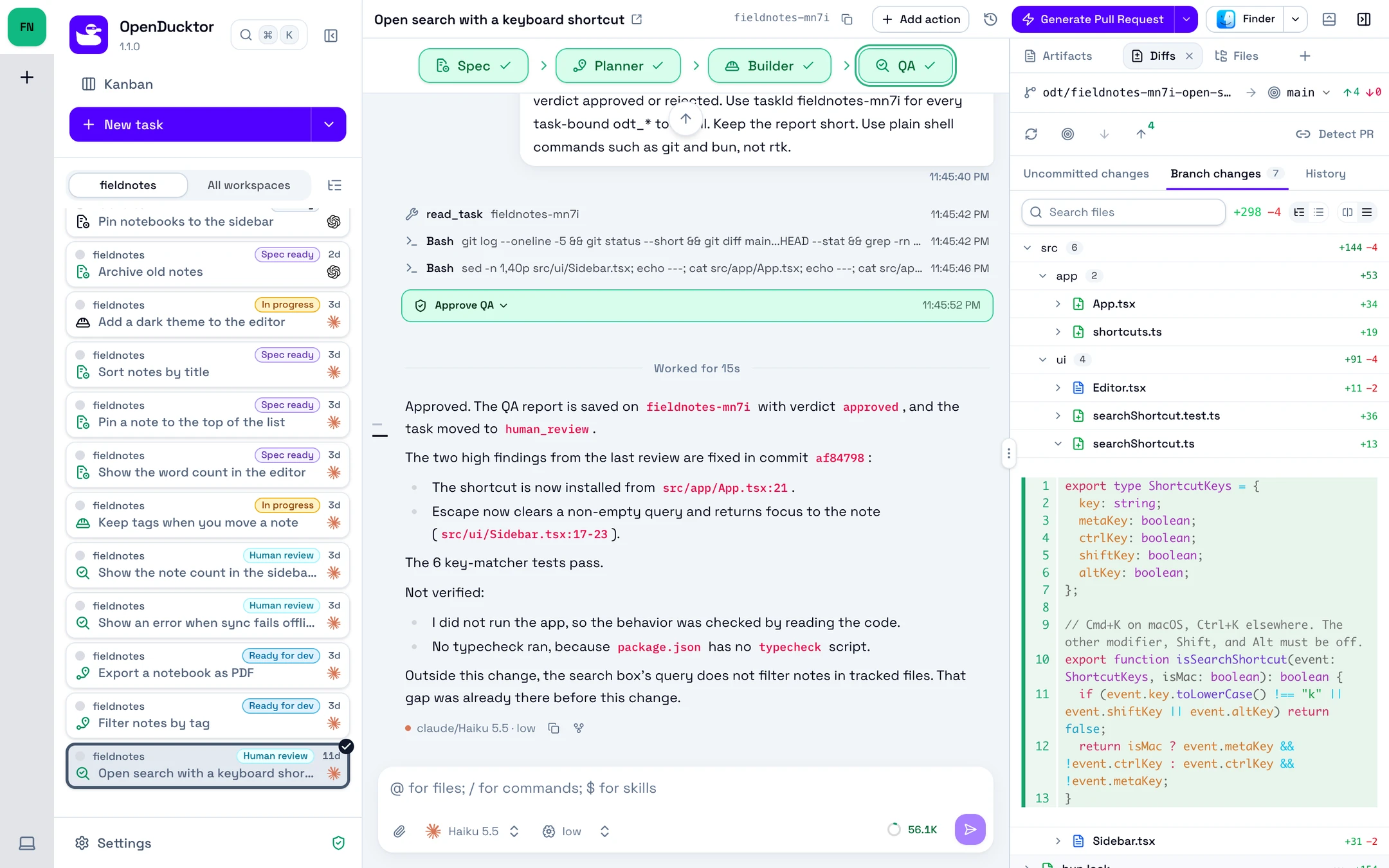
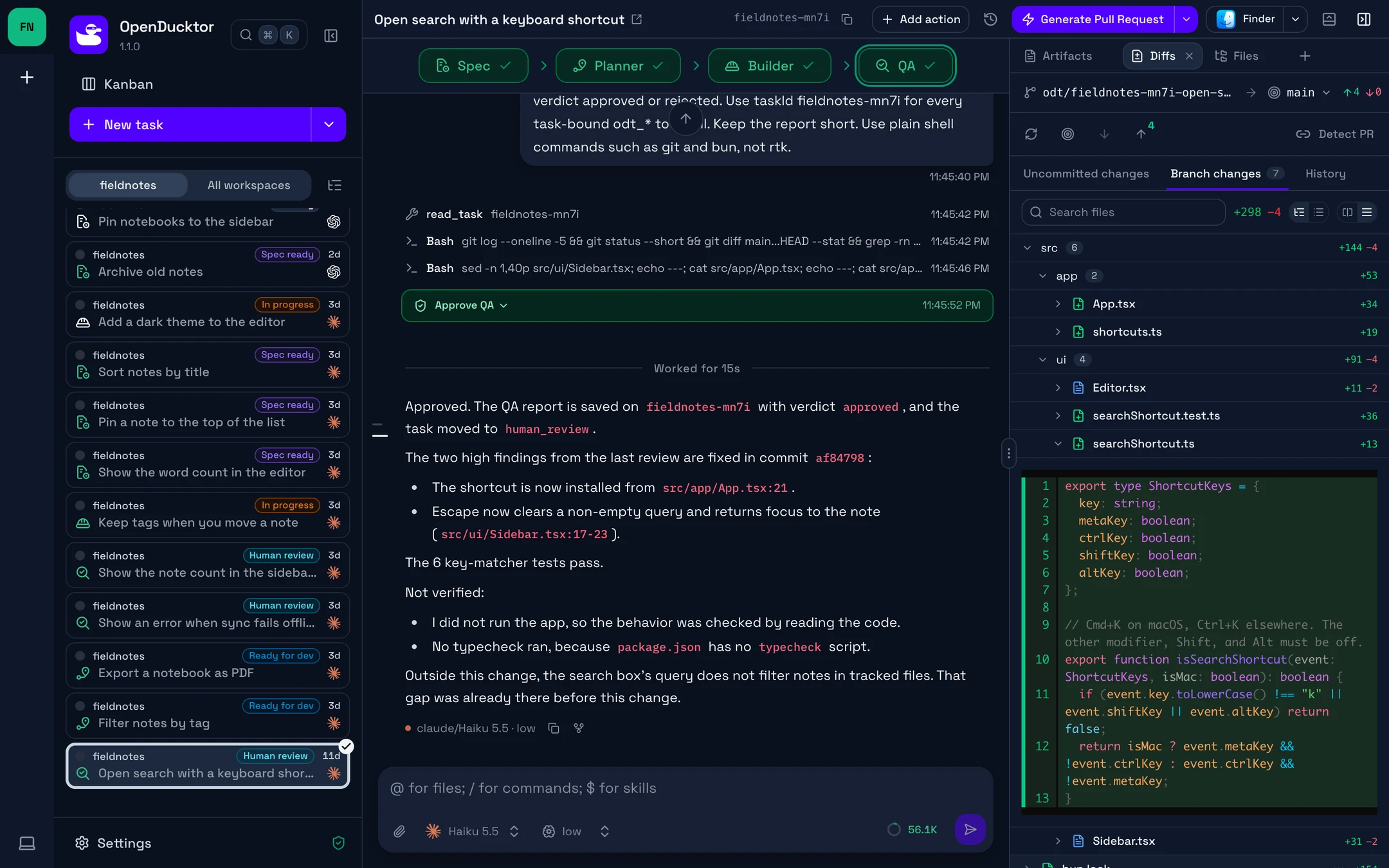
The QA agent checks the change against the spec and the plan. If it rejects the change, the Builder gets the QA report and fixes the cause.
Review
You comment on diff lines, and the Builder fixes them. Then you merge directly, or the Builder opens the pull request and waits for its checks.
import { useEffect } from "react";const isMac = navigator.platform.startsWith("Mac");const textFields = "input, textarea, [contenteditable]";export function useSearchShortcut(openSearch: () => void): void { useEffect(() => { const onKeyDown = (event: KeyboardEvent): void => { const modifier = isMac ? event.metaKey : event.ctrlKey; if (!modifier || event.shiftKey) return; if (event.key.toLowerCase() !== "k") return; const target = event.target as Element; if (target.closest(textFields)) return; if (document.querySelector('[aria-modal="true"]')) return; event.preventDefault(); openSearch(); }; window.addEventListener("keydown", onKeyDown); return () => window.removeEventListener("keydown", onKeyDown); }, [openSearch]);}Also return early when event.defaultPrevented is true. Then a component that handles Cmd+K itself keeps it.
This task is closed.
OpenIssue types
| Type | First step | Rule |
|---|---|---|
| Feature | Spec | A feature needs a spec and a plan before the build. |
| Task, Bug | Builder | The spec and the plan are optional. In Backlog, you can start the Spec, the Planner, or the Builder. |
Spec and plan
- On the card in Backlog, select Start Spec, then Start session.
- Answer the questions of the Spec agent. When it saves the Specification, the task moves to Spec Ready.
- Read the Specification in the Artifacts tab. To change it, ask the Spec agent in its session, or edit it.
- Select Start Planner. When the Planner saves the Implementation Plan, the task moves to Ready for Dev.
- Read the Implementation Plan, then select Start Builder. On the session page, this button shows Start Implementation.
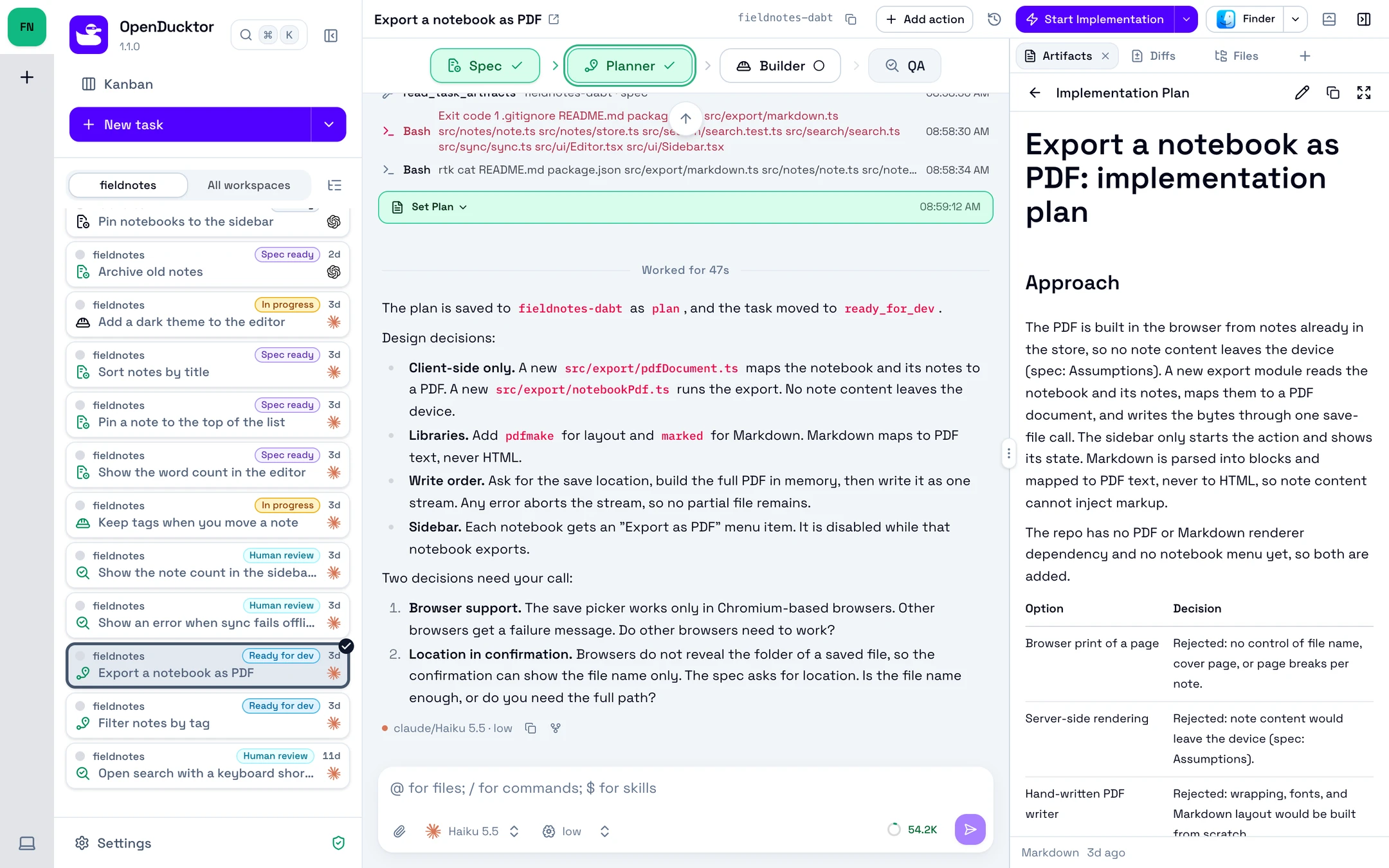
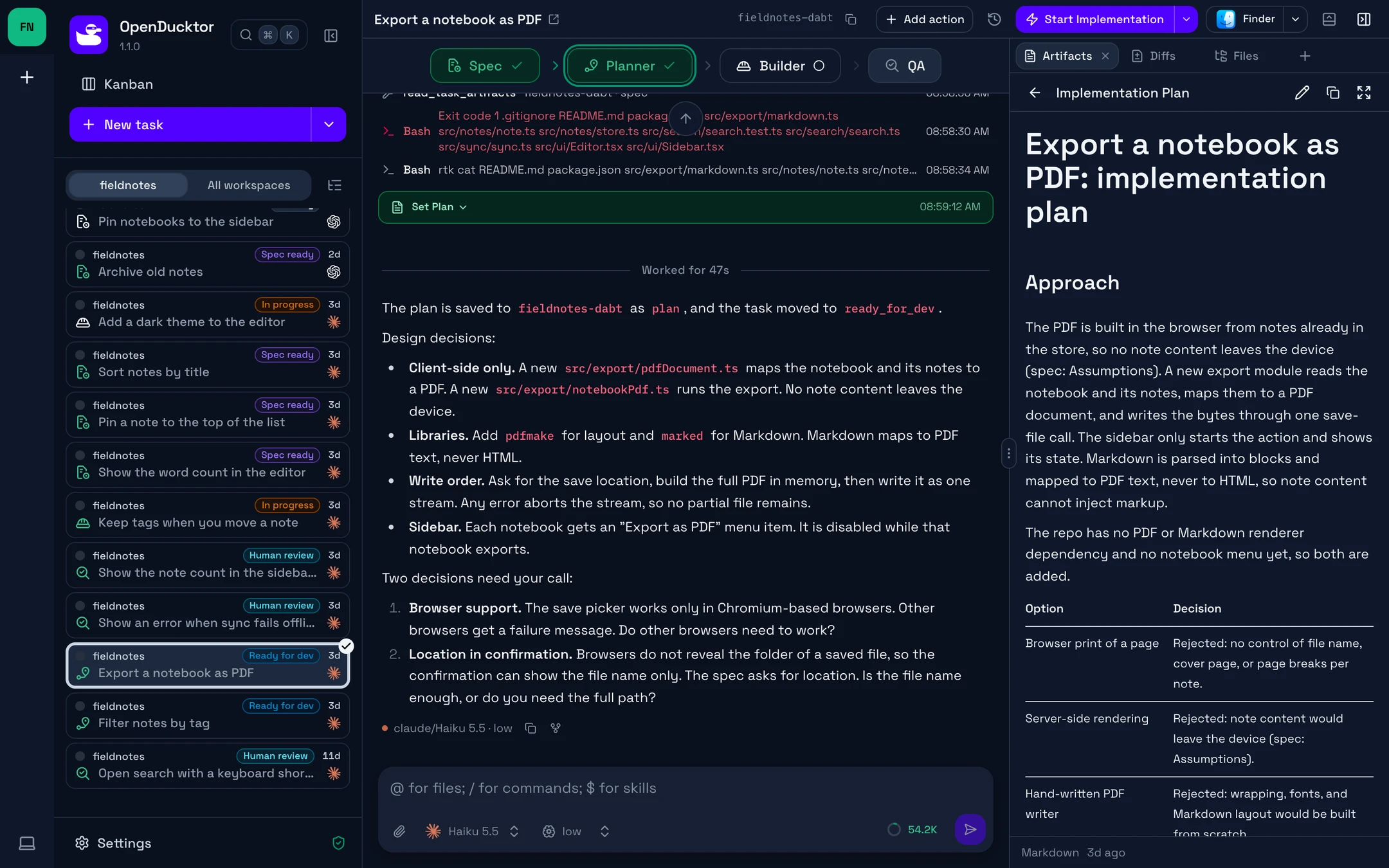
A later save of the spec or the plan does not move the task.
To let the Builder work until a goal is met, turn on Goal mode in the start dialog. See Work toward a goal.
Build
The Builder writes the code and the tests in the task worktree, then commits on the task branch. While it works, the task is in In Progress. When it finishes, it sends the Build Completed workflow event with a summary note, and the task moves to AI Review.
Blocked tasks
When the Builder needs your input, it sends the Build Blocked workflow event with the reason in its note. The task moves to Blocked / Needs Input.
- On the card, select Open Builder.
- Read the note on the Build Blocked card, then answer in the session.
When the Builder continues, it sends Build Resumed, and the task goes back to In Progress.
QA review
In AI Review, select Request QA Review. The QA agent checks the build against the spec and the plan, then saves a QA Report with its verdict:
- Approved: the task moves to Human Review.
- Rejected: the task goes back to In Progress, and its card shows the QA Rejected badge.
QA review is optional. To skip it, open the menu next to the main button, then select Approve Task or Request Changes.
Fix a QA rejection
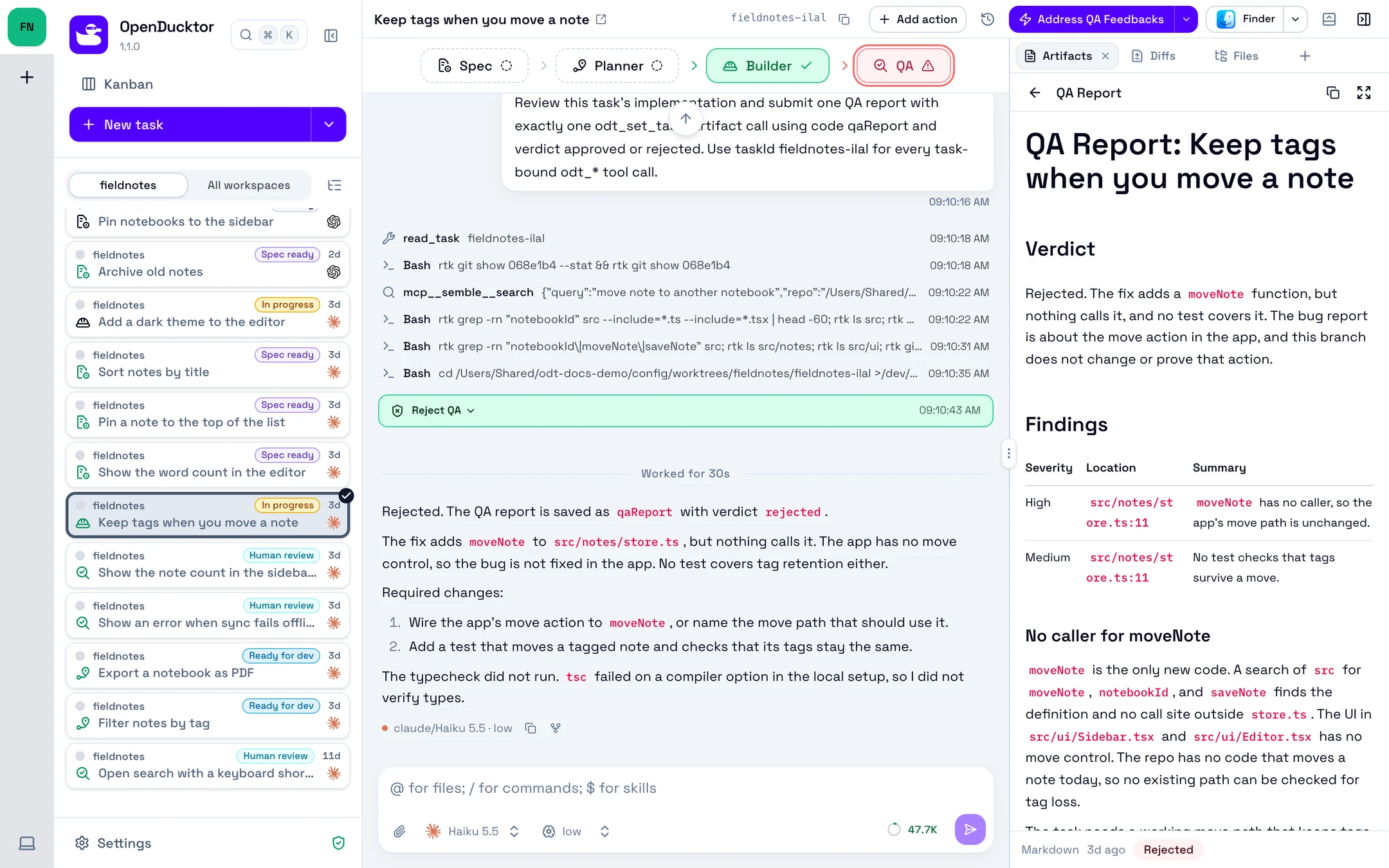
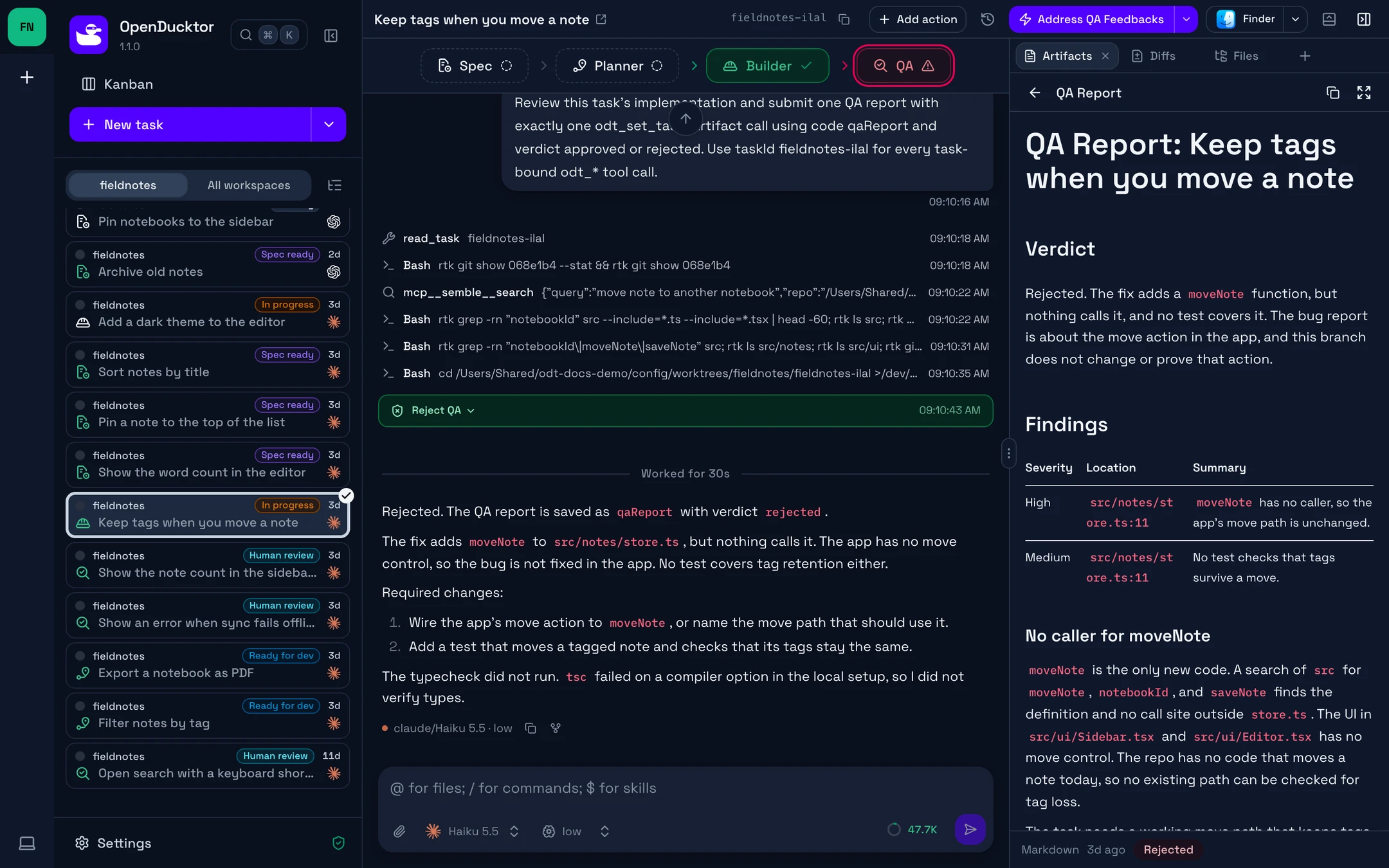
- Select Address QA Feedbacks.
- In the dialog, select Reuse existing to continue the Builder session, or Start fresh. You can also turn on Goal mode.
The Builder fixes the findings. Then the task goes back to AI Review.
Human review
In Human Review, read the changes in the Diffs tab and the QA Report in the Artifacts tab. To comment on a line of the diff, see Review the work.
Approve a task
On the task card, select Approve Task. On the session page, the main button is Generate Pull Request until the task has a pull request. Approve Task is then in the menu next to it. The Builder writes the pull request in a fork of its last session. For each approval choice, see Approve a task.
Request changes
You can request changes in AI Review or Human Review.
- Select Request Changes. If the main button shows another action, open the menu next to it.
- In Your feedback, describe the changes, then select Request changes.
- In the dialog, select Reuse existing to continue the Builder session, or Start fresh. You can also turn on Goal mode.
When the Builder session starts, the task goes back to In Progress. If you cancel the session start, the task keeps its lane, and the form keeps your feedback. While a session of the task runs, the session page cannot request changes, and the menu shows Wait for the current session to finish.
If the task has an approved QA Report, it goes back to Human Review when the Builder finishes. QA does not run again. To run QA on the new build, select Request QA Review.
Lanes and moves
Agents move a task when they save an artifact or send a workflow event. You move it with an action.
Some moves are not in the diagram:
- A task or a bug in Backlog goes to Ready for Dev when the Planner saves its plan, or to In Progress when the Builder starts.
- Build Completed moves a task to Human Review instead of AI Review when its last QA Report is Approved.
- QA can also run in Blocked / Needs Input and Human Review. Its verdict moves the task as in AI Review.
- Request Changes also works in AI Review.
- Close Task, Reset Task, and Reset Implementation can move a task from most lanes. See Reset, close, or delete a task.
Actions of each lane
The card shows the main action of its lane. The menu next to it and the task details list the other actions that the task allows now.
| Lane | Main action | Also offers |
|---|---|---|
| Backlog | Start Spec for a feature, Start Builder for a task or a bug | Start Planner and Start Spec for a task or a bug |
| Spec Ready | Start Planner | Open Spec, and Start Builder for a task or a bug |
| Ready for Dev | Start Builder | Start Planner, Start Spec |
| In Progress, Blocked / Needs Input | Open Builder, or Address QA Feedbacks after a QA rejection | Request QA Review in Blocked / Needs Input, Reset Implementation |
| AI Review | Request QA Review | Approve Task, Request Changes, Open Builder, Reset Implementation |
| Human Review | Approve Task | Request Changes, Request QA Review, Open Builder, Reset Implementation |
Reset Implementation
Reset Implementation starts the build again from the plan. It is in the More menu of the task details, in In Progress, Blocked / Needs Input, AI Review, and Human Review.
Reset Implementation deletes code
It deletes the Builder commits and the uncommitted files. Push or merge the task branch first if you want to keep its commits.
It deletes the Builder and QA sessions, the QA reports, and the pull request link. It keeps the spec, the plan, the other artifacts, and the worktree. If a direct merge waits for its push, it also deletes the record of that merge. The merge commit stays on the local target branch.
The task goes back to Ready for Dev. If the task has no plan, it goes back to Spec Ready when it has a spec, or else to Backlog.
Autopilot rules
Spec, Plan, Build has five Autopilot rules. With all of them on, you start the first agent and approve the task. Autopilot starts the other steps.
Settings shows each rule by its event. Each rule has one action:
- When a task progresses to Spec Ready: Start Planner starts the Planner in a fresh session.
- When a task progresses to Ready for Dev: Start Builder starts the Builder in a fresh session.
- When a task progresses to AI Review: Start QA continues the last QA session of the task, or starts a fresh one.
- When a task is rejected by QA: Fix QA Rejection continues the last Builder session, or starts a fresh one, to fix the findings.
- When a task progresses to Human Review: Generate Pull Request forks the last Builder session to create or update the pull request. It needs a Git provider.
Autopilot never starts a session in Goal mode.
Only an agent sends these events: a spec save in Backlog, a plan save in Backlog or Spec Ready, a finished build, and a QA verdict. Reset Implementation, a direct merge, and Request Changes start nothing. After Request Changes, the next finished build sends the AI Review or the Human Review event.
When QA rejects a task
With the QA rejection rule and the AI Review rule on, the Builder fixes the findings, and then QA reviews the task again.
By default, QA reviews the fix in its last session. To give each QA review a new session, turn on Always start QA reviews in a fresh session.
This loop has no limit. If QA reports the same findings again, set the QA rejection rule to Disabled. To fix the findings yourself, see Fix a QA rejection.