Azure DevOps
OpenDucktor calls the Azure DevOps API with a connection that belongs to one repository. It needs no CLI.
Before you start
Get one of these:
- A work or school account on Azure DevOps Services, at
dev.azure.com. You sign in through your browser. See Browser sign-in. - A personal access token. Use it with a personal Microsoft account, and on Azure DevOps Server.
Give a personal access token these scopes:
- Code: read and write. OpenDucktor pushes branches, creates pull requests, and reads the branch policies.
- Build: read. The checks read the builds.
- Work Items: read. The area paths and the imports read the work items.
OpenDucktor checks only that the token can read the repository. A missing scope shows later, when a feature needs it.
Connect the repository
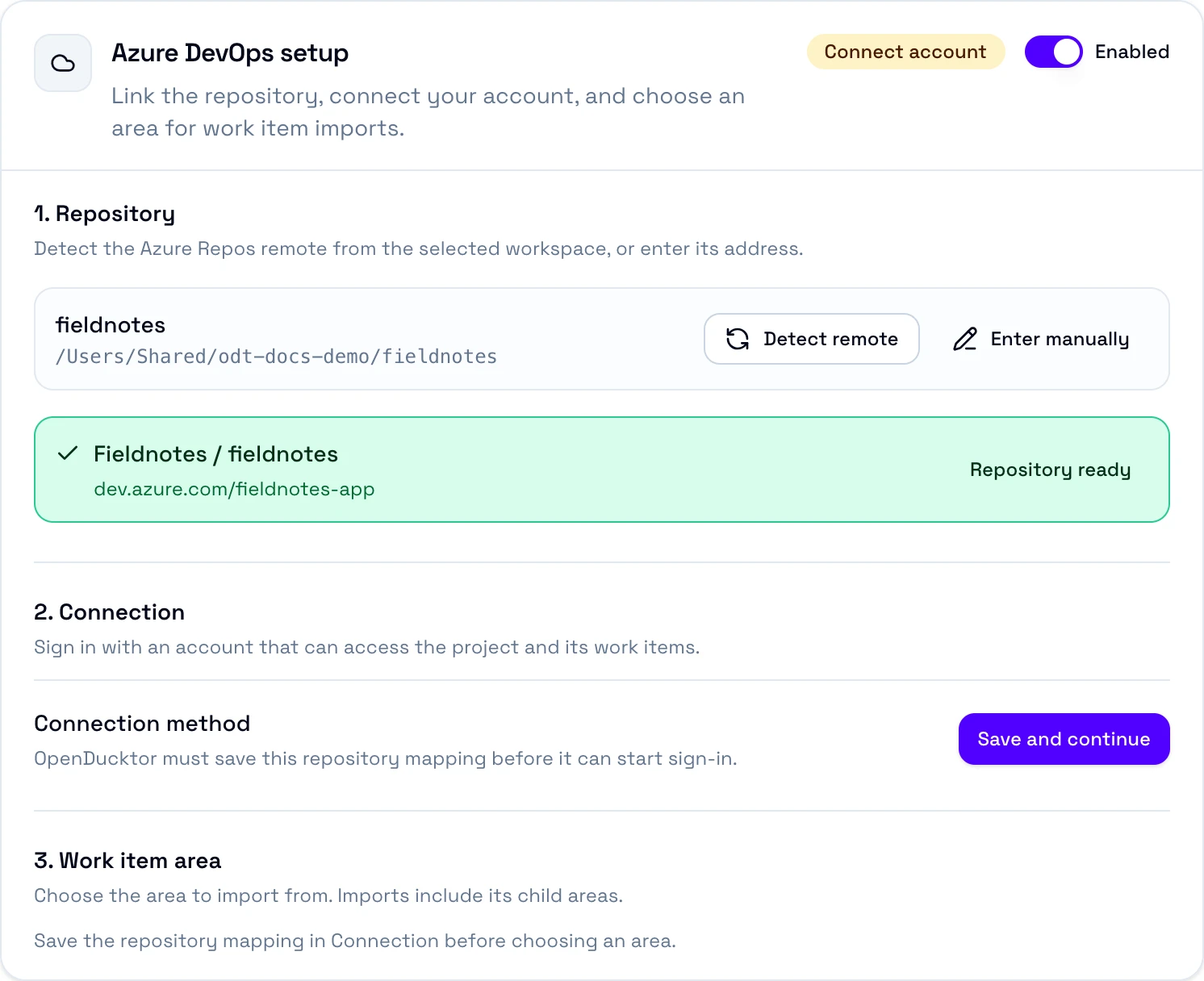
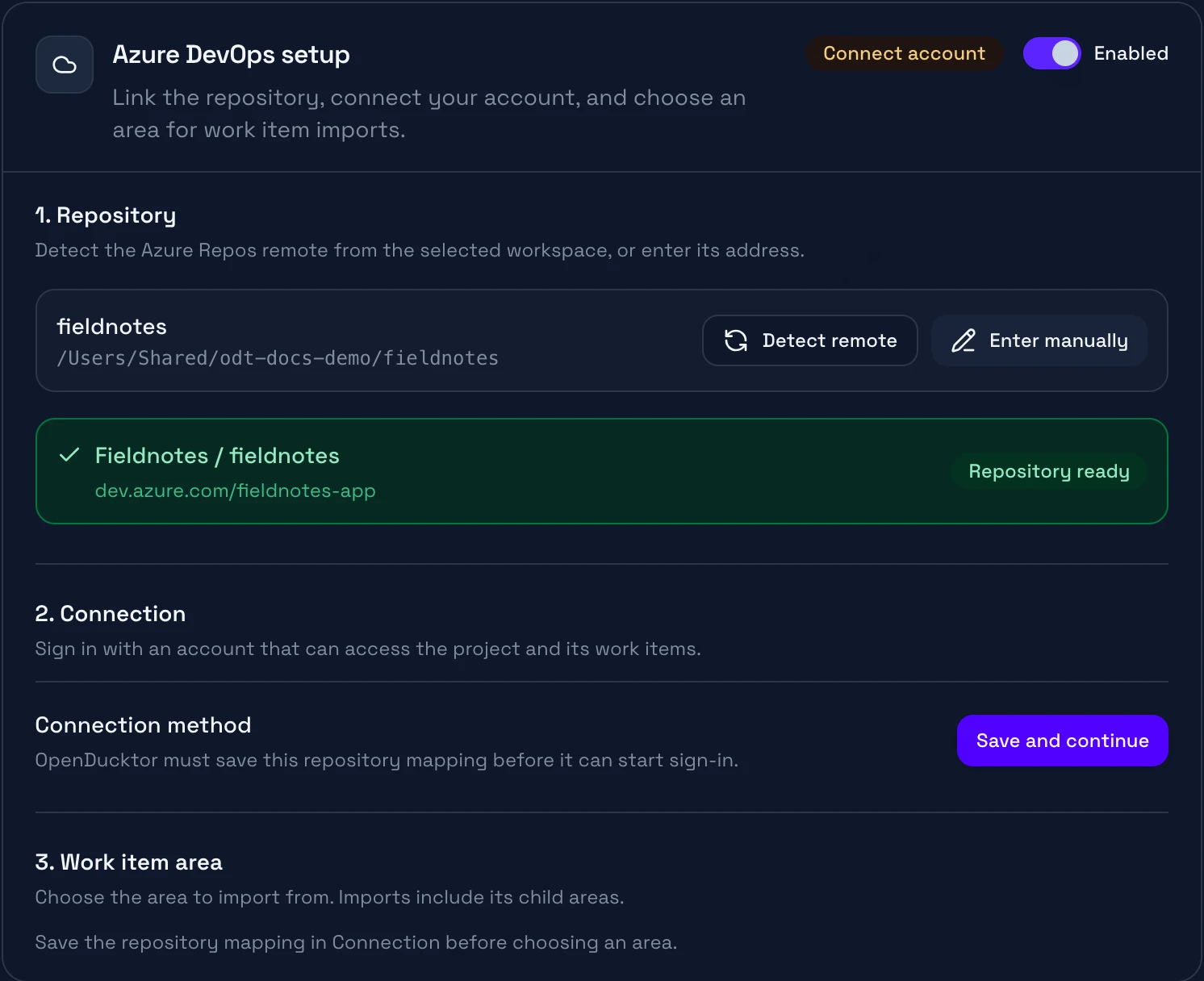
Repository
The organization, project, and repository, from the Azure Repos remote.
Connection
Save the mapping, then sign in or add a personal access token.
Work item area
The area path that imports read, with its child areas.
- Open Settings, Repositories, your repository, then the Git tab. Select Azure DevOps.
- Select Detect remote. OpenDucktor reads the Azure Repos URLs of your remotes:
dev.azure.com,ssh.dev.azure.com,*.visualstudio.com, and Azure DevOps Server URLs with_git. Or select Enter manually. For Azure DevOps Server, enter the full Server address and the Collection. The card shows Repository ready. - Select Save and continue. OpenDucktor must save the repository before sign-in can start. This saves all the changes in Settings.
- Connect. For a work or school account, select Sign in with Microsoft. For a token, paste it in Personal access token, then select Save and validate PAT.
- Under Work item area, choose an Area path, then select Save settings. Pull requests work without it, but imports need it.
Browser sign-in
Microsoft sign-in works only on Azure DevOps Services, with a work or school account. You do not paste a token.
Open Microsoft sign-in opens the page where you type the code. To stop, select Cancel sign-in.
One connection for each repository
The connection belongs to this repository only. Each repository on Azure DevOps connects on its own, also when two repositories are in the same project. OpenDucktor keeps the sign-in or the token in the secure store of your system. Disconnect removes it.
Import work items
Select the arrow next to New task, then Import tasks from Azure DevOps work items.
- The list shows the open work items of the area path and of its child areas, the most recently changed first. Open means a state in the Proposed or In Progress category, for every work item type.
- Search matches titles only. A work item number does not match.
- Each task gets the title, the description as text, and the tags of its work item. You choose the type and the priority before the import.
- The task keeps a link to its work item. OpenDucktor does not change the work item.
Pull requests
When you approve a task, you choose who writes the pull request:
- Ask Builder: the Builder pushes the branch and creates or updates the pull request with the tools of its shell. OpenDucktor gives it no Azure DevOps tool. Install the Azure CLI with its
azure-devopsextension, and sign in, or use Write manually. - Write manually: you enter the title and the description. OpenDucktor pushes the branch and creates the pull request with the connection of the repository. If the task has an active pull request, OpenDucktor updates it.
OpenDucktor creates a pull request ready for review, not a draft.
Checks and comments
The CI Checks tab reads:
- Checks: the build and status policies of the target branch, each marked Required or Optional, and the statuses and builds of the pull request. A broken policy shows as an action to take.
- Comments: the threads of the pull request, and the votes of the reviewers as reviews. A thread is resolved when its state is Fixed, Closed, Won't fix, or By design. A
suggestionblock shows as a suggested change. - Count on the tab: the threads that are not resolved.
Limits
- Microsoft sign-in works only on Azure DevOps Services, with a work or school account.
- Azure DevOps Services needs HTTPS. An
http://Azure DevOps Server needs a confirmation for its collection. - OpenDucktor shows no warning before a token expires. When it expires, the card asks you to sign in again or to replace the token.
- OpenDucktor does not follow redirects. Enter the final server address.
- A branch can have one active pull request. With more, OpenDucktor asks you to link the right one.
Problems
| The card shows | Fix |
|---|---|
| Link repository | Select Detect remote, or enter the repository. |
| Connect account | Select Save and continue, then sign in or add a personal access token. |
| Check connection | The account is connected, but a check failed. Connection method shows the reason. |
| Choose area or Save area | Choose an Area path, then select Save settings. |
No local Git remote maps to the configured Azure DevOps repository. | Your remote uses an SSH host alias. Add it in Advanced remote mappings. See Azure DevOps remote. |
For more, see Git providers in Troubleshooting.