Install and update
Install OpenDucktor on the computer that has your Git repositories. The desktop app and the browser runner both run the agents on that computer.
Requirements
- Git 2.41 or later.
- One harness, installed and signed in: OpenCode, Codex, or Claude Code. You can also install it after OpenDucktor.
Desktop app
For macOS 12 or later, on Apple silicon or Intel. Run this command in a terminal:
curl -fsSL https://raw.githubusercontent.com/Maxsky5/openducktor/main/install.sh | shTo install with Homebrew, run this command:
brew install --cask Maxsky5/openducktor/openducktorYou can also download the .dmg file from GitHub Releases.
Update the desktop app
OpenDucktor checks for updates when it starts and every 12 hours. When it finds an update, a prompt opens in the lower-right corner of the window. Select Download Update, then Restart to Install.
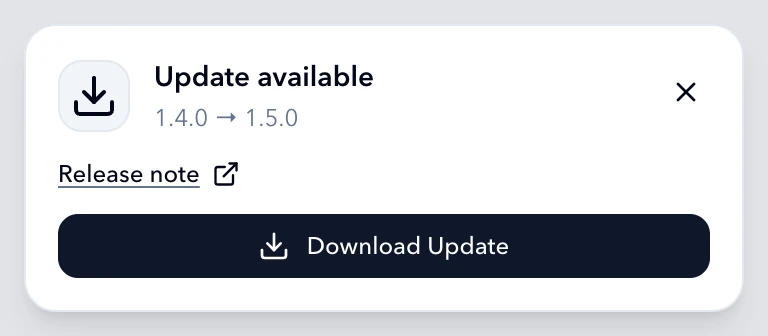
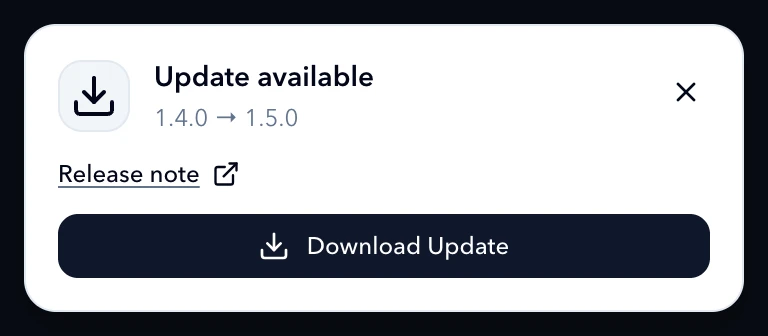
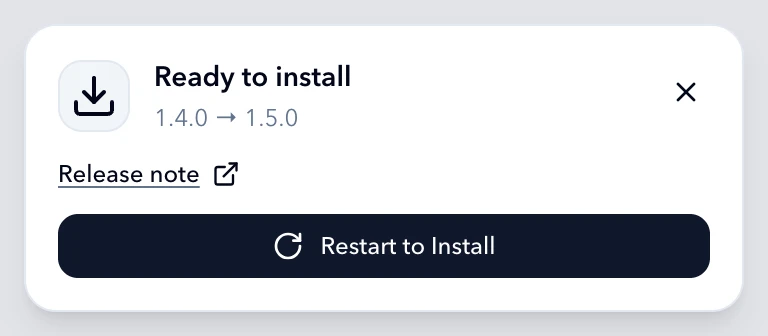
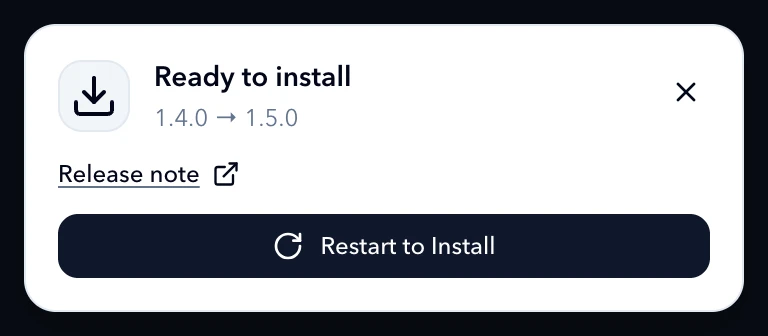
To check now, select Check for Updates... in the OpenDucktor menu on macOS, or in the Help menu on Windows and Linux.
With Homebrew, you can also run brew upgrade --cask openducktor. The .deb package does not update from the app. To update it, install the new .deb file from GitHub Releases.
If an install or an update fails, see Troubleshooting.
Browser runner
The browser runner needs Node.js 24.14 or later. It runs on macOS, Windows, and Linux.
Run this command in a terminal:
Terminal npx @openducktor/web- When the terminal shows
OpenDucktor web is ready:, openhttp://localhost:1420/in your browser.
By default, only this computer can connect to the runner. To use OpenDucktor from another device, see Remote control. To serve the runner page itself to browsers on other computers, start it with --host and --external-url. See Serve the runner on another machine.
If a port is in use, start the runner on other ports. Set --port for the web page and --backend-port for the local host, for example npx @openducktor/web --port 1520 --backend-port 14427. If the runner does not start, see Troubleshooting.
Each runner keeps its own browser session. Two runners on one computer, with different ports or a different OPENDUCKTOR_CONFIG_DIR, do not sign each other out. After you start the runner again, reload its browser page.
Update the browser runner
Stop the runner, then start it with @latest. Without @latest, npx can start an old copy from its cache.
npx @openducktor/web@latest