Coding sessions
An agent works on a task in a session. Each role of a task, such as the Spec agent or the Builder, has its own session.
The session page
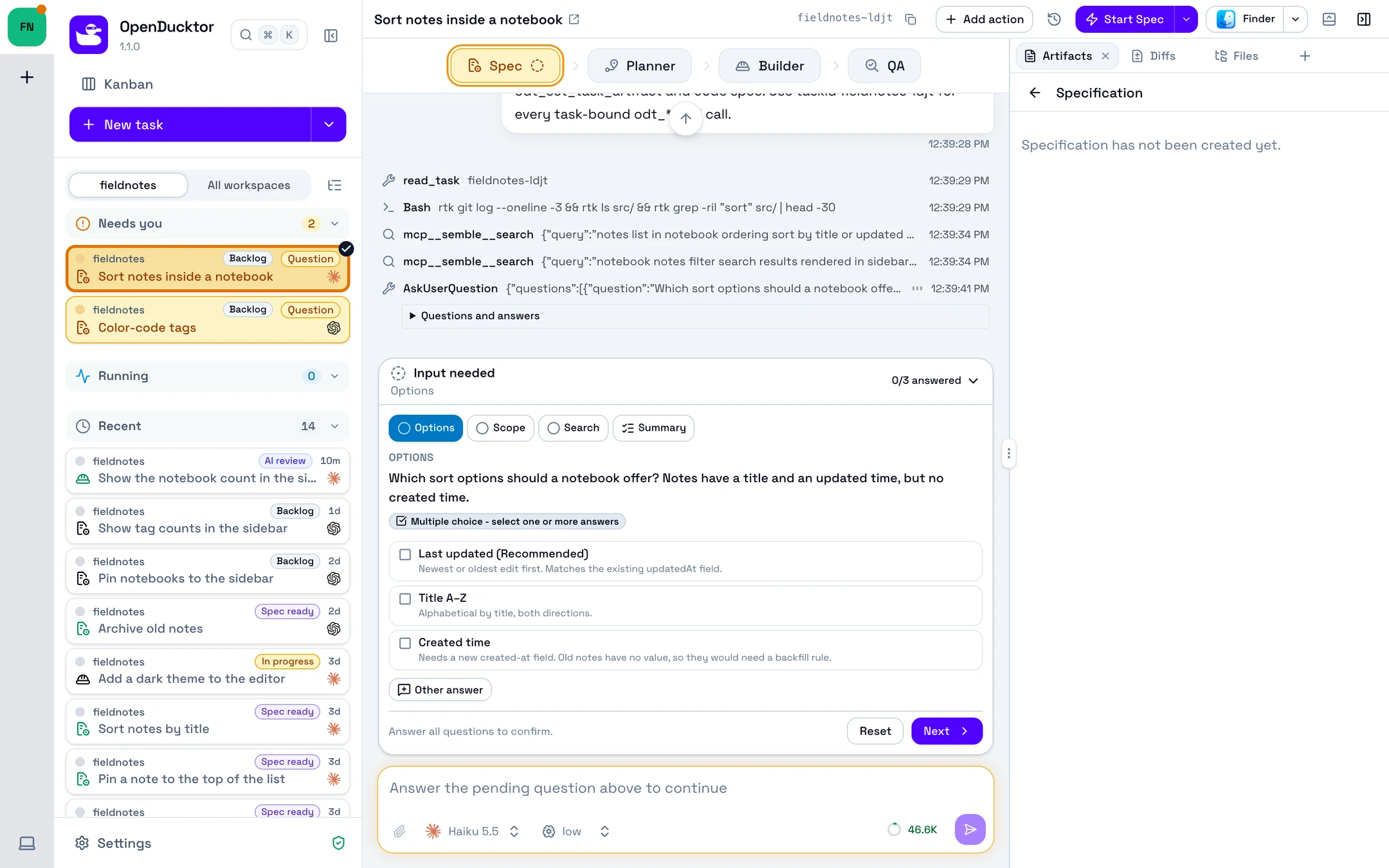
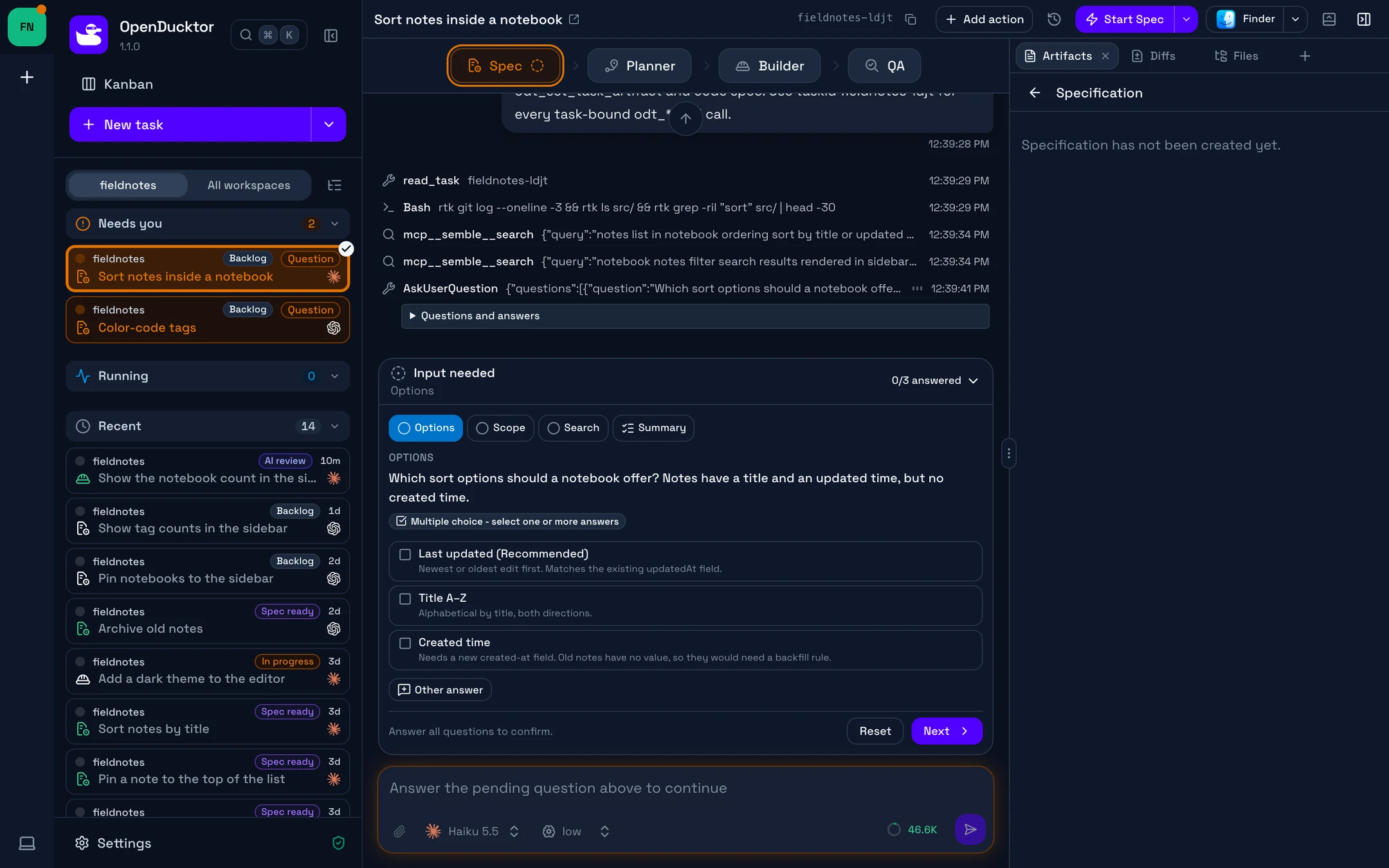
Sidebar
Your sessions, in Needs you, Running, and Recent. A session that waits for you shows in Needs you.
Workflow rail
The roles of the task, in order. A check marks a finished role. Select a role to open its session.
Next step
The button that starts the next step of the task, for example Start Spec.
Transcript
The agent works here. You see its messages, its commands, its file edits, and its questions.
Composer
Type a message to the agent. Type @ for files, / for commands, and $ for skills.
Right panel
The artifacts, diffs, files, and CI checks of the task. Select + to open a terminal or a web page.
Follow the agent
When the agent moves the task, a card with the event as its title shows in the transcript, for example Build Completed. Select the title to read the note of the agent. When the agent saves the pull request of the task, a Set Pull Request card shows it.
Start a session
- On a task card, or in the top bar of the session page, select the button of a role, for example Start Spec.
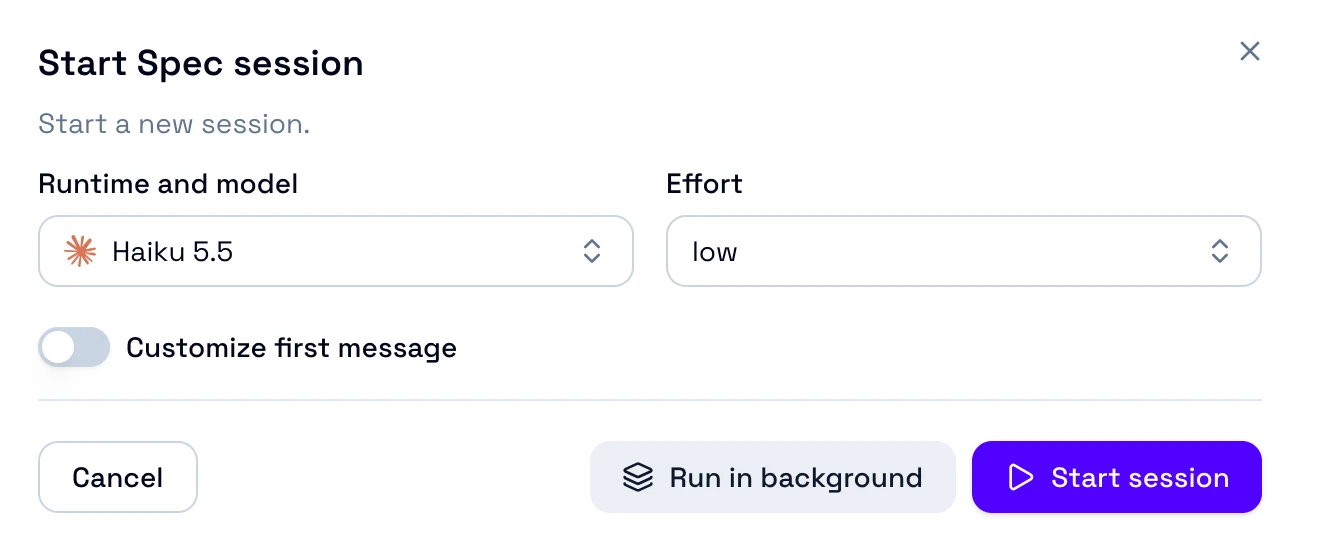
- In the dialog, check the model, then select Start session. The session page opens and the agent starts.
| Option | Use it to |
|---|---|
| Runtime and model, Effort, Speed, Runtime profile | Choose the model of this session. See Change the model of one session. |
| Target branch | Choose the branch that the work merges into. It shows for Start Builder and Generate Pull Request. See Git and pull requests. |
| Session mode | Continue an earlier session of the role with Reuse existing, or start a new one with Start fresh. It shows for Request QA Review, Address QA Feedbacks, Request Changes, and Resolve Git Conflict. For Generate Pull Request, choose Reuse existing or Fork existing. |
| Goal mode | Give the Builder a goal instead of a first message. It shows for Start Builder, Address QA Feedbacks, and Request Changes. See Work toward a goal. |
| Run in background | Start the session and stay on the current page. |
Send messages
To add a reference to a message, type its key in the composer, then select an item in the menu.
| Key | What it adds |
|---|---|
/ | A command of the harness, /goal, or one of your reusable prompts. With some harnesses, also a skill. |
@ | A file of the task worktree. With some harnesses, also a subagent. |
$ | A skill. |
A reusable prompt must be at the start of the message. A message with a reusable prompt cannot also have files, skills, subagents, or attachments.
Queue a message
While the agent works, Enter queues your message. The queued messages show above the composer. When the agent ends its turn, it gets the oldest queued message. Each next message waits for the end of the next turn.
To send a queued message to the agent at once, while it works, point to the message and select Steer now, the lightning icon.
To send a new message to the agent at once, press Cmd+Enter on macOS or Ctrl+Enter on Windows and Linux. To swap the keys, see Steer messages by default.
If you stop the agent or a reply fails while messages wait in the queue, Queue paused shows above the composer. To send the queued messages, select Resume queue.
Fork from a reply
To try another way, select Fork from this reply on a reply of the agent. A new session of the same role starts with the conversation up to that reply, and it opens. The first session does not change.
Work toward a goal
In Goal mode, the Builder gets a goal instead of a first message. Its harness then starts each next turn by itself, until the goal is met.
Start in Goal mode
- Select Start Builder, Address QA Feedbacks, or Request Changes. Only these steps show Goal mode.
- Turn on Goal mode. The Goal field shows a default goal: the outcome, and the conditions that must be true at the end.
- Edit the goal, or select Generate goal. A model writes a goal from the task, its documents, and the default goal.
- Select Start session.
- The agent gets only the goal. Customize first message hides while Goal mode is on. A goal can have 4000 characters.
- Generate goal uses the Default model of the repository, and the Goal Writer prompt. Without a default model, the button is off.
- Your harness must support goals. If it does not, the switch is off and tells you why. See Goal mode support.
- Autopilot never starts a session in Goal mode.
Follow the goal
The goal row shows above the composer: Goal, the status, and the objective. Select the row to read the whole goal.
| Status | What it means |
|---|---|
| Active | The agent works toward the goal. |
| Paused, Blocked, Limit reached | The goal waits. The row shows the reason that the harness gives. |
| Waiting for your message | Your next message continues the goal. |
| Complete | The goal is met. |
| Goal ended | The goal stopped. |
The row has Pause goal, Resume goal, and Clear goal. Some harnesses can only clear a goal.
A goal does not end when the task moves to another lane. The Builder can keep working after it reports the build as completed, until the goal is met. Before OpenDucktor removes a task worktree, it stops the sessions that work on a goal.
Set a goal with /goal
In the composer of a session, type /goal, then the objective, and send the message. The message shows a Goal chip. To change a running goal, send /goal pause, /goal resume, or /goal clear.
- A
/goalmessage holds only text, with no files or attachments. - While the agent works in a normal turn, a
/goalmessage waits in the queue. You cannot steer it. - While a goal drives the work, your other queued messages wait until the goal stops. A
/goalmessage applies at once.
Answer the agent
When an agent asks a question, needs a permission, or reports that the task is blocked, its session moves to Needs you. The agent waits until you answer. You can also answer from your phone. See Answer the agent.
Answer a question
- In the sidebar, select the session in Needs you.
- Select an option, and the next question opens. To write your own answer, select Other answer, then Next.
- After the last question, select Confirm Answers. The agent continues, and the session moves to Running.
To answer without opening the session, point to its row in Needs you. A preview opens with the question. Answer it there, or select Open session.
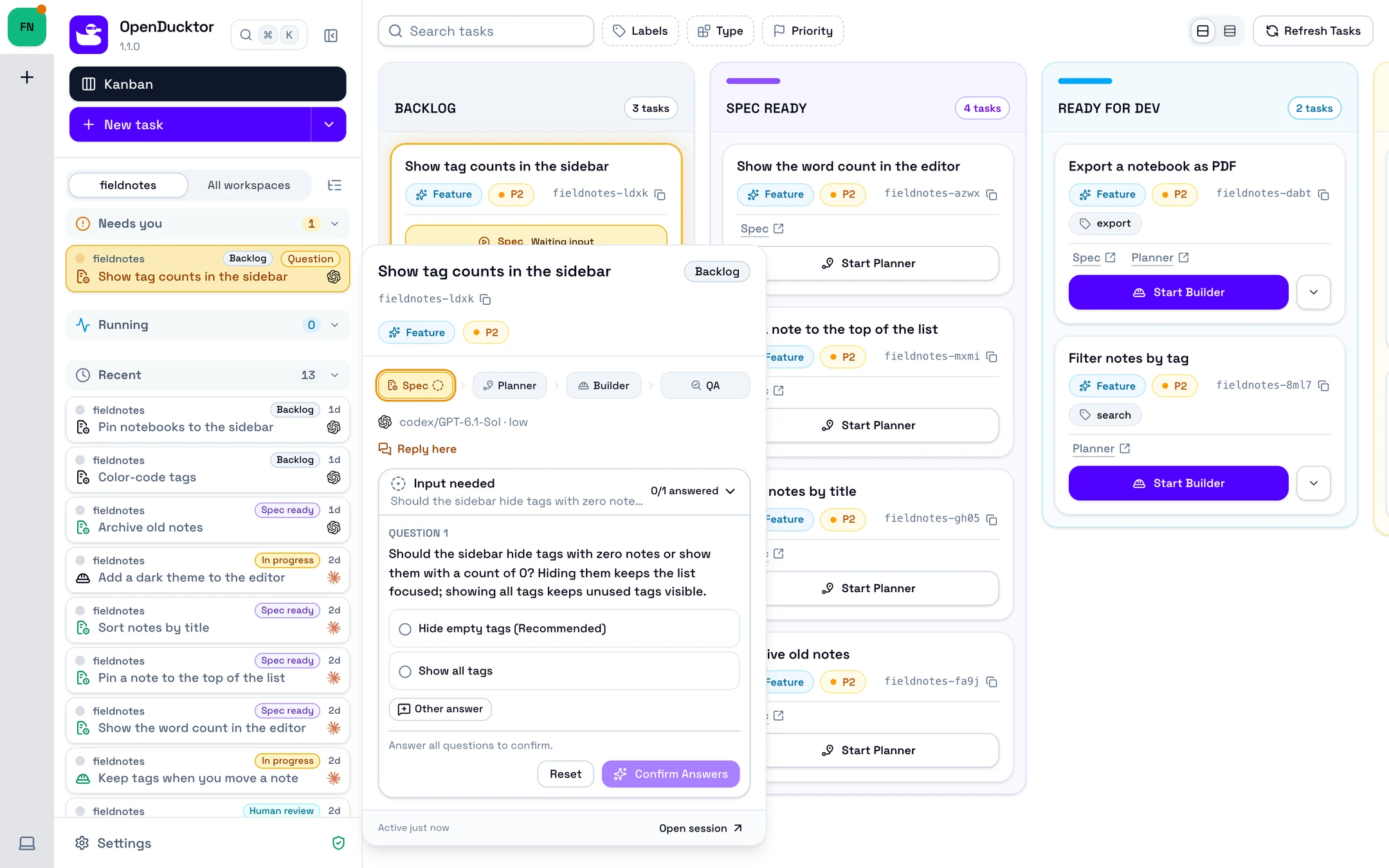
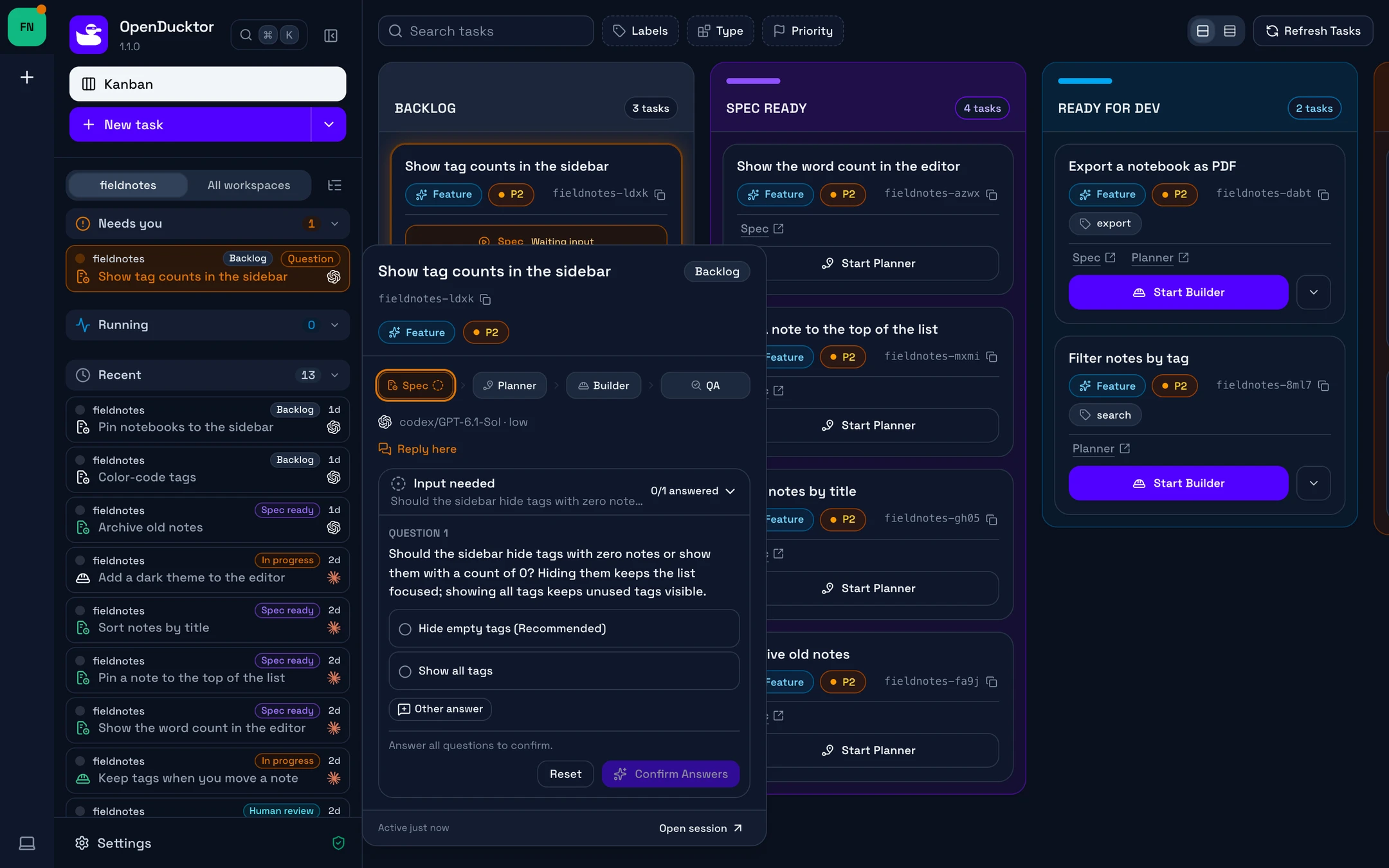
Needs you row
The session that waits for you. Point to it to open the preview.
Preview
The question of the agent. Select an option, then Confirm Answers.
Open session
Opens the full session page.
Reply to a permission request
An agent asks for a permission before it does some actions, for example before it runs a command. Select a reply on the Approval required card.
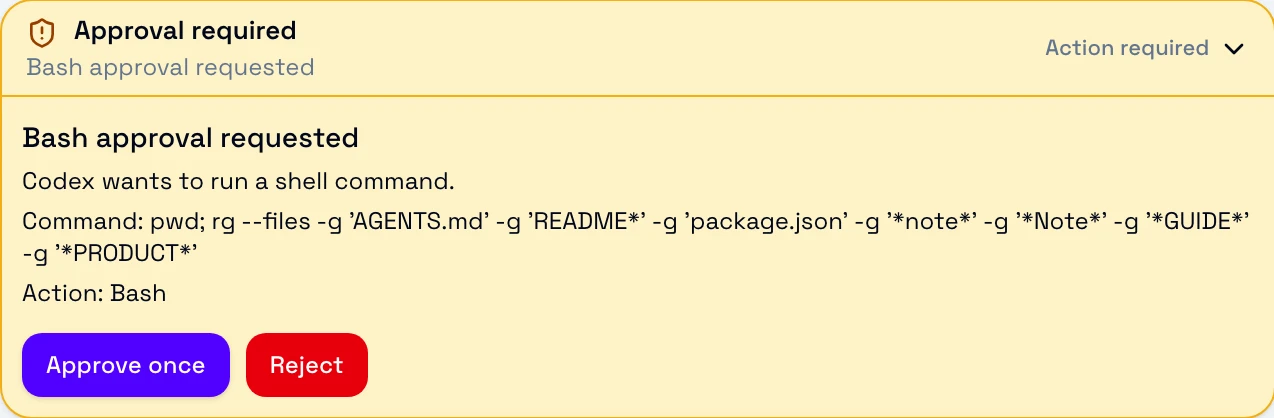
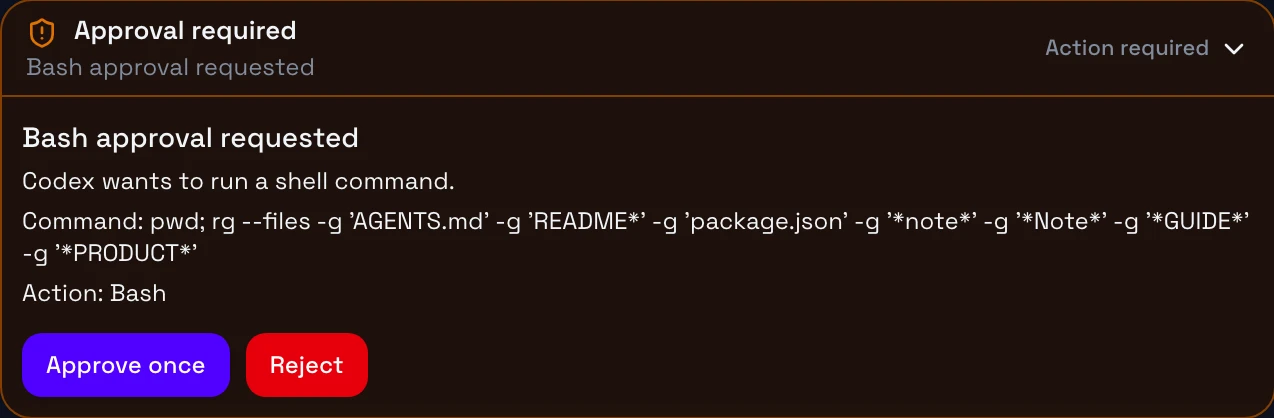
Some harnesses also show these replies:
| Reply | What it does |
|---|---|
| Approve for session | Allows the same request until the session ends. |
| Always allow | Also allows the same request in later sessions. OpenCode shows it as Allow for project. |
To get fewer requests, set the permissions of each harness.
Review the work
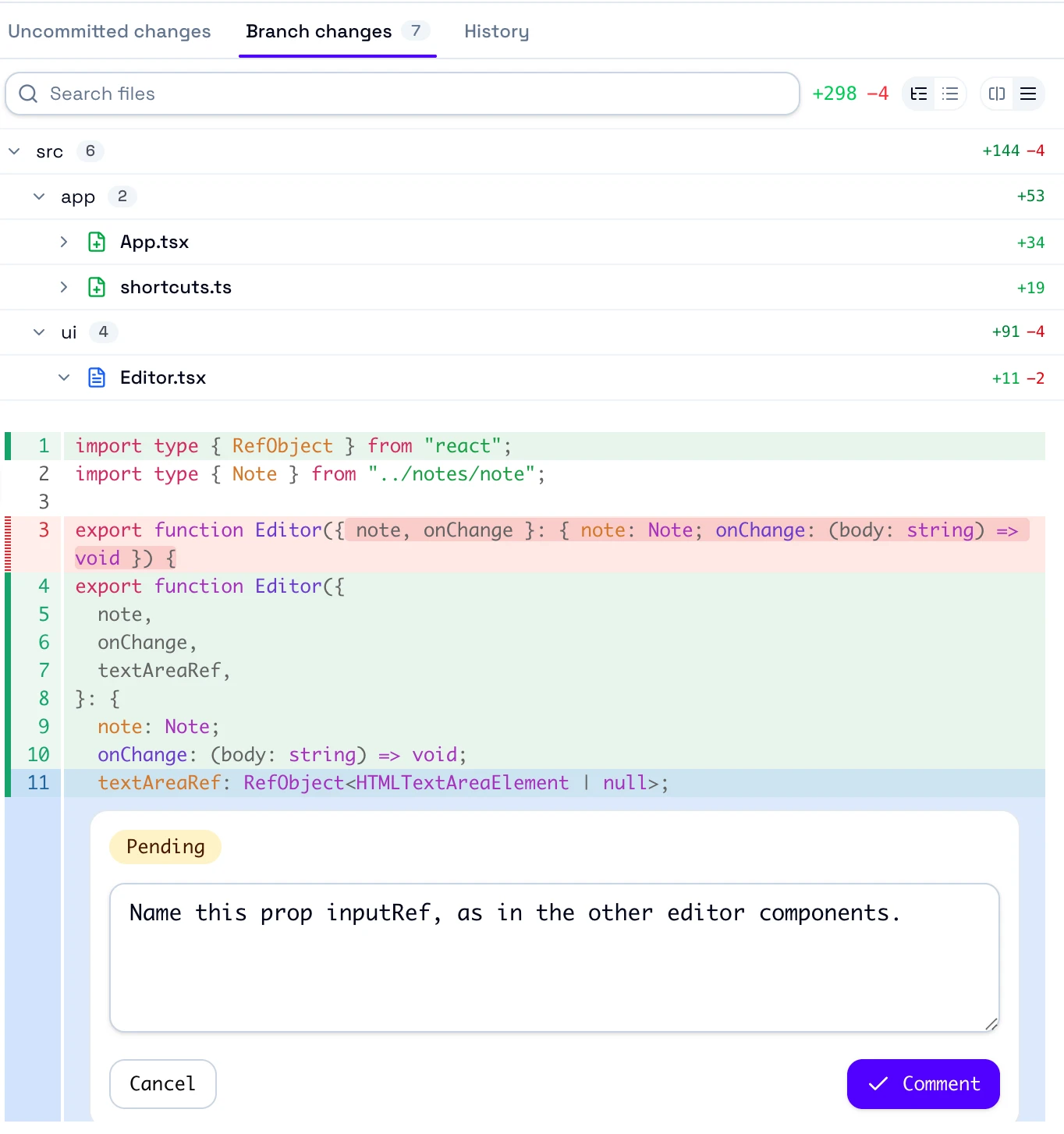
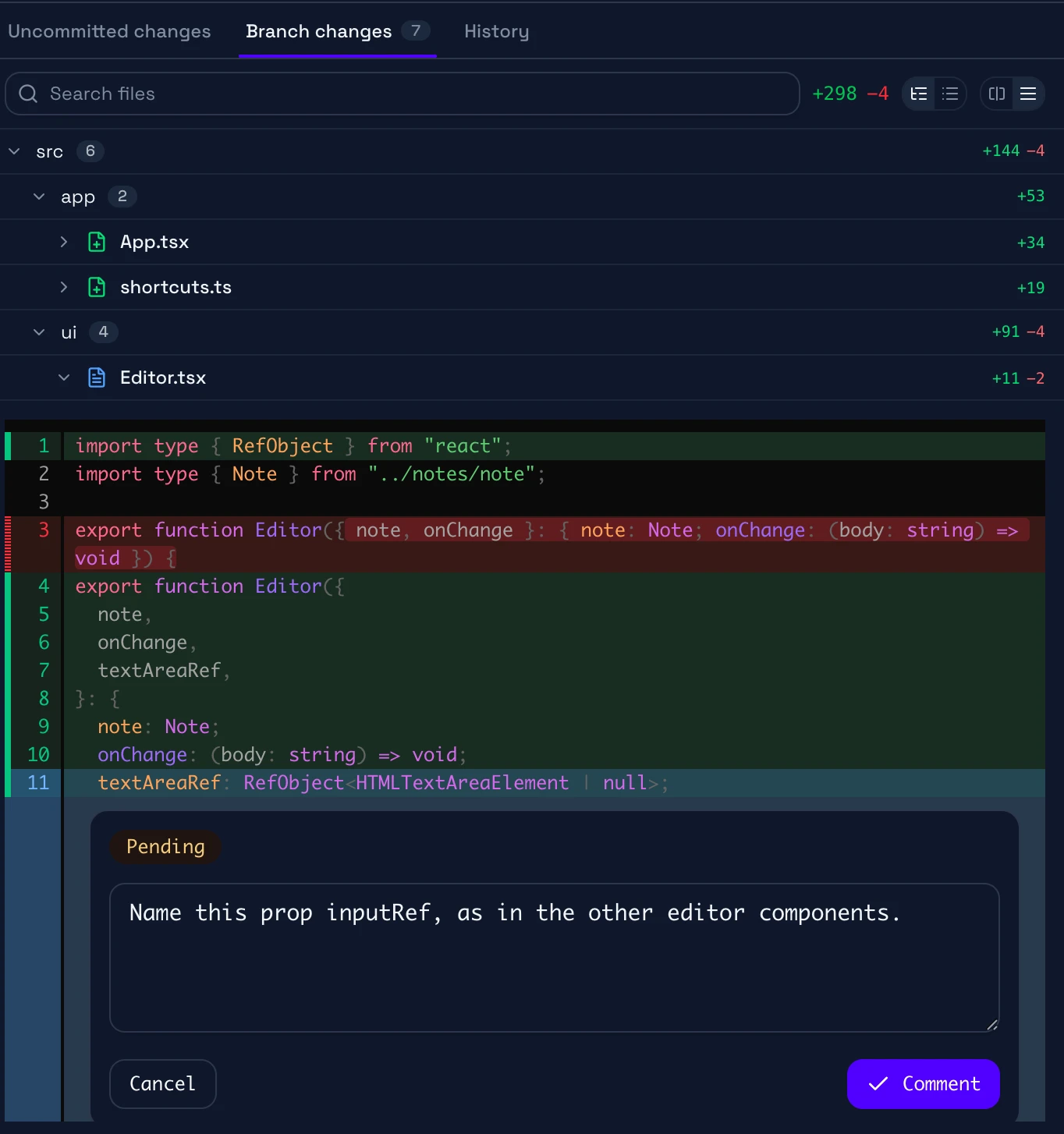
Open the Diffs tab. Branch changes compares the task branch with its target branch.
To comment on a line, point to it and select + in the gutter. The agent gets your comments with your next message.
Views
Uncommitted changes, Branch changes, and History.
Changed files
Search the files. Select a file to open its diff.
Diff
The removed lines in red and the added lines in green.
Comment
Your comment on line 11. The agent gets it with your next message.