Remote control
Remote control shares your host with the devices that you pair. The host is the computer that runs OpenDucktor, with the desktop app or the browser runner. The other devices control the host, but the agents always run on the host.
A paired device controls this host
http:// address is not encrypted. Use it only on a trusted private network, such as your home network or a Tailscale network, or give the host an HTTPS address.Turn on Remote control
- On the host, open Settings, then Remote control.
- Under Network, select the network that the other device uses.
- Turn on Enable Remote Control.
You can also select the host icon next to Settings, then the Remote control tab, and select Turn on remote control.
Remote control stays on when OpenDucktor starts again. Keep OpenDucktor open on the host. When you close the app or stop the browser runner, all remote connections end.
Pair a device
- In Remote control, select Add device.
- On the other device, enter the host address and the six-digit code, as Connect from another computer shows. With the mobile app, you can scan the QR code of the Scan a QR code tab instead.
- The host shows Device paired. The device appears in Paired devices as Connected.
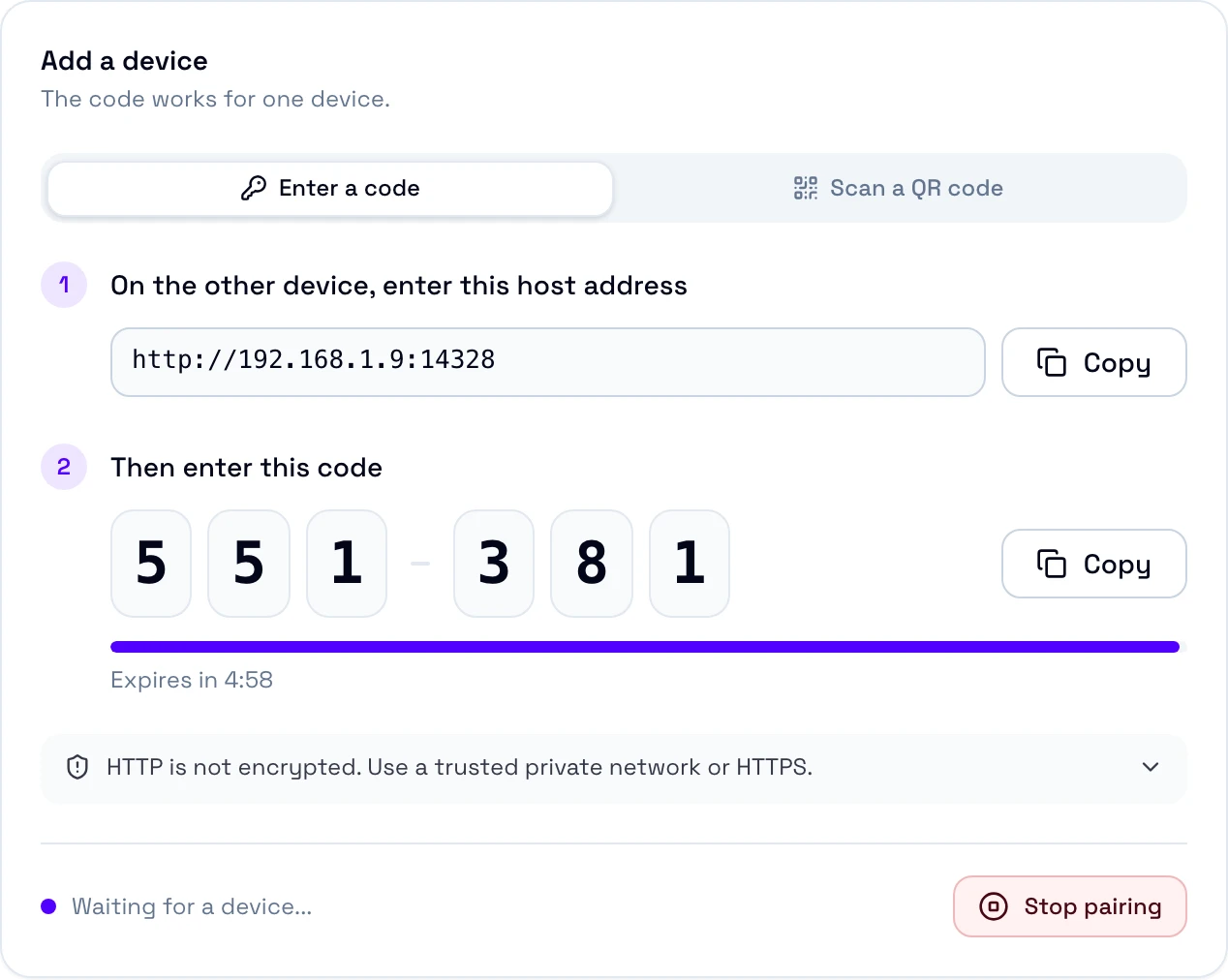
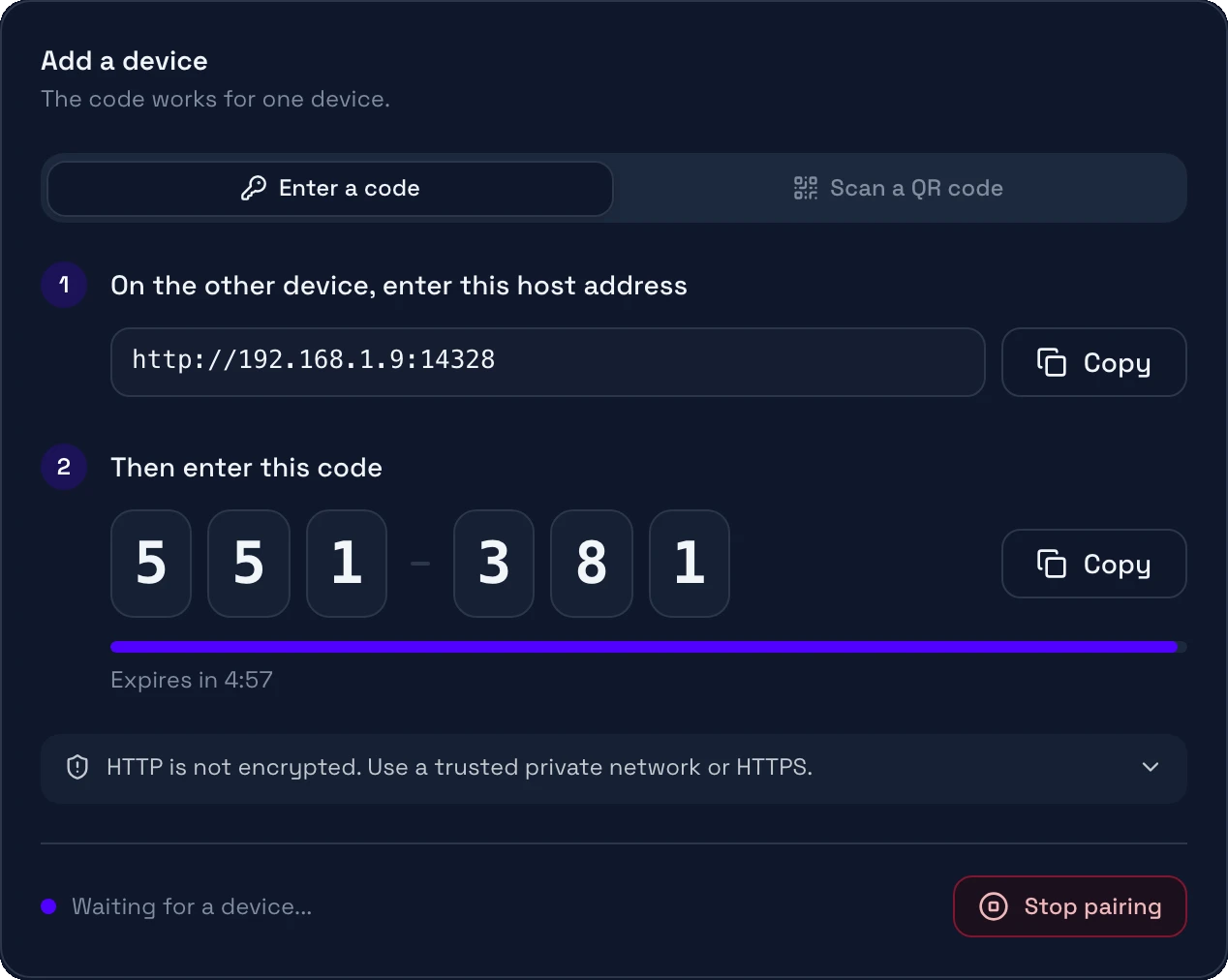
A code works for one device for 5 minutes. While Add a device stays open, a new code replaces an expired one. After 5 wrong codes, pairing stops. To get a new code, select Add device again. A paired device keeps its access when the host restarts, and it connects again without a code.
The host address cannot be a loopback address, such as http://localhost:14328.
Remove a device
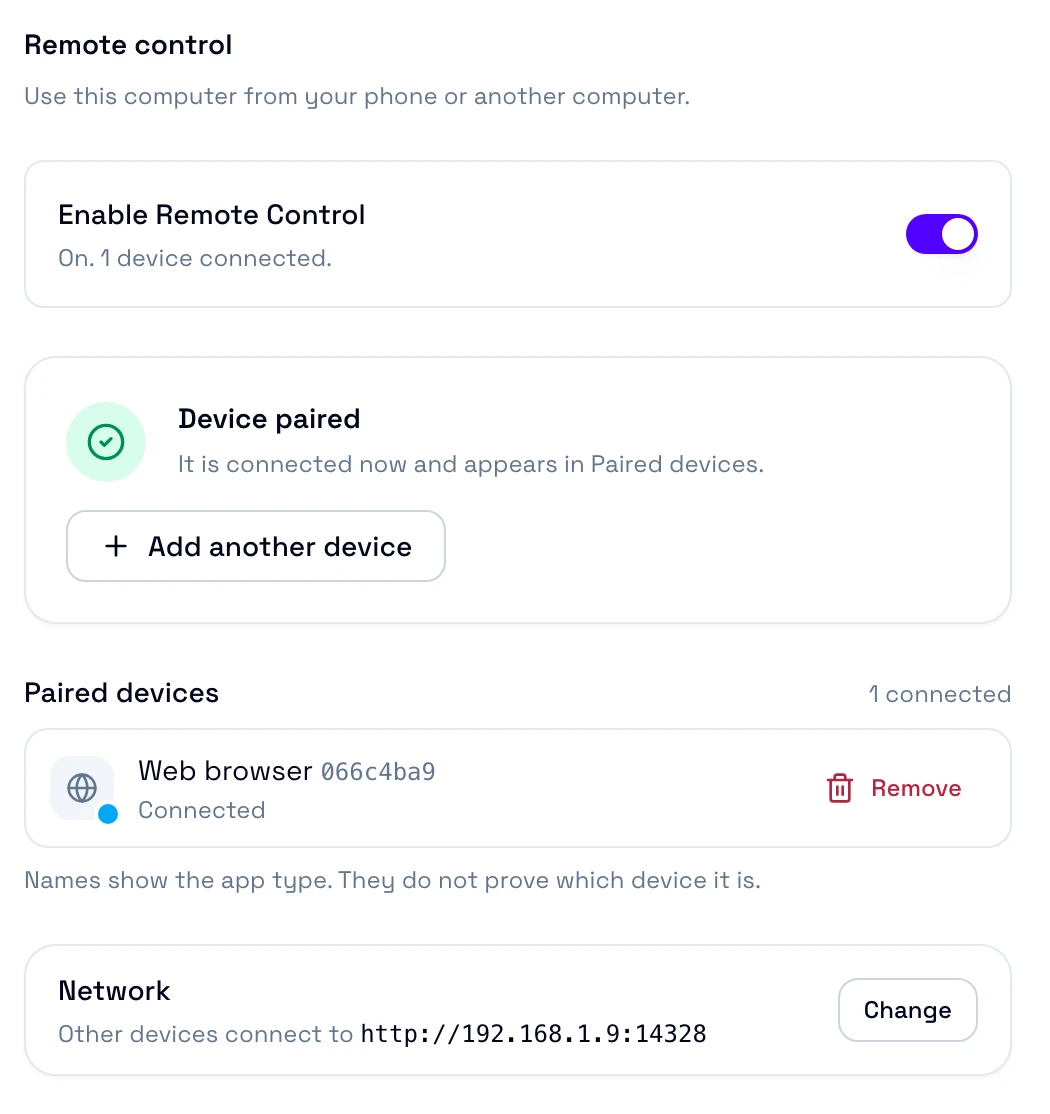
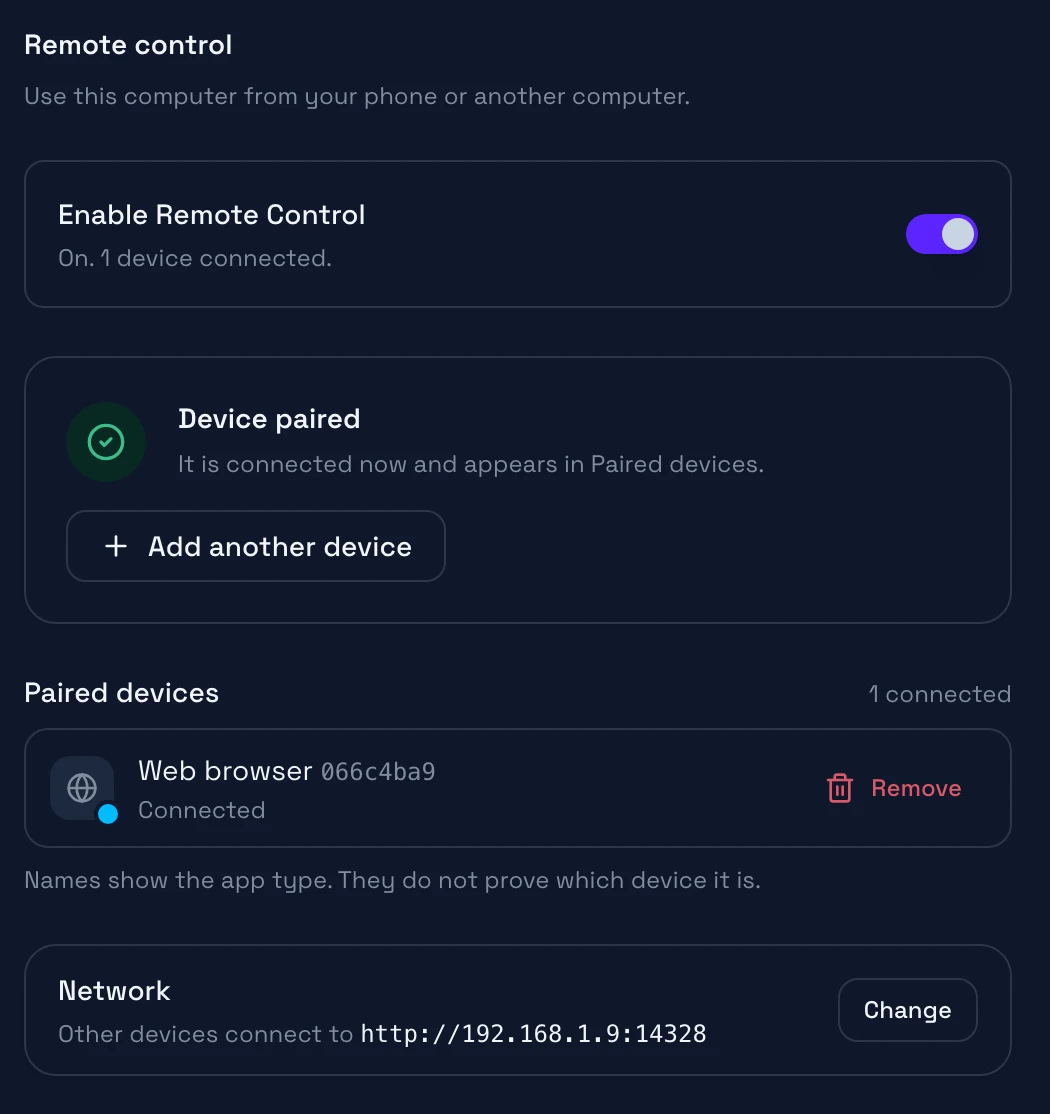
In Paired devices, select Remove next to the device. The device disconnects at once, and it needs a new code to connect again.
A row shows the app type, such as Mobile app, Desktop app, or Web browser, and a short reference. It does not show the name of the device. If you do not know a device, remove it.
Connect from another computer
Use the desktop app or the browser runner
- On the other computer, select the host icon next to Settings at the bottom left of the window. The Host connection dialog opens.
- Select the Connect to a host tab.
- Enter the Host address and the Pairing code that Add device shows on the host. The app connects when you enter the last digit.
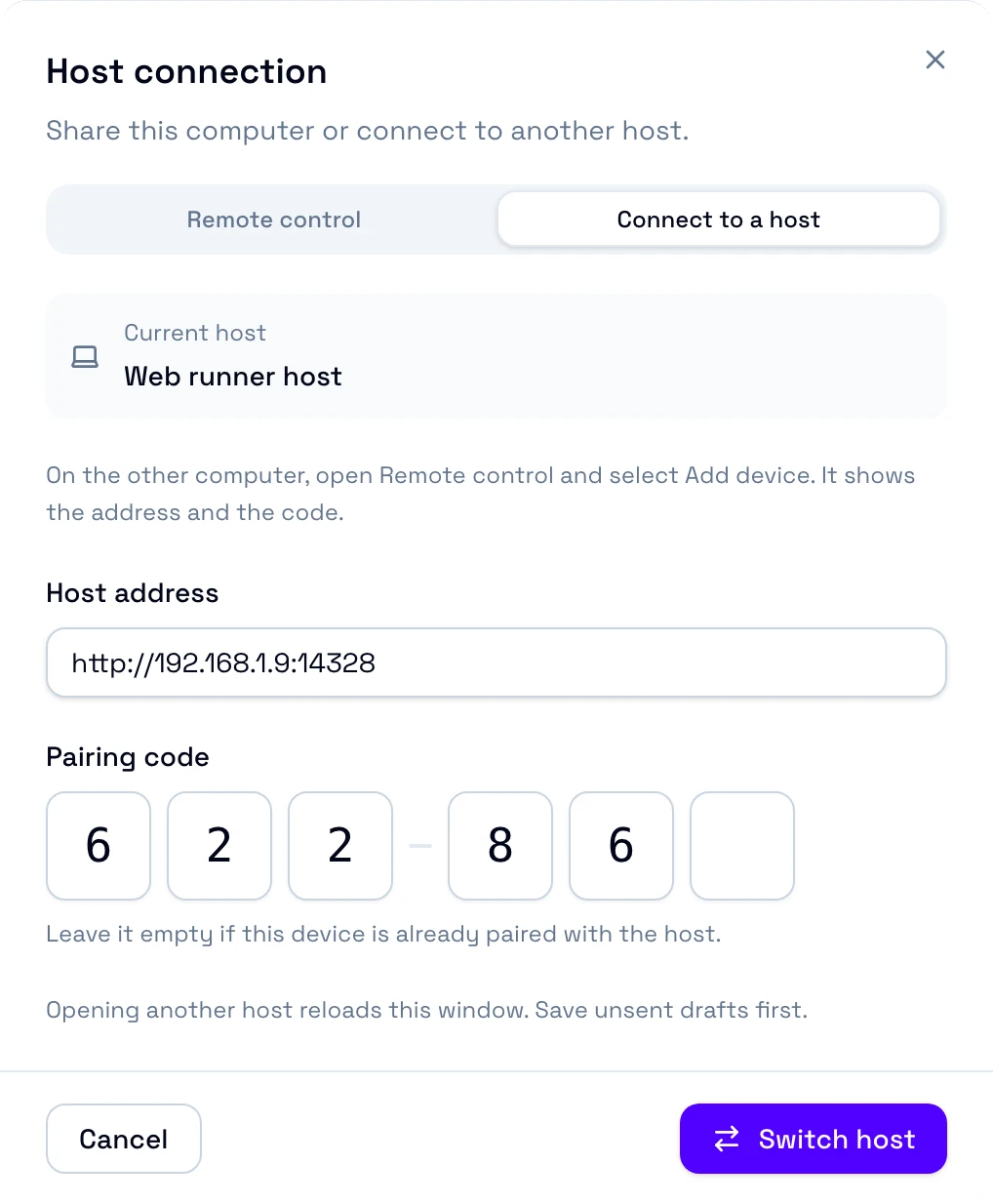
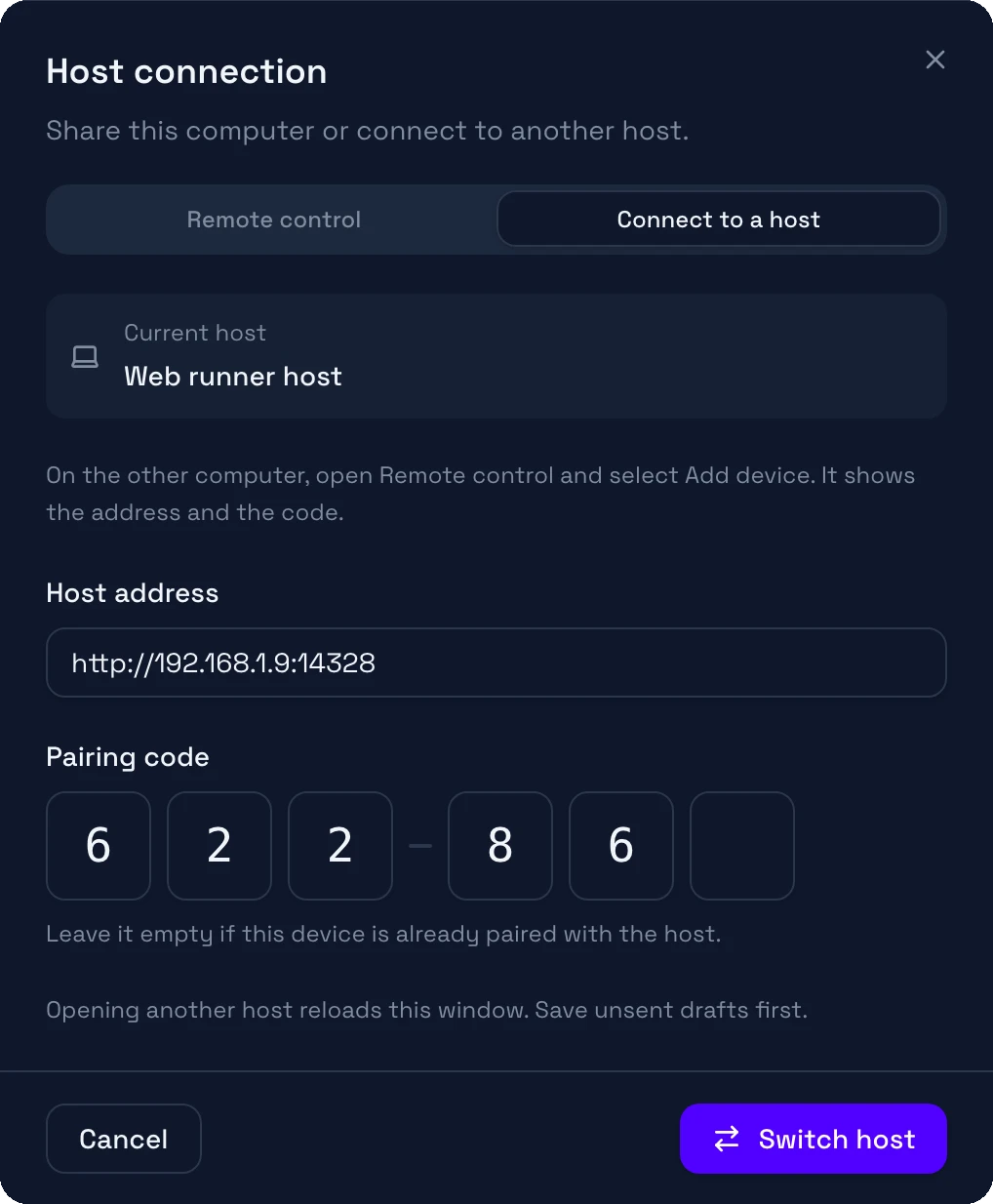
When this computer is already paired with the host, leave the code empty and select Switch host. To use the host of this computer again, select the host icon, then Use desktop host or Use web runner.
Give the host an HTTPS address
app.openducktor.dev needs an HTTPS address. HTTPS also encrypts the connection outside a trusted network. Put an HTTPS proxy in front of the host. This example uses Tailscale Serve.
- In Remote control, if the Network card shows Change, select it. Open Advanced, and set Local listen address to
127.0.0.1. - Set Public host address to the HTTPS name of the computer, for example
https://my-computer.example.ts.net. - Turn on Enable Remote Control. If it is already on, select Apply changes.
Forward the HTTPS address to the Remote control port. This command uses the default port,
14328. If you changed Port in Advanced, use your port:Host computer tailscale serve --bg http://127.0.0.1:14328
After this change, the host does not accept the old http:// address. Other devices must connect to the HTTPS address.
A web client that you serve yourself needs its address in Other web clients, under Advanced. See Other web clients.
For other proxies, see Web entry points and proxies in the developer guide.
Use app.openducktor.dev
app.openducktor.dev opens OpenDucktor in any browser and connects it to a shared host.
- Open app.openducktor.dev.
- Enter the HTTPS Host address and the Pairing code that Add device shows on the host. The browser connects when you enter the last digit.
- If the browser asks for local network access, allow it.
When this browser is already paired with the host, leave the code empty and select Connect to host. To leave the host, select the host icon, then Disconnect. If you open the host address directly in a browser tab, it shows JSON. Enter the address in a client instead.
Compatibility
A client and a host work together when they use the same remote protocol. Their app versions can be different. When the protocols do not match, the client tells you which side to update.
When a client and a host cannot work together, the client tells you to update the host, the client, or both. To update app.openducktor.dev, reload its tab.