Actions, worktrees, and prompts
Run your commands from a session, give new worktrees the files and dependencies that agents need, and insert saved text with a slash command. To add your instructions to the prompts of the Spec, Planner, Builder, and QA agents, or to replace a prompt, see Agent prompts.
Add repository actions
A repository action is a command, such as your tests, that you run from the session top bar in a new terminal.
When the repository has no actions, Add action in the session top bar opens these settings. When it has actions, select More actions in the top bar, then Manage actions.
- Open Settings, then Repositories. Select your repository in the Repository list, then select Scripts.
- Select Add action, and enter a Name and the Command.
- Select Save action, then Save settings.
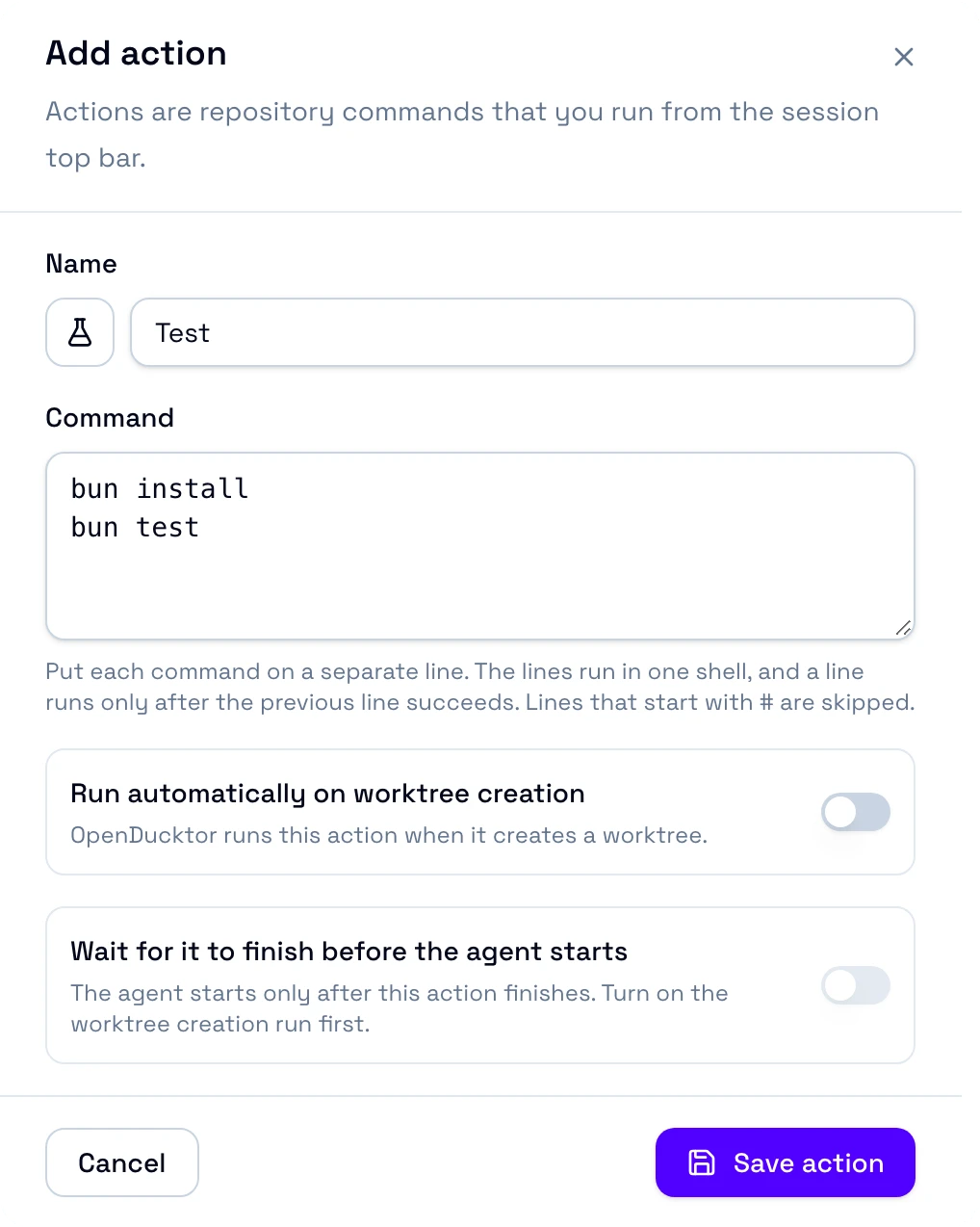
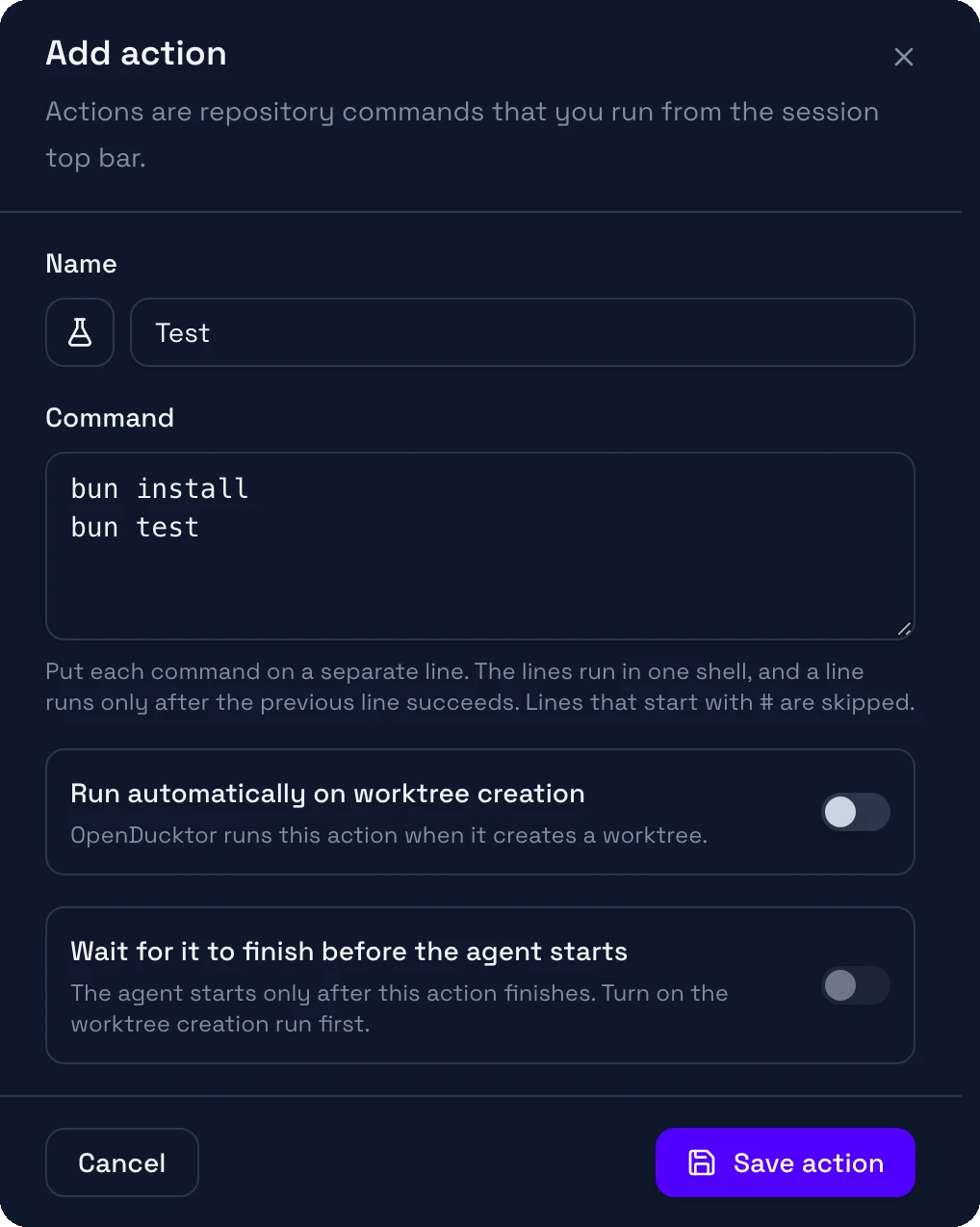
Each line runs after the line before it succeeds. OpenDucktor skips lines that start with #:
# Install, then test.
bun install
bun test
The first action that you add becomes the default action. The top bar runs the default action with one click, and its menu lists the other actions. To change the default action, select Set as default on another action.
Prepare new worktrees
A new task worktree or workspace session worktree has only the files that Git tracks. Untracked files and files that Git ignores, such as .env, are not in it.
Copy files into new worktrees
- Open Settings, then Repositories. Select your repository in the Repository list, then select Scripts.
- Under Files copied to worktrees (one path per line), enter one path from the repository root on each line. A folder copies with its content.
- Select Save settings.
.env
config/local.json
If a path does not exist, the worktree setup stops with Configured worktree copy source is unavailable:. Correct the line, then start the work again.
Run setup commands
- In Scripts, select Add action, and enter a Name and a Command, for example
bun install. - Turn on Run automatically on worktree creation.
- If the agent needs the result, such as installed dependencies, turn on Wait for it to finish before the agent starts.
- Select Save action, then Save settings.
Actions that run on worktree creation start in list order. An action that the agent waits for must end with exit code 0 within 5 minutes. If it fails or runs longer, OpenDucktor stops it, removes the new worktree, and shows the last output of the action.
To run commands in a task worktree right before OpenDucktor removes it, see Before worktree removal script.
Add a reusable prompt
A reusable prompt is text that you insert with a slash command.
- Open Settings, then Reusable prompts, and select Add prompt.
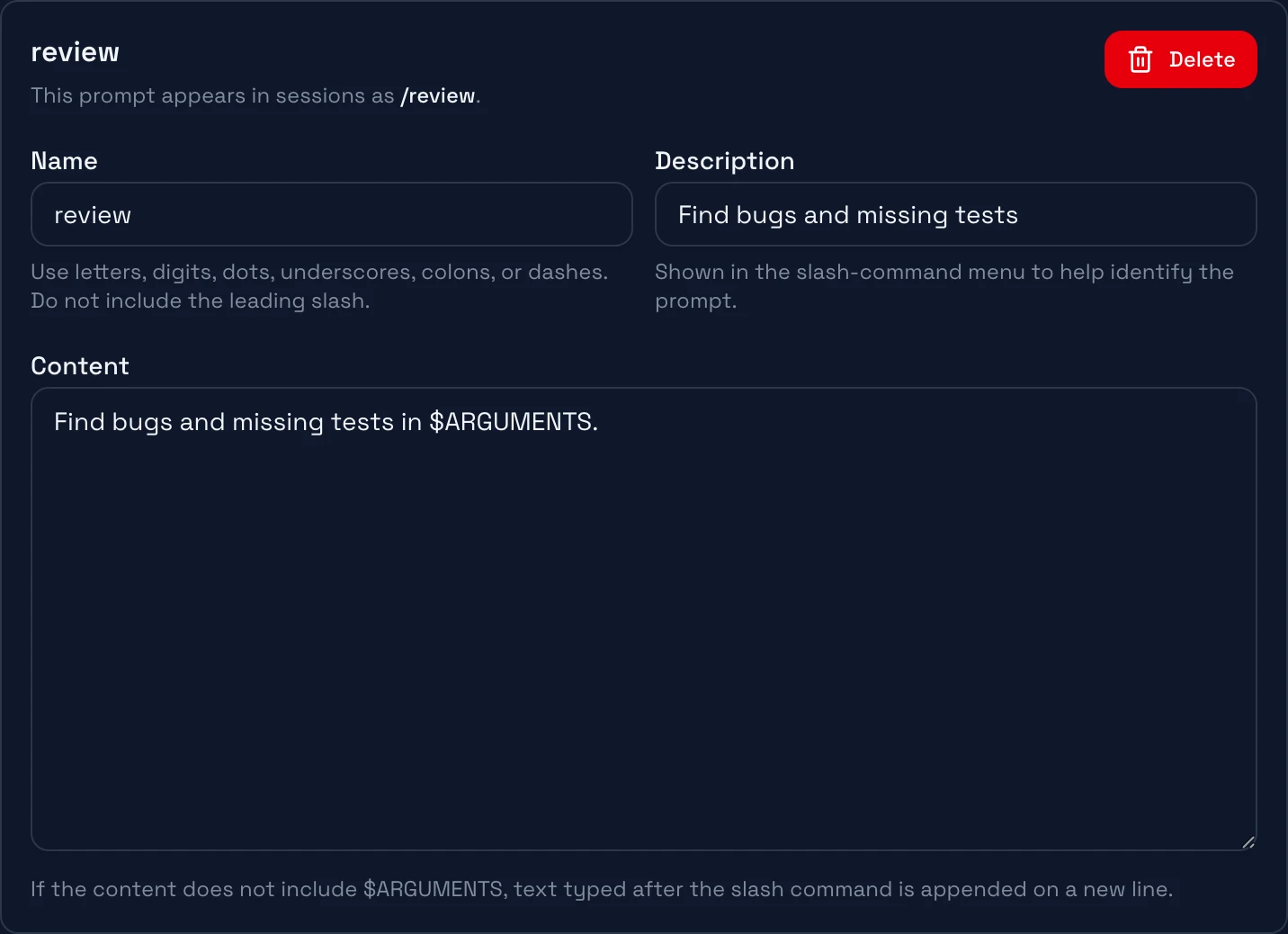
- Enter a Name, for example
review, with no leading slash. The optional Description shows in the slash-command menu. - Enter the Content. OpenDucktor replaces
$ARGUMENTSwith the text that you type after the command. Without$ARGUMENTS, it adds that text on a new line at the end. - Select Save settings.
Find bugs and missing tests in $ARGUMENTS.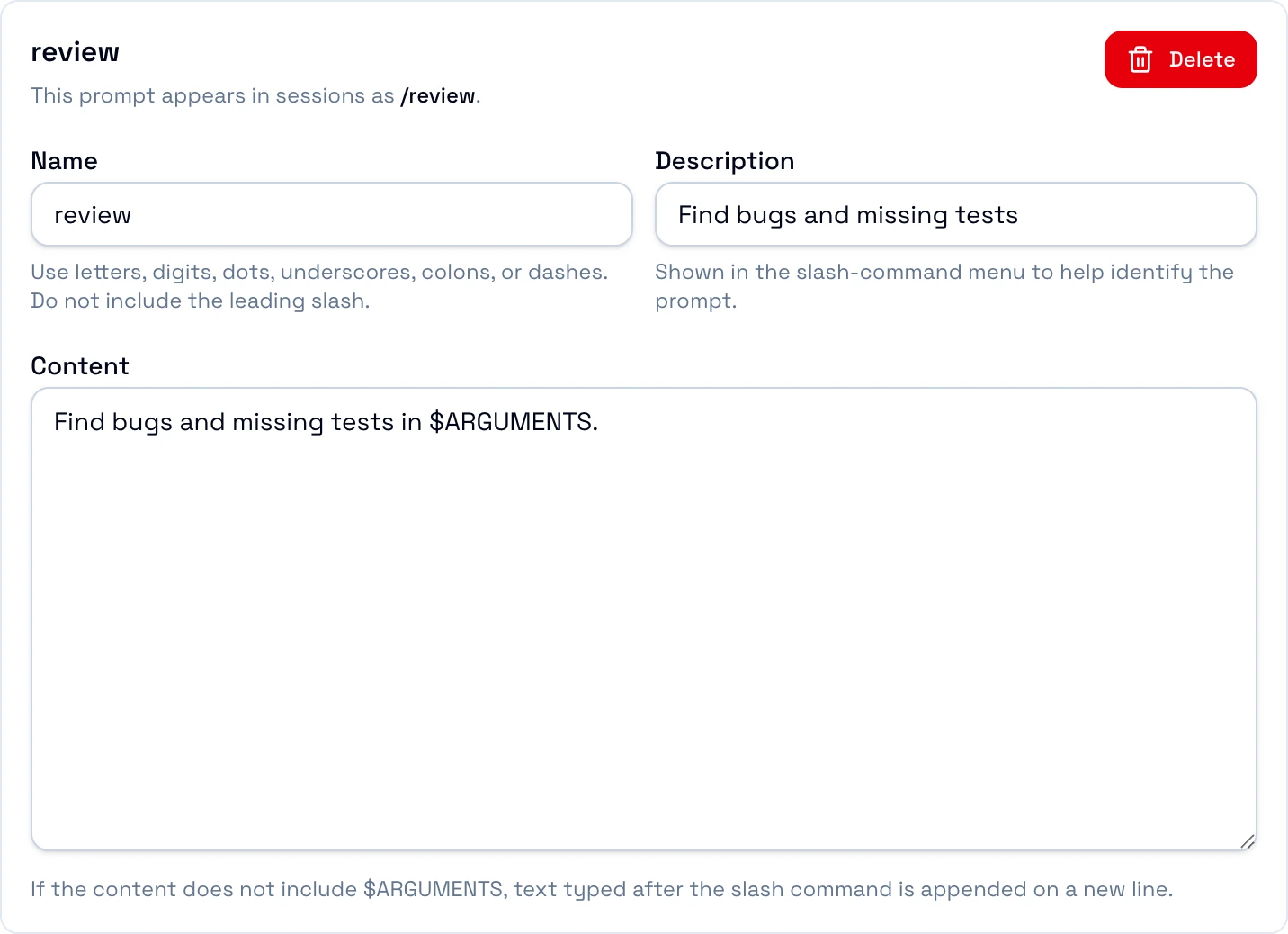
To use the prompt:
- At the start of a message in a task session or a workspace session, type
/review, and select it in the menu. - Type the text for
$ARGUMENTS, for examplethe parser module, and send the message.
The agent gets Find bugs and missing tests in the parser module.
Every workspace has the same reusable prompts. A message with a reusable prompt must start with the command, and it can have only one command. It cannot have attachments, file references, skill references, or subagent references.
If a harness command has the same name, the menu shows only the reusable prompt. The exceptions are the system commands /compact and /goal. /compact always compacts the session, and /goal always sets a goal. The menu does not show a reusable prompt named compact or goal. A message with one of them fails, for example with /goal is a reserved system slash command. Do not use these names.