Notifications
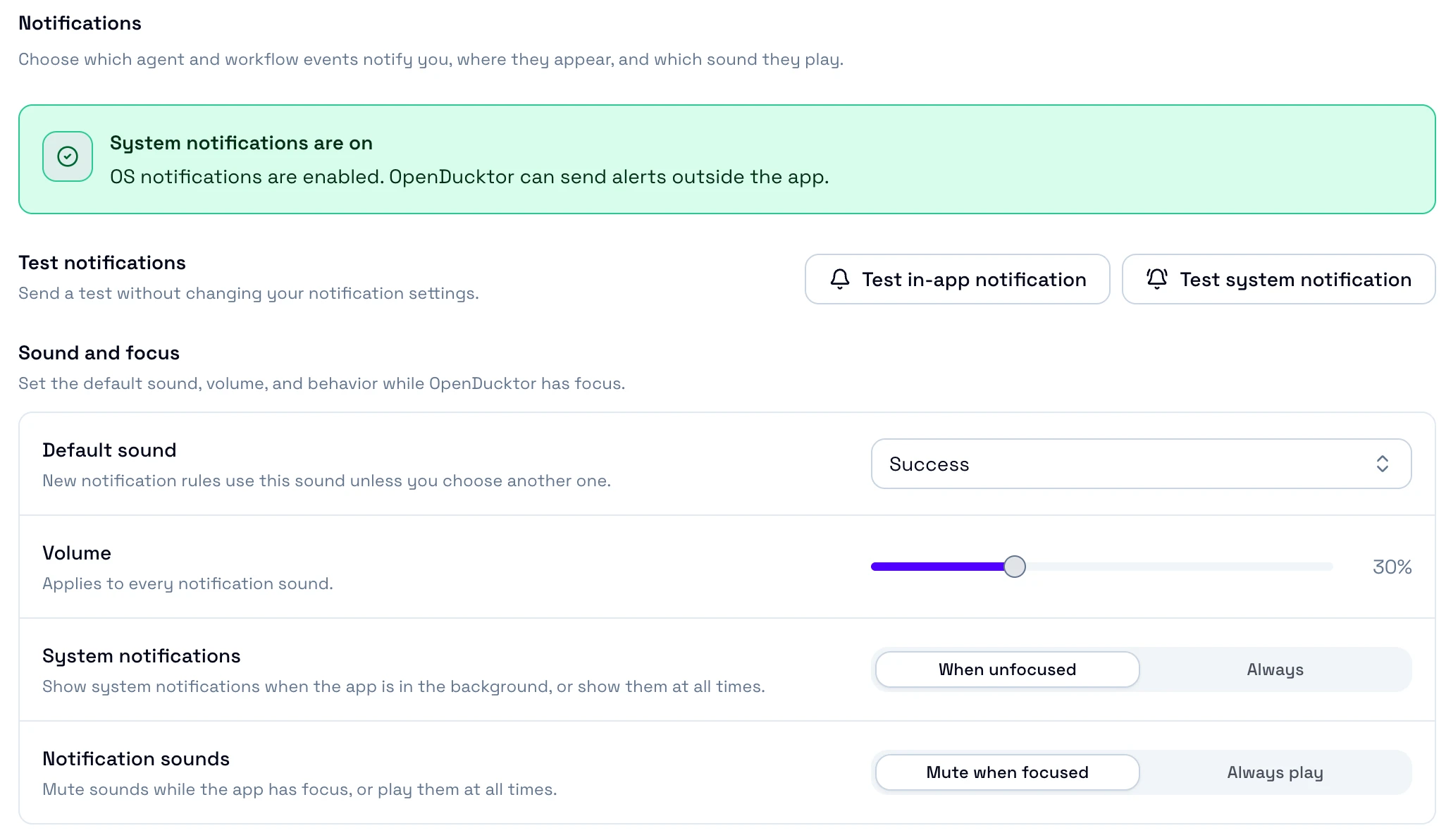
OpenDucktor notifies you when an agent needs you, fails, or moves a task. A notification shows in OpenDucktor, from your operating system, or both.
Turn on notifications
- Open Settings, then Notifications.
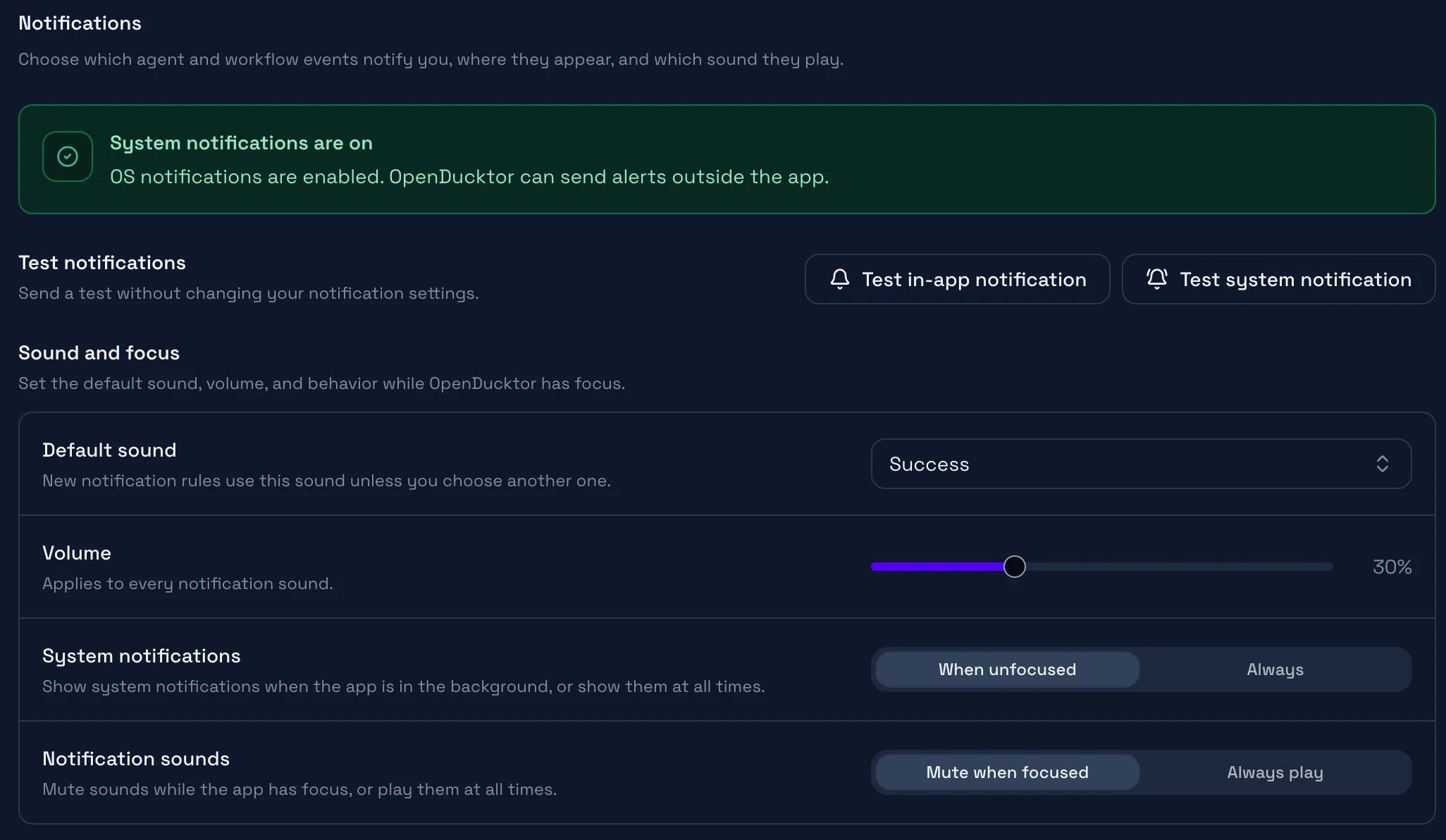
- Turn on system notifications for your platform. See System permission.
- Select Test in-app notification and Test system notification. A test message shows in the corner of OpenDucktor, and one shows from your operating system.
System permission
The section shows Turn on system notifications. In step 3, select Test system notification, then select Allow in the macOS request. If the section shows System notifications are off, select Open system settings and turn on notifications for OpenDucktor.
Where notifications show
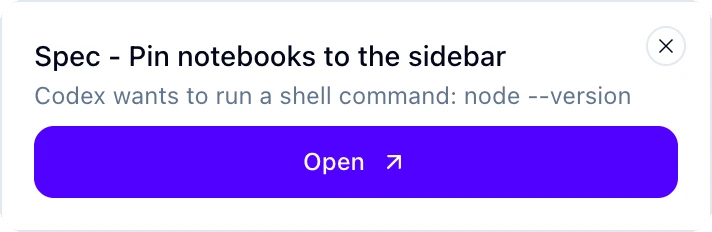
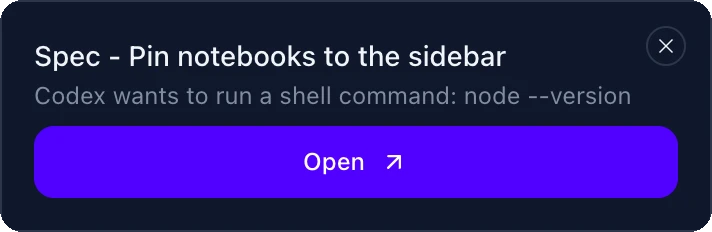
Each event uses one Delivery: In-app, System, or Both. An in-app message shows in the corner of OpenDucktor for 10 seconds. Select Open to go to the session or task.
By default, system notifications show only when OpenDucktor does not have focus (When unfocused). Sounds do not play while OpenDucktor has focus (Mute when focused). To change this, set System notifications to Always and Notification sounds to Always play.
Choose the events
Each event has a rule. Turn on its Enabled switch, then choose its Delivery and its Sound.
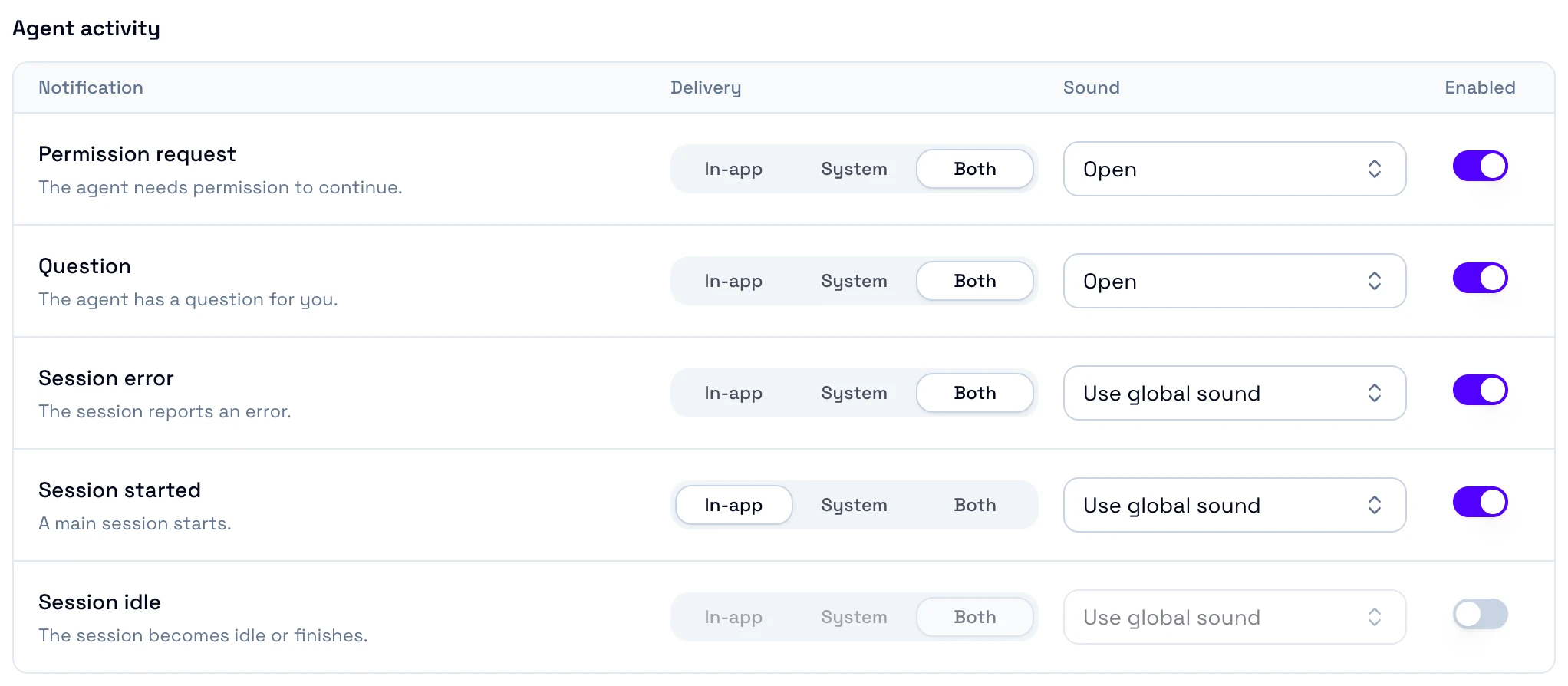
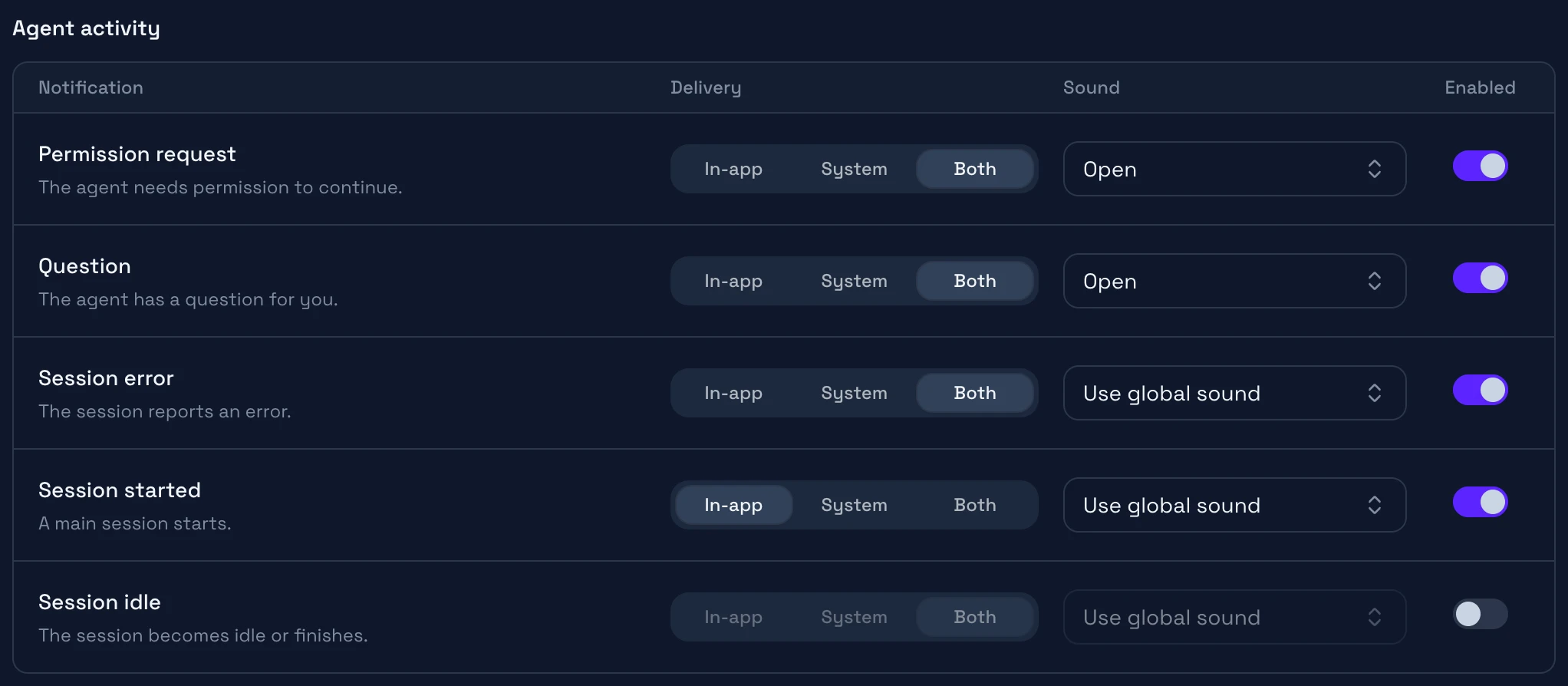
| Event | When it shows | Default |
|---|---|---|
| Permission request | An agent asks for a permission. | Both, Open sound |
| Question | An agent asks you a question. | Both, Open sound |
| Session error | A session fails. | Both |
| Session started | A main session starts. | In-app |
| Session idle | The agent finishes its turn and waits for you. | Off (Both when you turn it on) |
| Spec Ready, Ready for Dev, In Progress, AI Review, Human Review | A task moves to this lane of Spec, Plan, Build. Each workflow declares its own lane events. | Both |
| Task Blocked | The Builder blocks a task. | Both, Open sound |
| Task Closed | A task moves to Done. | In-app |
| Task not closed | The pull request of a task merged, but OpenDucktor could not close the task. See Approve a task. | Both |
Keep Permission request and Question on, because the agent waits until you reply.
A rule with no sound in the table uses Use global sound. It plays the Default sound, which is Success at 30% volume until you change it.